Holds & Sales
On this page
Holds and sales record the commercial life of a work in WrkLst — from reserving a piece for a client, through turning that reservation into a sale, to the invoice and the payments on it. This article describes WrkLst 10.
Before you start
You need a work in your inventory and a contact for the client. See Creating New Artwork and Create a New Contact.
Place a hold on a work
Open the action menu on the work you want to reserve — its own button on a card and in a list row alike. Alongside Offer, Lead, Sell, Gift, Ship, Exhibit, Consign and Present, you will find Hold. Gift opens the sale form with the type already set to Gift. Offer is there once offers are switched on under Settings › General Account.
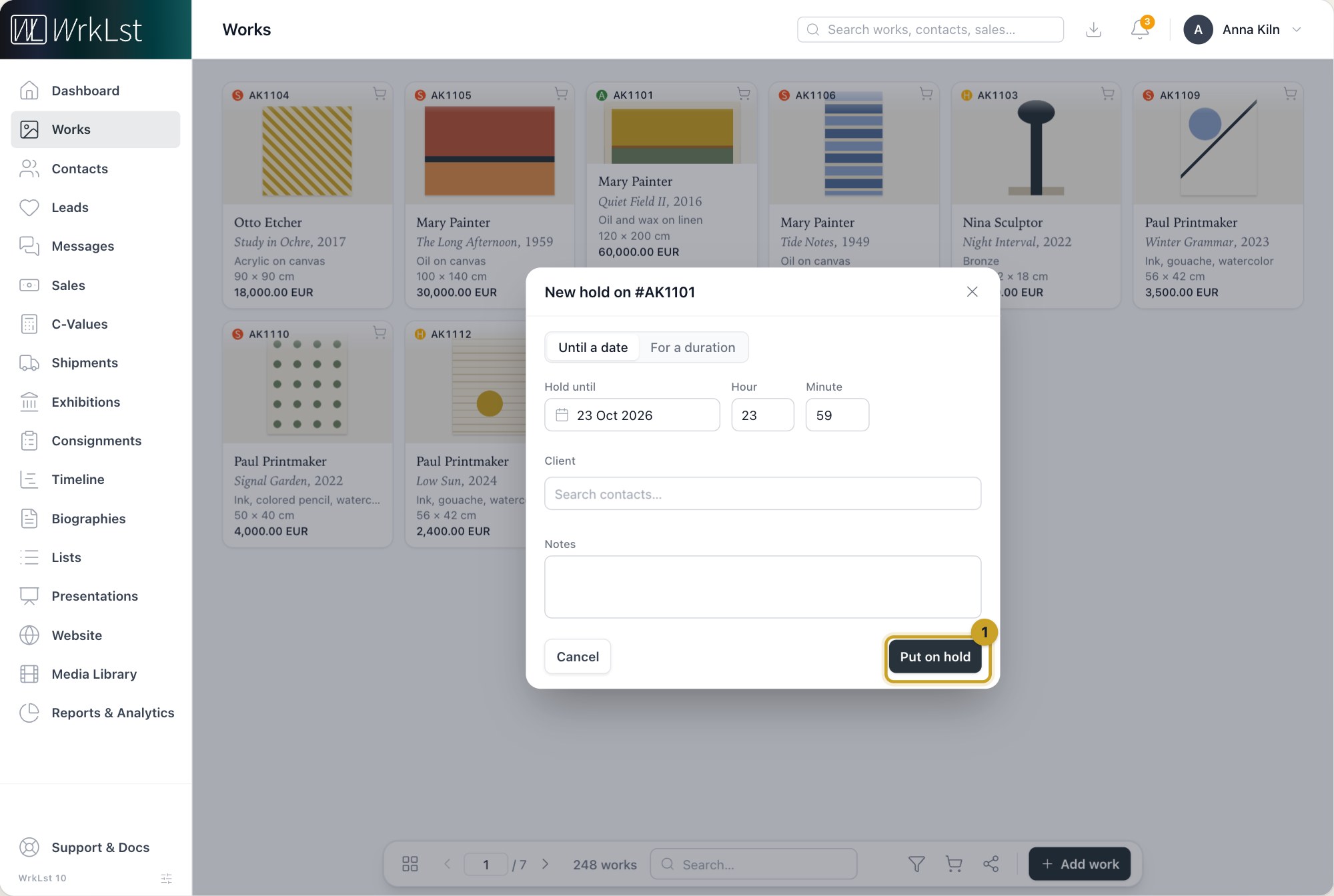
The hold dialog: 1 Put on hold
- Choose Hold. A dialog opens for that inventory number.
- Set how long the hold runs: Until a date with an hour and minute, or For a duration in minutes, hours or days. A two-hour reservation at a fair works the same way as a hold that runs for weeks. When the time is up, the hold shows as expired, but the work stays on hold until you release it or turn it into a sale; under Settings › Notifications › Holds WrkLst can remind you three days before and when it expires.
- Choose the Facilitator — you, unless you place the hold for a colleague — and the Client, add Notes your colleagues will see, then press Hold.
The work is marked as held in the inventory, so anyone browsing available works can tell at a glance that it is spoken for. The ⋯ beside Hold (Hold in the sale form) opens the full sale form instead, where a hold can also be Indefinite. You can also pick several works in the basket and choose Hold, Sell or Offer: the new record opens with those works already on it, with prices, captions and sizes filled in; Lead instead records one lead with all of those works. You can also start an offer, a hold or a sale from a lead: the person and the works are filled in, and the record shows the lead it came from in its Leads section — see From a lead to an offer, a hold or a sale.
Edit, release or convert a hold
Once a work is on hold, its hold is one click away — as long as the hold is for that one work and you are its facilitator or may see all sales. On a work's card, click the hold sign where the card shows the work's availability; in a list row or on the work itself, click the timer button in its bar. On a phone, the bar of a card or an open work has a button that says On hold instead; on a work that is available, the same place has Sell, which offers Hold, Sell and Gift. The menu says On hold for …, until when and Held by …, and offers the actions below, together with Lead and, where your account offers them, Email and New campaign. The work's action menu has the same choices. After Edit hold, saving or cancelling brings you back to where you opened it — your basket, for example.
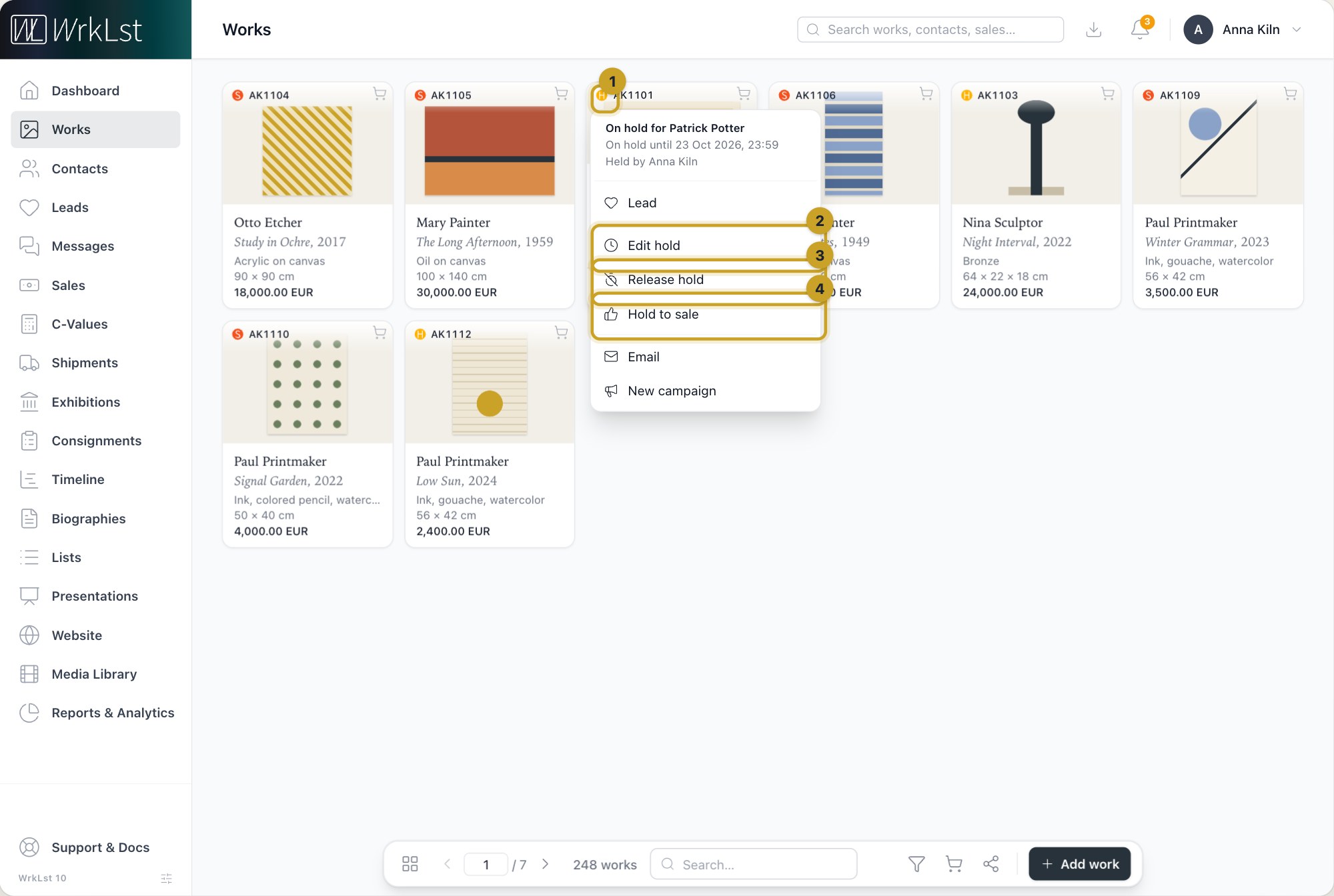
The hold menu on a work's card: 1 Hold sign · 2 Edit hold · 3 Release hold · 4 Hold to sale
- Edit hold — change the deadline, the client or the notes. The form opens with what a hold is about: when it ends, Extend and Release, the Facilitator and the Client it is held for, then the options and the Notes. How it was executed, Invoiceable and the other parties are at the end of the form.
- Release hold — return the work to available without recording a transaction. Use this when a client passes.
- Release only this work and Release the whole hold — shown instead of Release hold when the hold covers several works. The first splits the hold: this work is taken out and becomes available, the others stay reserved, and the release is kept on record as a released hold of its own for that one work; the second releases the hold and makes all its works available again.
- Hold to sale — carry the reservation straight through into a sale. Check the Sale date, the Client and the Notes and press Promote to sale; the work, its price, the client and the hold's facilitator carry over. The new sale is Not paid until you record a payment with Record payment.
A hold on several works, such as one made from the basket, is changed in the hold itself: open it under Sales, choose Edit sale, and set the Type to Sale — or, under Hold, tick Release, or Extend to give it a new end time.
Record the sale
A sale records who bought what, when, and on what terms. You set the Type — Offer, Hold, Sale, Donation, Gift or Cancelled — the Sale date and the Facilitator, the colleague responsible for the deal. Executed through says whether the sale was made in-house, by an external seller or by an external gallery; the options Museum sale, Through auction and Confidential describe the shape of the transaction. Under Parties you choose the Client and, where there is one, the Consultant; with a consultant on the sale, Bill to says which of the two receives the invoice. On a museum sale the two fields read Museum and Curator, and a sale executed externally names its External seller or External gallery here too. If you run more than one space, the sale also says which Location it belongs to.
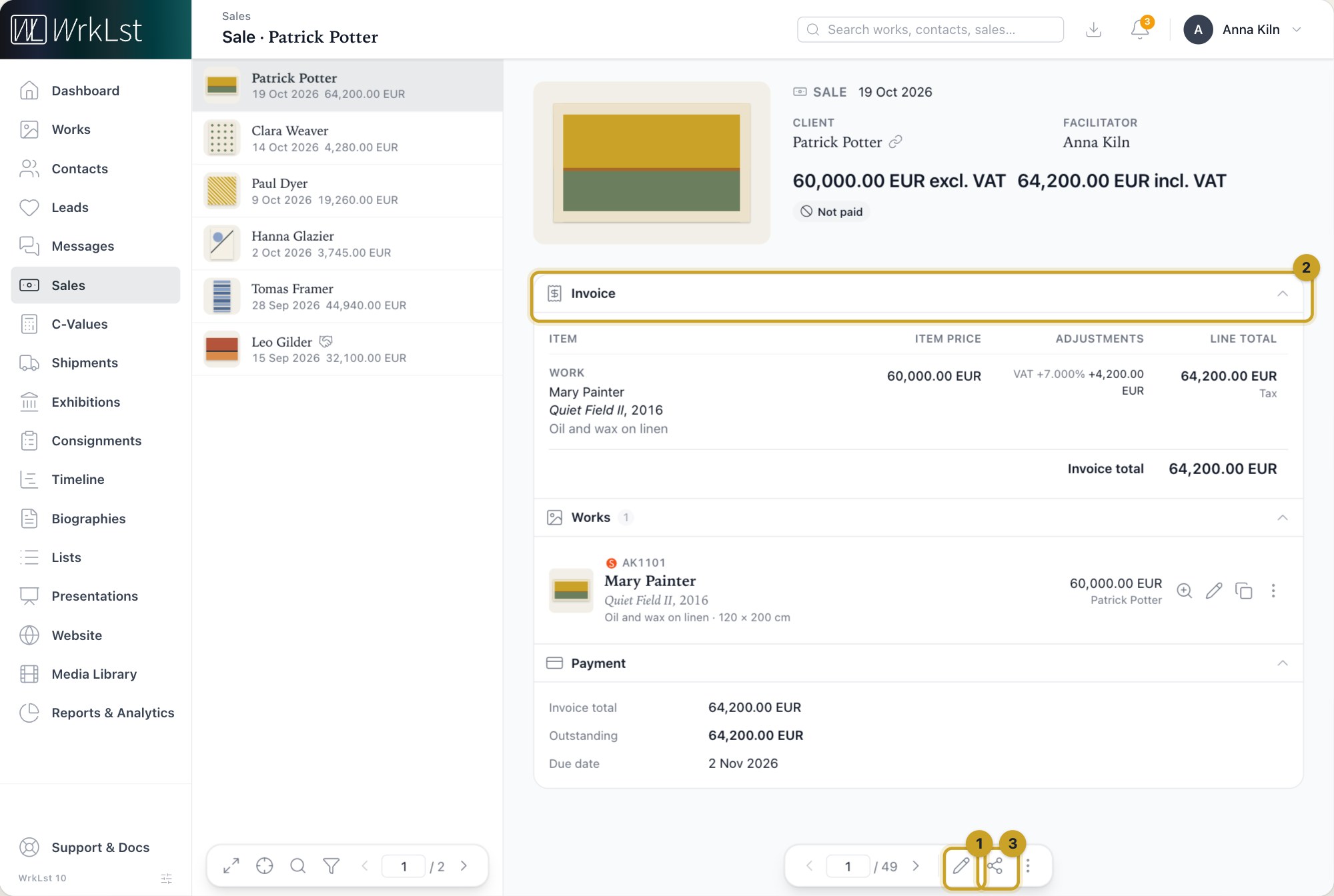
A sale, with its bar at the bottom: 1 Edit sale · 2 Invoice · 3 Share as
For each work you record the Price and Currency, any Discount as a percentage or a fixed amount, Additional costs with your own label for things such as framing, and the Tax rate and label. The Item text on your paperwork is pre-filled from the work record and can be edited for that sale. Shipping is billed on the same invoice under Bill shipments, anything else under Other items.
Under Invoice in the form you set how the invoice is priced and addressed:
- Discount & tax — General gives the whole invoice one discount and one tax rate; Itemized lets every work carry its own, and Discount all works (%) then gives them all the same discount in one go. Prices says whether the prices you enter are Including tax or Excluding tax.
- Invoice no. — type it, or tick Assign number to take the next number from the counter under Settings › Invoicing when you save. Resale no. and VAT ID no. go on the paperwork too.
- Invoice address and Shipping address — Fill from address… copies in one of the client's saved addresses. Under the invoice address you see its country: when you save, WrkLst reads it from the address — or takes the country of your headquarters when the address names none — and you can pick another. Sales by country under Reports & Analytics counts the sale for this country. Save to contact adds a typed address to the contact: the invoice address to the contact the invoice goes to, as their billing address, the shipping address to the client, as their shipping address. The button — a person with a plus, named when you point at it — sits at the right end of the address and only appears when the contact does not already have that address. At the top of the window you see whether the contact has no address yet, or open Addresses saved for … to compare with the ones they have; then check how WrkLst split the typed address into Company, Street, City, ZIP / postal code and Country, then click Add address. The sale itself stays as it is. On the sale's page, the Invoice section shows both addresses, the Resale no. and the VAT ID no. at the top, with Save to contact at the right of each address.
- Invoice currency — a work priced in another currency is converted at its Exchange rate.
- Terms — write them, or pick one of the invoice terms kept under Settings › Invoicing with Term template.
Under Payment information, a new sale's Payment due date starts from the default number of days set under Settings › Invoicing. A sale that is Invoiceable carries prices, an invoice and payments; switch it to Record only for a transaction you only want to keep on record — nothing is invoiced and nothing is owed. Further down the form, Provenance writes a provenance line — sale, auction, gift or donation, with title and date — onto the works; Other contacts adds further people with their role; and Documents, Link shipments, Consignments and Tags connect the sale to everything around it.
The invoice is laid out line by line, with every discount, tax and currency conversion shown. The total and the payment status sit at the top, and the Payment section below shows what has been received and what is still Outstanding — so you can see whether a sale is paid without opening the PDF. The pictures at the top of the sale open the artwork full screen with its whole caption.
Payments and payment links
On a sold work the action menu offers Record payment (for a sale of that one work; a sale of several works takes its payment in the sale form under Payment information): set the Payment status — Paid in full, Payments pending or Not paid — the Last payment date and Payment notes, and press Save payment. Money that arrives on your bank account or through Stripe, Shopify or QuickBooks is matched to the sale under Sales → Payments; see Payments.
In the sale form you can Provide credit card payment link via Stripe or via Shopify, optionally with a credit card fee — it starts at the Default credit card fee in % under Settings › Invoicing and can be changed per sale — or let the client pay the invoice in QuickBooks. The Payment link on the sale is for your client — do not open it yourself. Send it from the sale, or let the invoice carry it: the invoice document's Payment link element prints it with a QR code — see Invoices. When a sale goes to QuickBooks you can pick the Income account it posts to, so a primary sale and a resale need not land in the same place.
If your account is connected to QuickBooks or Lexware Office, a sale shows Create in QuickBooks — choose the Income account it posts to — or Create in Lexware Office, where you may be asked for the Tax treatment. Once the invoice is there, the button becomes In QuickBooks or In Lexware Office and opens it; see Email and accounting connections.
Under Settings › Notifications, Sale payment past due tells you On past due and 1 week after past due, and Sale paid in full when a sale is marked as paid; Holds reminds you before a hold runs out. If your account does not track payments at all, an administrator can tick Disable payment information under Settings › Invoicing: payment status, due dates and Record payment then disappear everywhere.
After the sale
Because sales are linked to both works and contacts, the transaction appears on the work's record and on the client's contact record. The Sales list shows sales as cards or as a table, sorted by client, invoice number, date or when they were last changed. The price on each card and row is without sales tax; the sale itself shows the total with tax. Searching matches the titles of the artworks on a sale as well as their inventory numbers, the artist, the client and the invoice number. The Filter narrows the list by:
- Type — by default Sales & donations; choose Hold for every current hold, and tick Show released holds to see released ones too — and Payment, where Past due finds late payments.
- Shipping — Has a shipment or No shipment, so you find the sales that have no shipment yet.
- Client, consultant or external seller, Artist, Facilitator, Executed through, Year and Quarter, the Location of the works, Notes and Tags.
- Exclude — Museum sales, Auction sales, Record-only sales or Sales through a consultant.
Share these sales in the toolbar turns everything the filter matches into one document from one of your templates — a sales list for your accountant, for example; it arrives in your Downloads. Delete sale in a sale's ⋯ removes only the sale record, never the works; for seven days it can be restored under Settings › Toolbox. A sale that already has issued invoice documents cannot be deleted.
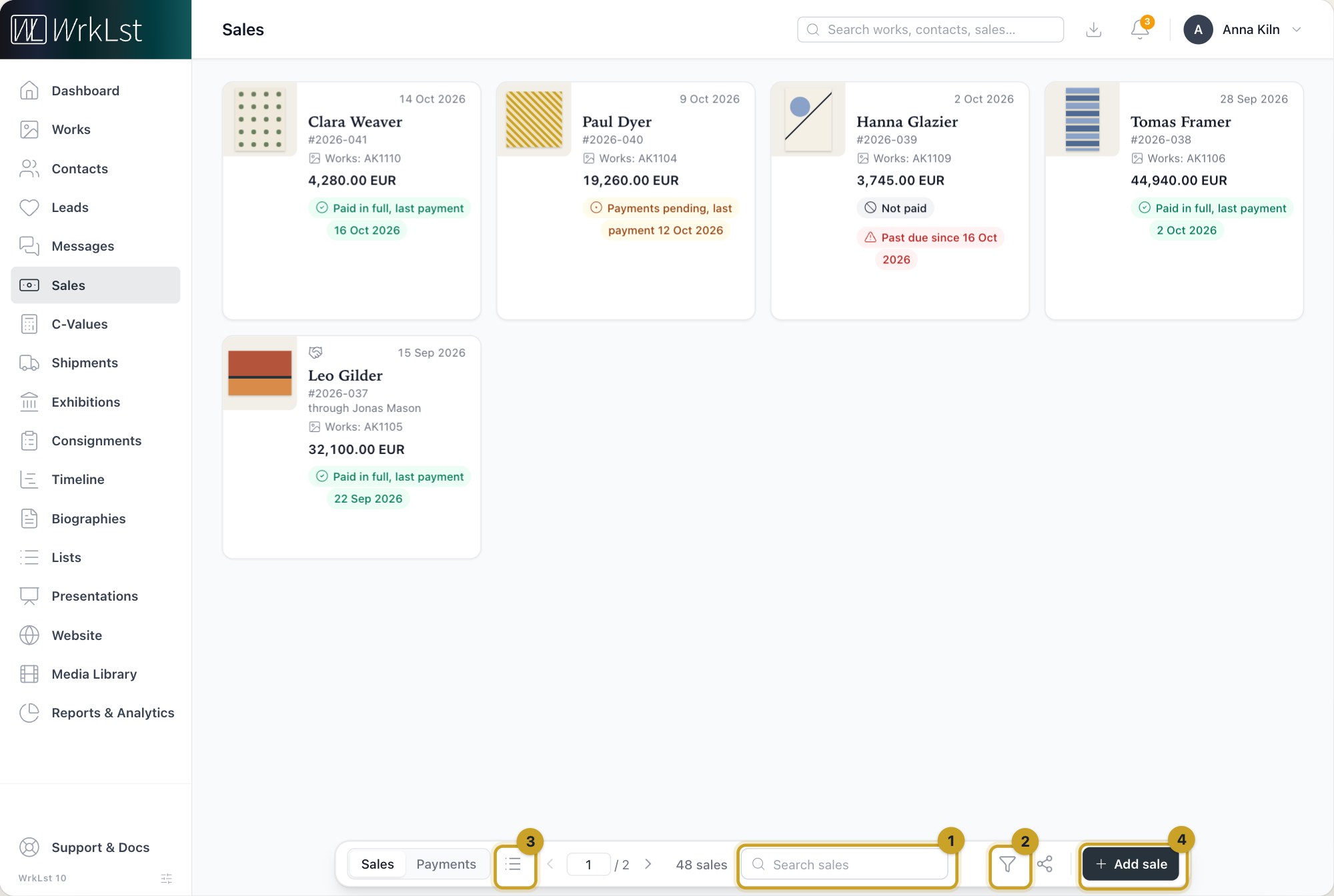
The sales list: 1 Search sales · 2 Filter · 3 Show as table · 4 Add sale
Invoices and paperwork
Choose Share as on a sale, pick a template and the PDF or Word document downloads on your own letterhead; see Document templates: PDFs, Word and Excel on your own letterhead. If your bookkeeping needs numbered, locked invoices, e-invoices or a DATEV export, see Invoices: numbered invoices, e-invoices and DATEV export.
Still using WrkLst Classic? This topic in the Classic documentation: Holds & Sales