WrkLst 10 for developers
API tokens
Everything that connects to an account with a key starts here. Tokens are created by anyone whose role has the right API Tokens; the Administrator role has it.
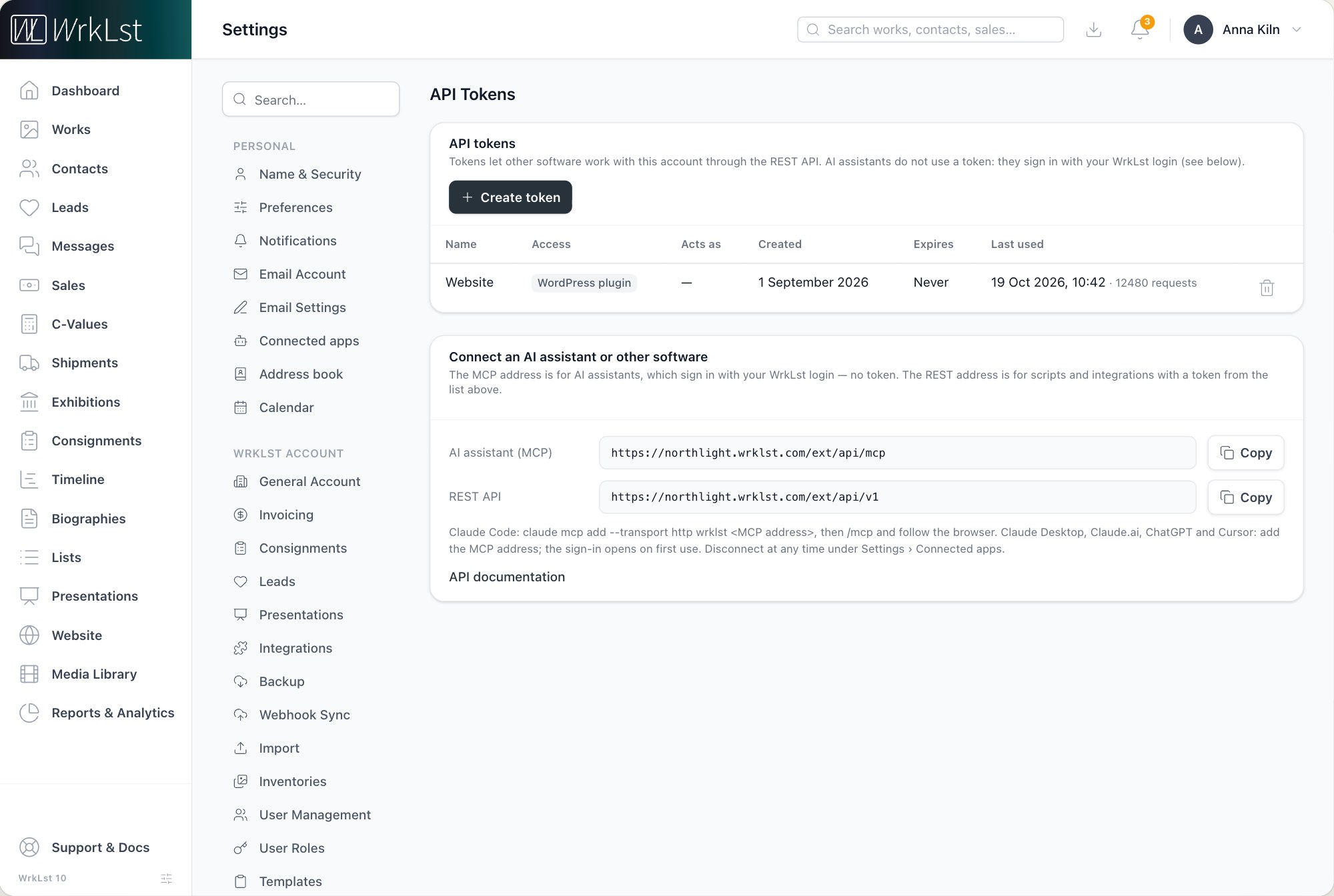
- In WrkLst 10, open Settings › API Tokens and choose Create token.
- Give it a name and choose its access: Read reads every module and changes nothing, Read & write reads, creates and changes but never deletes, WordPress plugin reaches the website only.
- Copy the token now. It is shown this once; afterwards only its name remains.
REST API
The REST API reads and writes works, contacts, exhibitions, media, sales, lists, shipments, consignments and leads, and searches and lists records. The reference for every endpoint is in the account: Settings › API Tokens › API documentation. Requests go to the account's own address, under /ext/api/v1, with the token as a Bearer header.
export WRKLST_TOKEN="…the token you copied…"

curl -H "Authorization: Bearer $WRKLST_TOKEN" \
  "https://<your-account>.wrklst.com/ext/api/v1/contacts"
A lead created through the API arrives in Leads like any other enquiry. A Read token can never change anything, whatever the request.
Full article: WordPress Plugin and REST APIWordPress plugin
For a site on WordPress, the plugin pulls works and exhibitions straight from the account, with captions, alt texts, installation shots and press releases, and never prices or anything confidential. It needs a token with the access WordPress plugin, pasted into WrkLst Settings in WordPress. The plugin is open source.
git clone https://github.com/wrklst/wrklst-plugin.gitAI assistants (MCP)
An assistant that speaks the Model Context Protocol, Claude, ChatGPT, Cursor and others, can search, read and change the records of a WrkLst 10 account. It signs in with the user's own WrkLst login and works with exactly their permissions; no token is involved, and a token does not open this door.
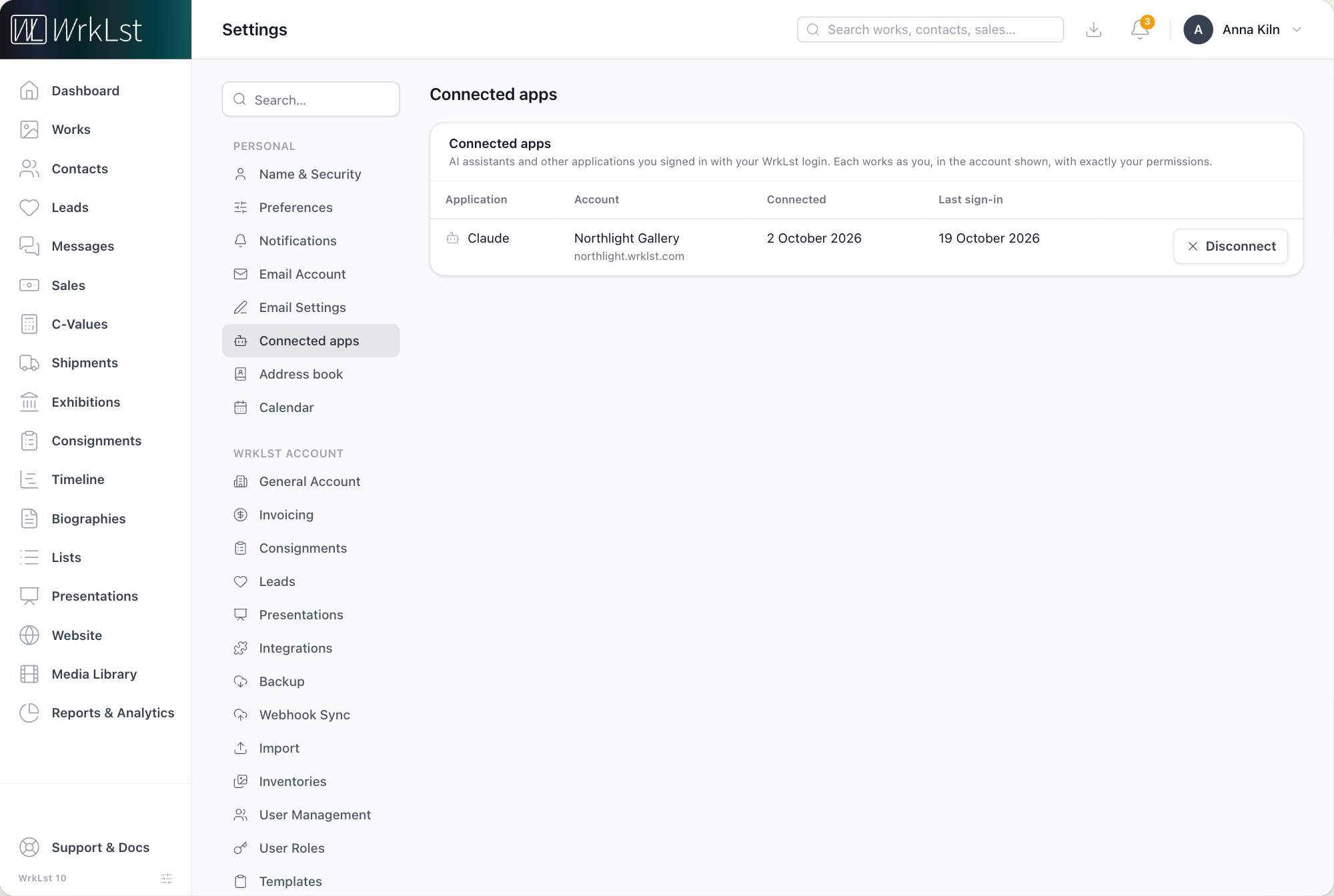
- Open Settings › API Tokens. Under Connect an AI assistant or other software, copy the account's AI assistant (MCP) address.
- Add the address to the assistant. Claude Desktop, Claude.ai, ChatGPT and Cursor take it as the server address and open the WrkLst login.
- Whether a user may connect one is the role right AI assistant access (MCP) under Settings › User Roles. A connected assistant is listed, and disconnected, under My Profile › Connected apps.
claude mcp add --transport http wrklst <the account's MCP address>{
"mcpServers": {
"wrklst": {
"url": "<the account's MCP address>"
}
}
}Integrations
The connections an account makes without a line of code, each with its own article:
- WordPress Plugin and REST APIYou do not have to replace your website. WrkLst feeds the one you already have, through the free WordPress plugin or a direct connection for your developer — both set up under Settings in WrkLst 10.
- AI assistants: work with WrkLst from Claude, ChatGPT or CursorAn AI assistant that supports MCP — Claude, ChatGPT, Cursor and others — can search, read and change the records in your WrkLst 10 account for you. It signs in with your WrkLst login and works as you, with exactly your permissions, until you disconnect it.
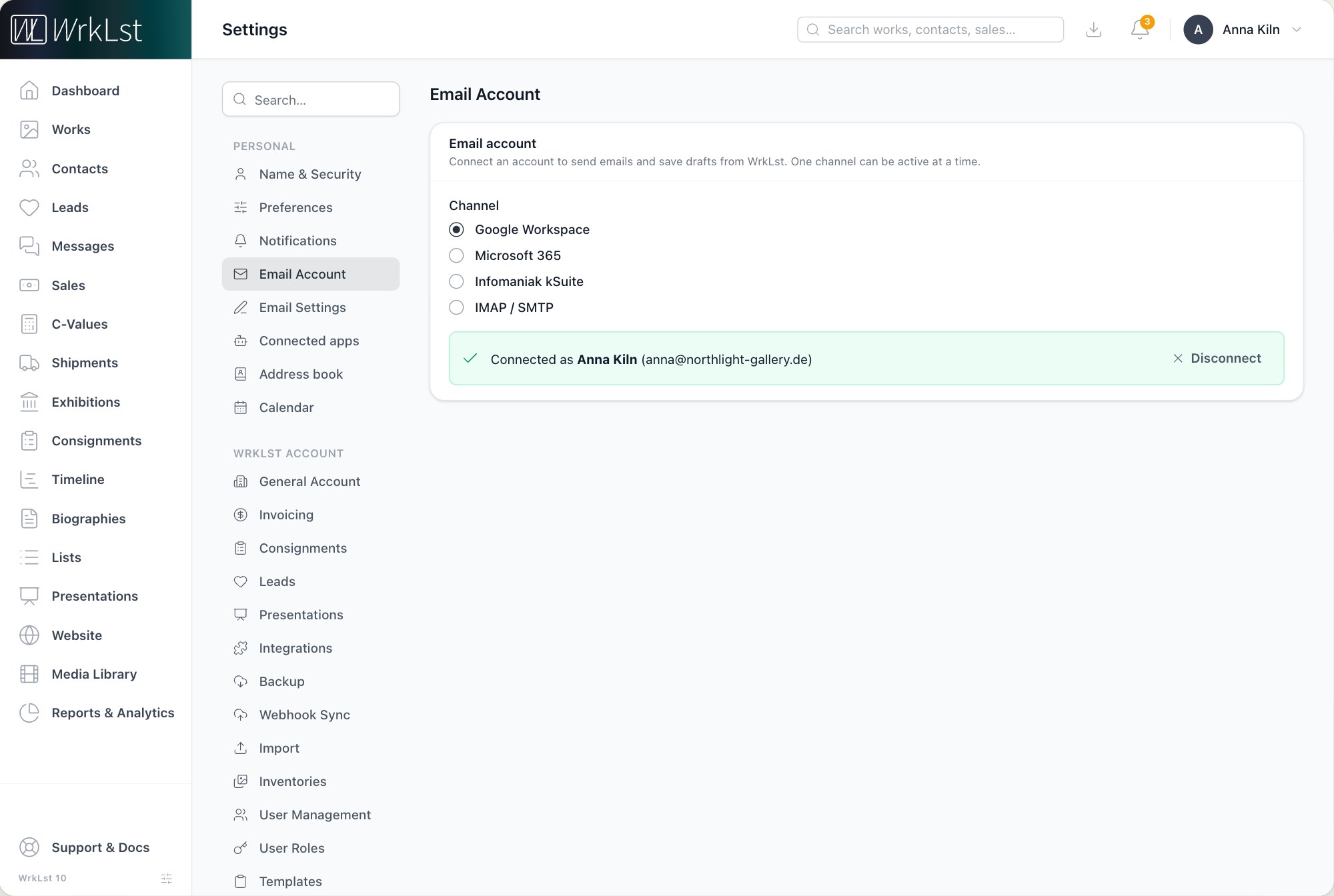 Email and accounting connections: Google Workspace, Microsoft 365, QuickBooks, Stripe and ShopifyWrkLst 10 sends mail through your own mail account and works with the bookkeeping and payment services you already use. This article shows where each connection is set up and what it does.
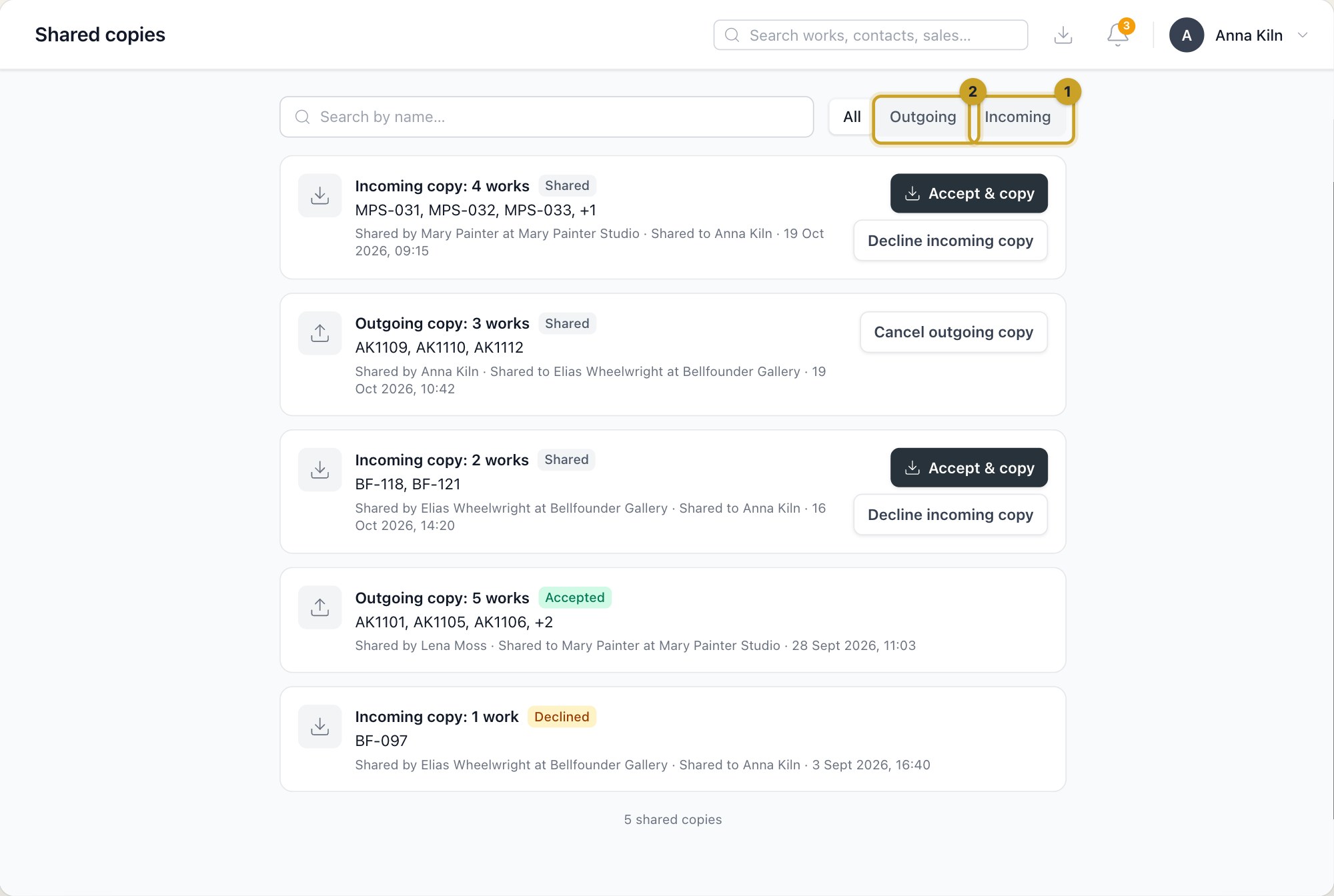 Shared copies: copy works between WrkLst accountsA shared copy moves works from one WrkLst account into another — into a second account of your own, or to an artist, gallery or collector who keeps their own WrkLst. The receiving account decides what to accept. This article describes shared copies in WrkLst 10.
This documentation by machine
Everything on this site is readable without a browser: each article as Markdown, the whole documentation in one file, a JSON API, and an MCP server an assistant can call to answer questions about WrkLst. All of it is public, read-only and needs no key.
Articles as Markdown
Add .md to any article's address, or ask for it with an Accept header. The response is the article's source Markdown with its title, description and canonical URL on top.
curl https://support.wrklst.art/works/creating-new-artwork.md

curl -H "Accept: text/markdown" https://support.wrklst.art/works/creating-new-artwork
llms.txt
/llms.txt is the index for language models: what the documentation is, and every article by category with its Markdown link, in English and German. /llms-full.txt is the whole text in one file; add ?locale=de for German.
curl https://support.wrklst.art/llms.txt

curl https://support.wrklst.art/llms-full.txt?locale=de
JSON API
Two endpoints, CORS open, for showing an article in your own interface. Search takes q, an optional locale (en or de) and limit (up to 25).
curl "https://support.wrklst.art/api/v1/search?q=consignment+expiry&locale=en"{
"data": [
{
"title": "Consignments",
"description": "Track incoming, outgoing and third-party consignments…",
"excerpt": "…the expiry date reminds you in time…",
"url": "https://support.wrklst.art/consignments/consignments",
"path": "/consignments/consignments",
"locale": "en",
"category": { "slug": "consignments", "name": "Consignments" }
}
]
}An article comes with its rendered HTML, its Markdown, and the paths of its translations. Media and links in the HTML are absolute.
curl https://support.wrklst.art/api/v1/articles/en/works/creating-new-artwork{
"data": {
"title": "Creating New Artwork",
"description": "How to add a work to WrkLst…",
"html": "<p><strong>How to add a work…</strong></p>…",
"markdown": "**How to add a work…**\n\n## The order to do things in…",
"url": "https://support.wrklst.art/works/creating-new-artwork",
"path": "/works/creating-new-artwork",
"locale": "en",
"updatedAt": "2026-10-21T12:05:23+00:00",
"category": { "slug": "works", "name": "Works", "url": "https://support.wrklst.art/works" },
"translations": { "de": "/de/works/neues-werk-anlegen" }
}
}MCP server
The documentation speaks the Model Context Protocol over HTTP at https://support.wrklst.art/mcp, so an assistant can search it and read articles in full while it answers. Three tools: search-docs (query, locale, limit), get-article (the path a search returned) and list-categories (locale). Public and rate-limited; no authentication. This is not the MCP server of an account, which works on its records and needs a login.
claude mcp add --transport http wrklst-docs https://support.wrklst.art/mcp{
"mcpServers": {
"wrklst-docs": {
"url": "https://support.wrklst.art/mcp"
}
}
}Or talk to it directly:
curl -X POST https://support.wrklst.art/mcp \
  -H "Content-Type: application/json" \
  -H "Accept: application/json, text/event-stream" \
  -d '{"jsonrpc":"2.0","id":1,"method":"tools/call","params":{"name":"search-docs","arguments":{"query":"consignment expiry","locale":"en"}}}'