Email and accounting connections: Google Workspace, Microsoft 365, QuickBooks, Stripe and Shopify
On this page
WrkLst 10 sends mail through your own mail account and works with the bookkeeping and payment services you already use. This article shows where each connection is set up and what it does.
Your mail account
Messages and campaigns go out from your own address. Each user connects their own account under Settings → Email Account; one channel is active at a time:
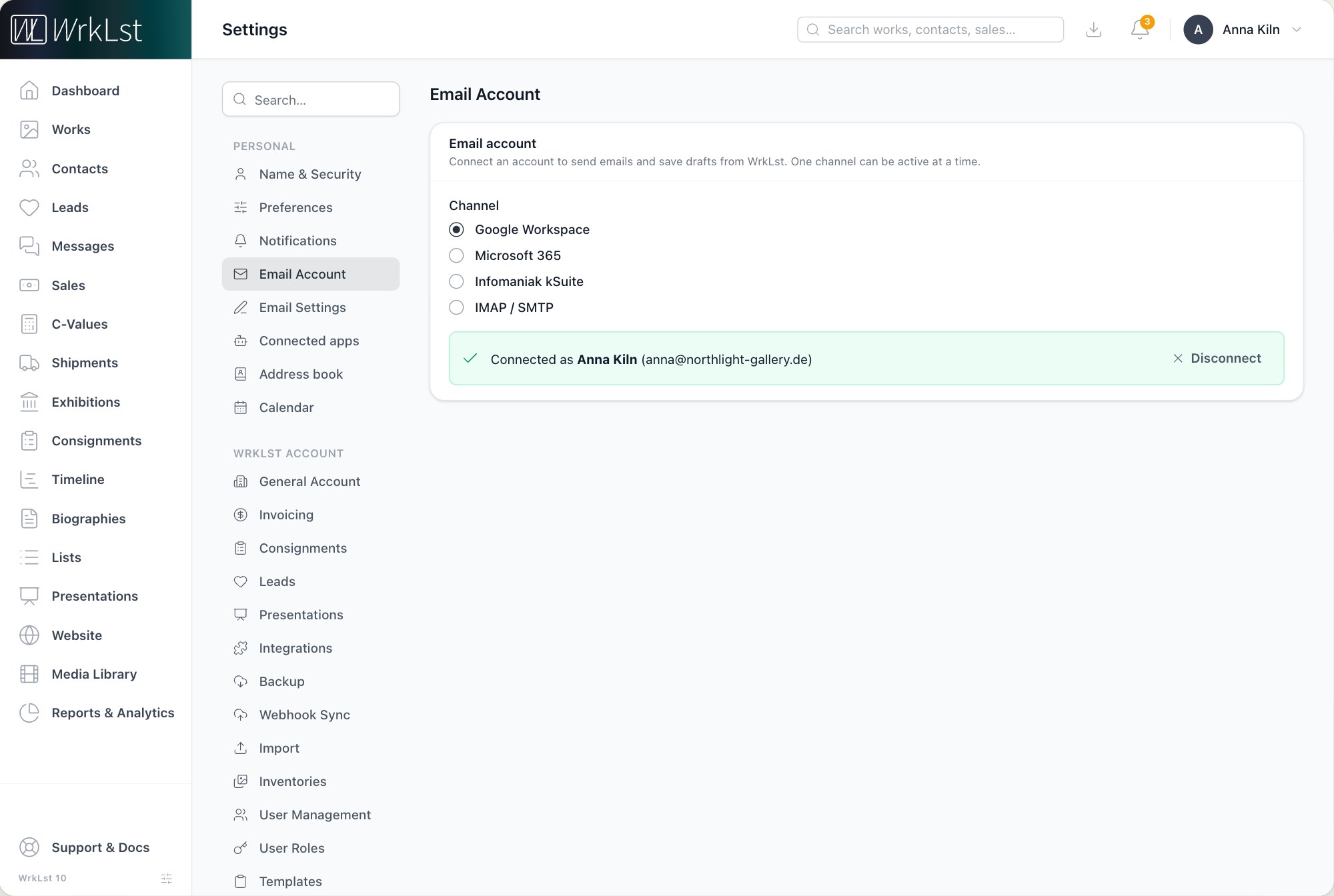
Settings → Email Account.
- Google Workspace — Connect Google account and sign in at Google.
- Microsoft 365 — Connect Microsoft 365 account and sign in at Microsoft.
- Infomaniak kSuite — connect your mailbox with an application password, not your main password.
- IMAP / SMTP — any standard mail account: SMTP for sending, IMAP for drafts and for reading your mailbox. The drafts folder is found automatically; Test connection checks the details before Save & activate.
With a connected account WrkLst can send, place drafts in your mail program and, on a contact's record, look in your mailbox for the mail you exchanged with that person. If your account can send but has no mailbox to read, add an IMAP server under Email Account. Your signature, templates and defaults for new mail are under Settings → Email Settings.
When Google or Microsoft asks what WrkLst may do, allow everything it asks for. If a permission is left out, WrkLst can't keep its own copy of a tracked message free of the open pixel, so such messages record downloads but no opens; a warning under the connection in Settings → Email Account says so, and connecting the account again restores it. See Messages.
When a connection stops working
When your Google, Microsoft or QuickBooks connection stops working, WrkLst tells you straight away with a banner and offers Reconnect — no disconnecting and reconnecting by hand. Short outages at the provider do not end a connection.
Bookkeeping: QuickBooks Online and Lexware Office
Both are under Settings → Integrations.
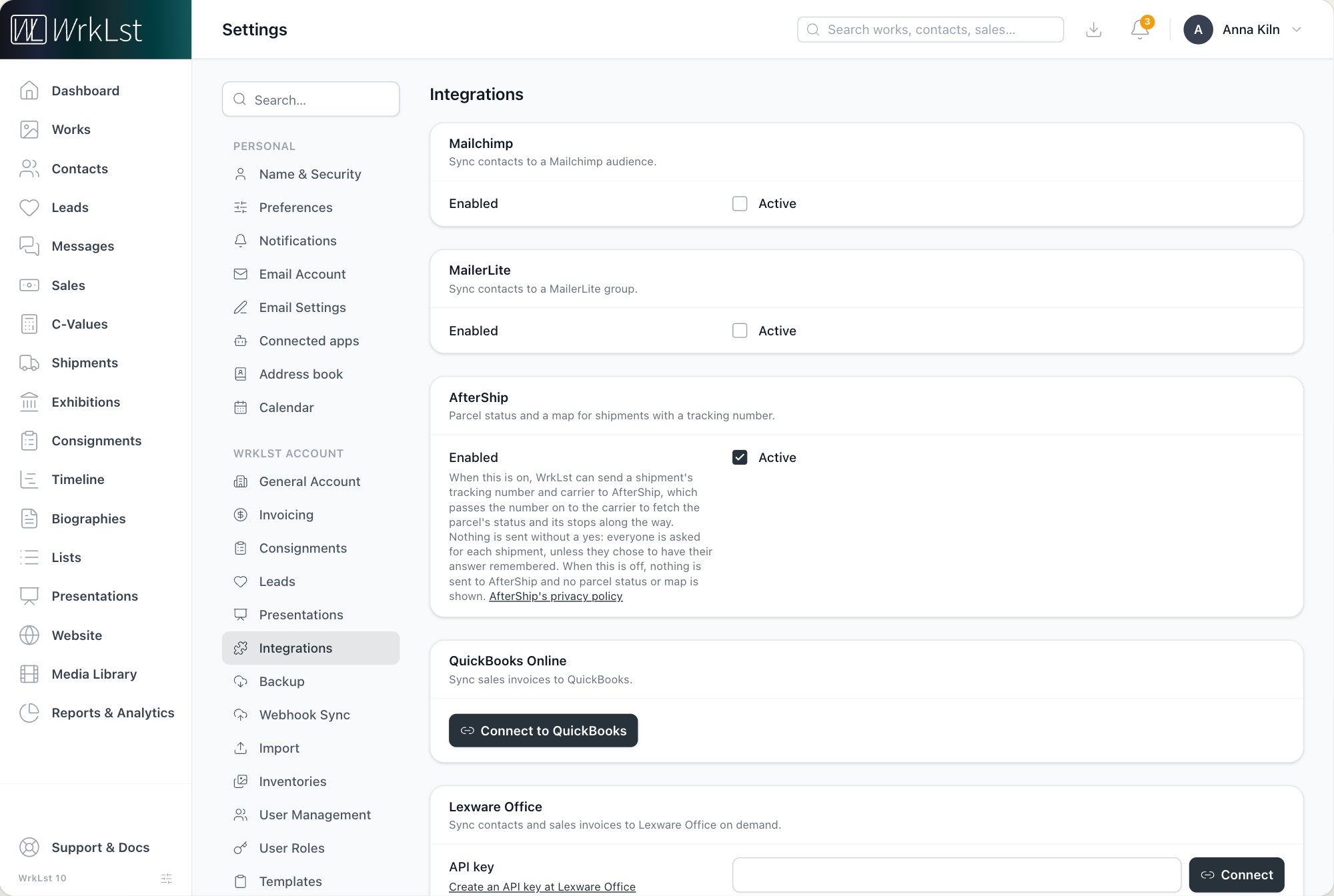
Settings → Integrations.
- QuickBooks Online — Connect to QuickBooks and sign in there. Sales invoices are sent to QuickBooks at the click of a button. Set the Default income account; on each sale you can pick a different income account, so a primary sale and a resale need not land in the same place. Connect another QuickBooks company adds a second set of books — for a gallery with two spaces, each company is ticked for the locations whose invoices go into it.
- Lexware Office — connect with an API key created at Lexware Office. Contacts and sales invoices are synced on demand. On a contact's record, Add to Lexware Office creates the contact there, and Link an existing one searches your Lexware Office contacts by name or email and links one instead of creating a duplicate; the link can be undone with Unlink from Lexware Office.
Online payments: Stripe, Shopify and QuickBooks
Under Online payments on the same page, choose the Payment gateway behind the Payment link on your sales. You send the link to your client from the sale, and the invoice document can print it too, with a QR code — see Invoices:
- Stripe — general-purpose online payments. Connect with Stripe signs you in at Stripe and allows WrkLst; nothing to copy, the webhook is set up for you. API keys are the alternative: three values from your Stripe dashboard and a webhook you register yourself.
- Shopify — preferred if you run a Shopify webshop: enter the Shop URL, the Admin API access token and the API secret key. The pay link opens a Shopify checkout.
- QuickBooks — clients pay the invoice QuickBooks holds, and the payment appears in your books. Needs QuickBooks Payments on your QuickBooks company, which is available in the US.
- Do not offer online payment switches the pay link off.
A card payment through Stripe or Shopify is written into WrkLst and marks the sale as paid. Incoming payments from Stripe, Shopify, QuickBooks and your bank arrive in one stream under Sales → Payments, matched to invoices and sales — Stripe, Shopify and QuickBooks are read every hour, bank accounts at 04:00 and 10:00. On a sale without invoice bookkeeping, a booked payment also adds a line to the sale's Payment notes, in your account's language; the accounts are managed there too. If you use Stripe and bank in the US, link a checking or savings account under Sales → Payments → Accounts and Stripe reads new transactions every day — Stripe charges about $0.30 per linked account per month, WrkLst adds nothing, and this needs your Stripe secret key. Payments are available to administrators and to roles granted them under Settings → User Roles.
Shipment tracking: AfterShip
The AfterShip card on the Integrations page gives shipments with a tracking number a parcel status and a map. It is on by default. Even then nothing is sent without a yes: before a shipment's tracking number and carrier go to AfterShip, WrkLst asks Check this tracking number with AfterShip?, and Remember my choice stops it asking. Each user sets their answer under Shipment tracking in their Preferences: Ask me for each shipment, Always, without asking or Never, without asking. Switched off here, nothing is sent to AfterShip and no parcel status or map is shown.
Mailing lists
The Integrations page also connects Mailchimp (sync contacts to an audience) and MailerLite (sync contacts to a group), so a contact can be subscribed or unsubscribed from their record.