Lists
On this page
Lists are saved selections of works or contacts. Build a selection once in WrkLst 10 and reuse it wherever it is needed: for documents, exhibitions, consignments, presentations and mailings.
What a list is
A list is a saved selection. You build it once — with filter, search or the basket — and then reuse it wherever it is needed: to generate documents, to create an exhibition or consignment, to build a presentation, or to address a mailing. A list can hold works or contacts; a mailing list of collectors and a checklist of works behave the same way.
Creating and editing a list
- Open Lists and choose Add list. If you work with both works and contacts, pick Works list or Contacts list first.
- Give the list a name, a Category (an existing one or New category…) and a Visibility: Private, Shared or Shared, locked.
- Add works or contacts. The search finds records as you type. Drag entries to reorder them, or choose an Order: Custom order, inventory number or year for a list of works, name for a list of contacts.
- Click Add for a new list or Save changes for an existing one. A new list then opens on its own page; after editing, you return to where you opened the list.
Only one person edits a list at a time. While a colleague is editing it, the Edit list button says Being edited by someone else, and the form opens read-only with a note naming who is editing; it becomes editable the moment they finish.
From the basket to a list and back
The basket is the quickest way to fill a list. In Works, open the Basket menu and choose Save basket to new list or Save basket to existing list; in Contacts the basket offers Save as a new list and Add to an existing list. For an existing list, the dialog offers a searchable picker of the lists you may change (archived lists are left out) and lets you Add to the list or Replace its contents — Replace empties the list first. A new list from the basket asks only for a name and a visibility. Keep basket is ticked; untick it and the basket is emptied once the list is saved. Either way, the list then opens. Load list into basket works the other way round.
Finding your lists
Browse lists in Grid view or Table view, sort them by name or by when they last changed, and filter by visibility, by what they hold (Contains: Works list or Contacts list), by category and by whether they are archived (Include archived). Archive keeps a list but hides it; Unarchive brings it back. Open a list and the overview stays beside it, so you can step from one list to the next; large lists load their members in pages, so they open immediately.
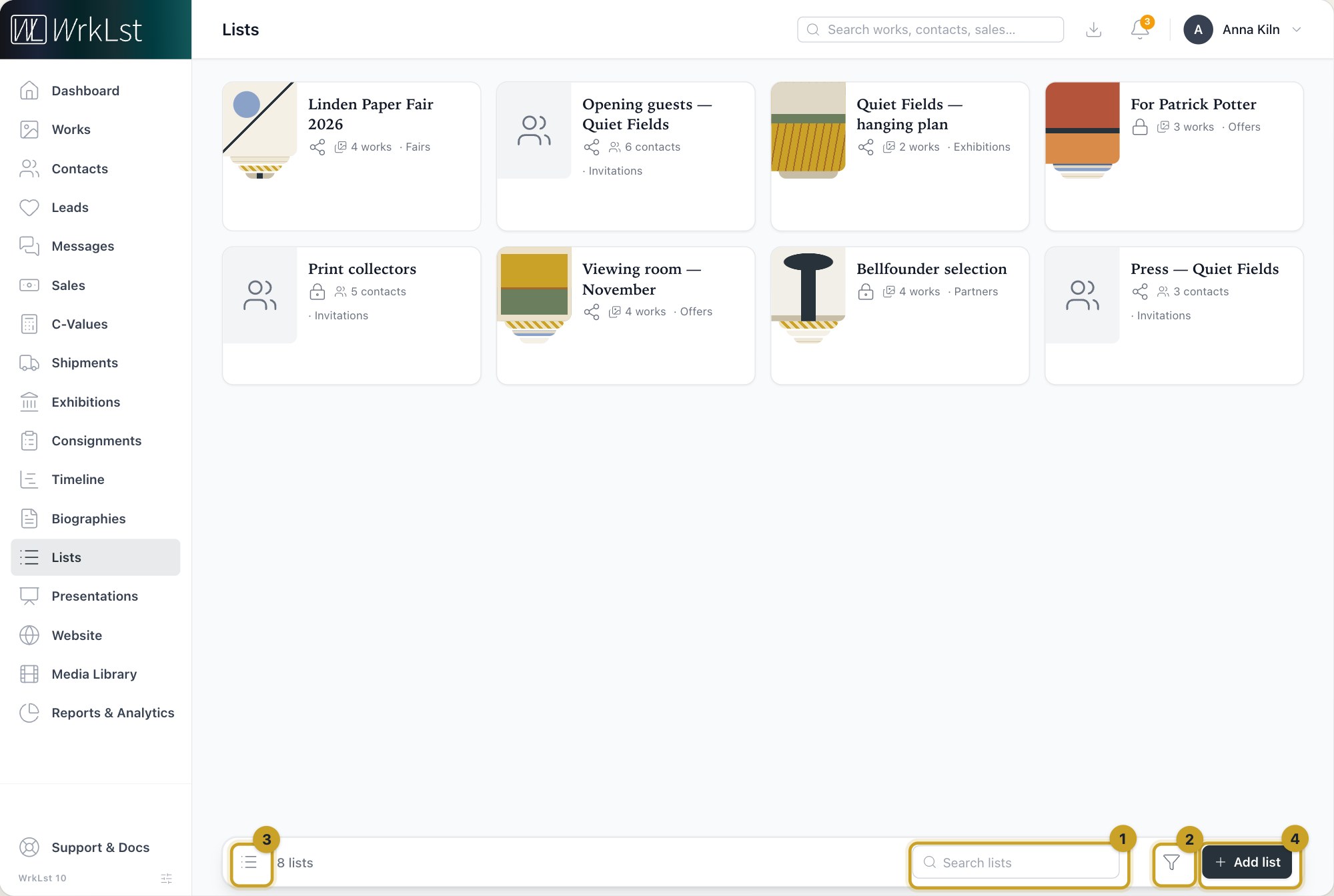
The lists overview: 1 Search lists · 2 Filter · 3 Table view · 4 Add list
Each list shows what it holds: a list of works shows their pictures, as a small pile in the grid, as a stack in the table and as one composite tile in the side panel, and a list of contacts shows the faces of its people. At the top of a list, clicking a picture opens that work full screen.
The works in a list
The works in a list are shown one per line by default, with inventory number, artist, title, details, price and location; a view button in the panel header switches to Card list view or Grid view, and your choice is remembered on this device. Beside it, a sort button steps through Custom order, Inventory number, ascending and Inventory number, descending. It changes only what you see, not the list's saved order. Clicking a work opens it with the other works of the list beside it, so you can step through them without leaving the list.
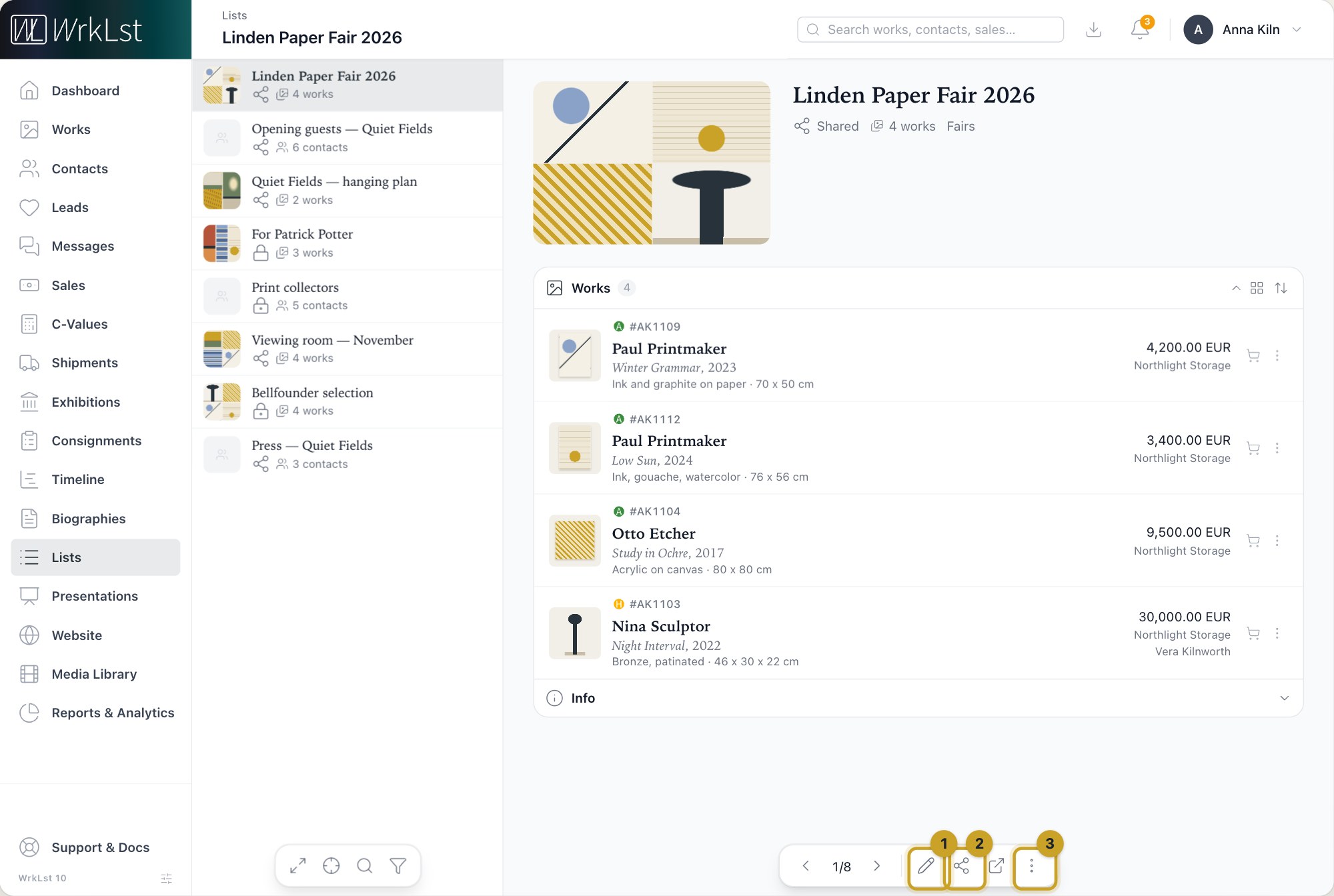
An open list: 1 Edit list · 2 Share / export as · 3 More actions
Using a list
Share / export as generates documents from a list. It is there once your account has a template with the Data source List of Works or List of Contacts and you may share works or contacts. Under Settings → Templates, the gallery adds a ready-made Price list for lists of works and an Address list for lists of contacts in one click, or you build your own. Use list starts work with the list's own works or contacts, in the list's order. Both are buttons in the bar at the bottom of an open list and on each card in Grid view; in Table view, and on a phone or in a narrow window, they sit in the More actions menu.
A list of works offers what Use basket offers in the basket menu, with the same permissions: Offer, Lead, Hold, Sell, Email, New campaign, Ship, Exhibit, Consign and Present. Each starts with the list's works, in the list's order, just as it would with the works in your basket. Each takes at most 500 works: from a longer list the first 500 come along and a notice says so, and Lead is not offered.
A list of contacts offers New campaign: a new campaign opens, named after the list, with the list's contacts as its recipients — each contact's main address, in the list's order. A contact without an email address is left out, and so is a confidential contact whose details are hidden from you; a notice says how many. The recipients are added when you first save the campaign. On a list that holds both works and contacts, New campaign starts one campaign to its contacts, with its works in the letter.
On your phone and computer, lists that hold contacts appear as groups in your synced address book: by default every list you can see, or, as chosen for each device in its app-password settings, only your own lists, only shared lists, only selected lists or none. You can also choose to sync only the contacts on certain lists.
Deleting a list removes only the list; the works or contacts themselves stay. For seven days a deleted list can be brought back from Settings → Toolbox → Recover recent records — see Toolbox: recover deleted records and tidy up.
Still using WrkLst Classic? This topic in the Classic documentation: Lists