My Profile: security, preferences and connected apps
On this page
The Personal group in Settings holds everything that is yours rather than the account's: your name and sign-in security, how works are shown to you, which notifications you get, the mail account you send from, and the apps and devices connected to your login.
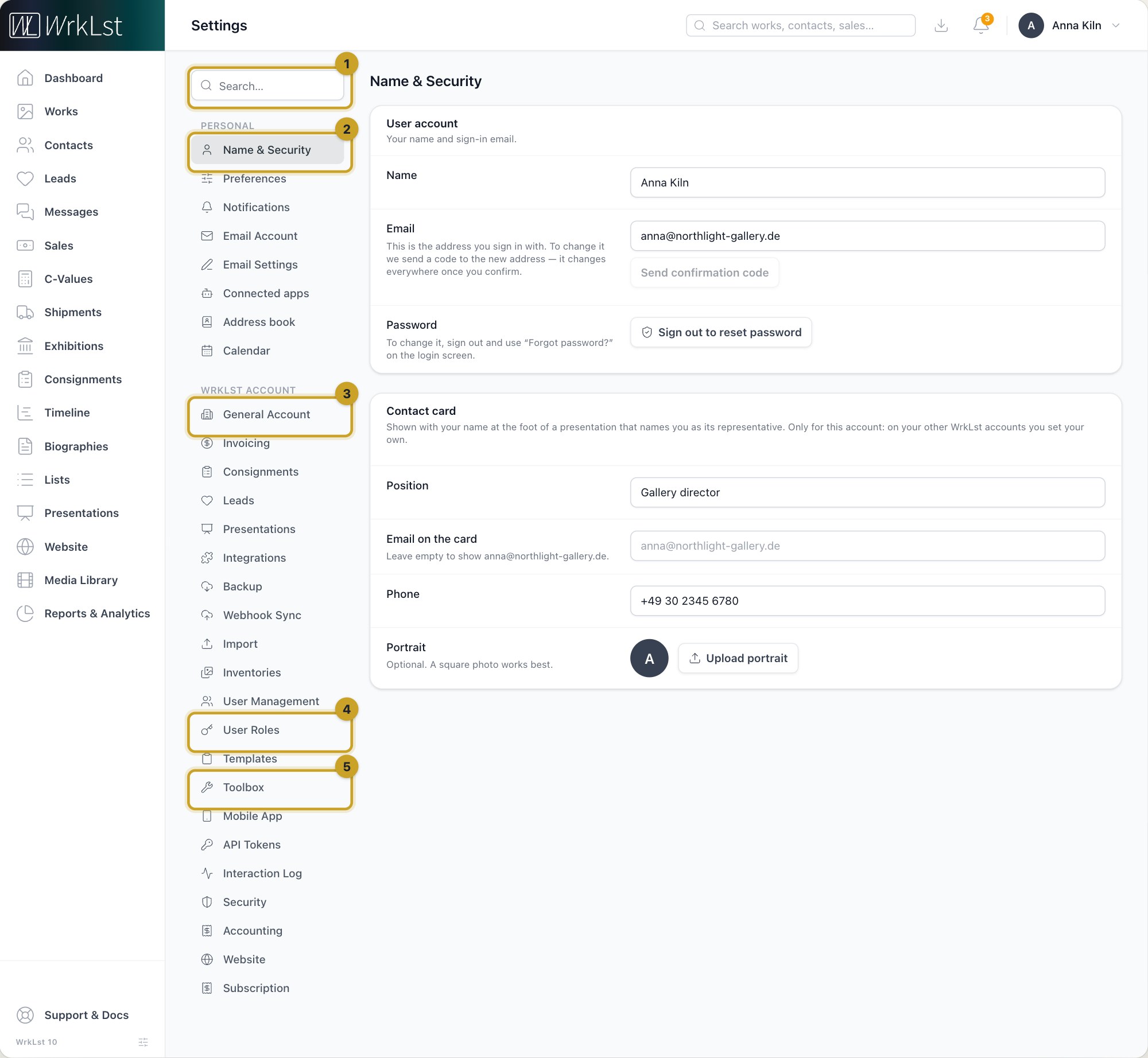
The settings menu: 1 Search settings · 2 Name & Security · 3 General Account · 4 User Roles · 5 Toolbox
Settings has two groups. Personal holds your own settings, each an entry of its own: Name & Security, Preferences, Notifications, Email Account, Email Settings, Connected apps, Address book and Calendar. WrkLst account holds everything that applies to the whole account.
To find a setting quickly, type in the search field above the menu (Search settings): "presentation", "cancel", "VAT" or "password" shrink the menu to the entries that match, and Enter opens the first one. The search knows the words people bring from other software too, in English as well as in your language, and it also finds entries the menu does not list, such as the API Documentation.
Name & Security
Under User account you see your Name and the Email you sign in with. To change the address, WrkLst sends a code to the new one; it changes everywhere, in every WrkLst account you belong to, once you confirm, and only you can change it. The Password is changed from the login screen: Sign out to reset password, then use Forgot password?.
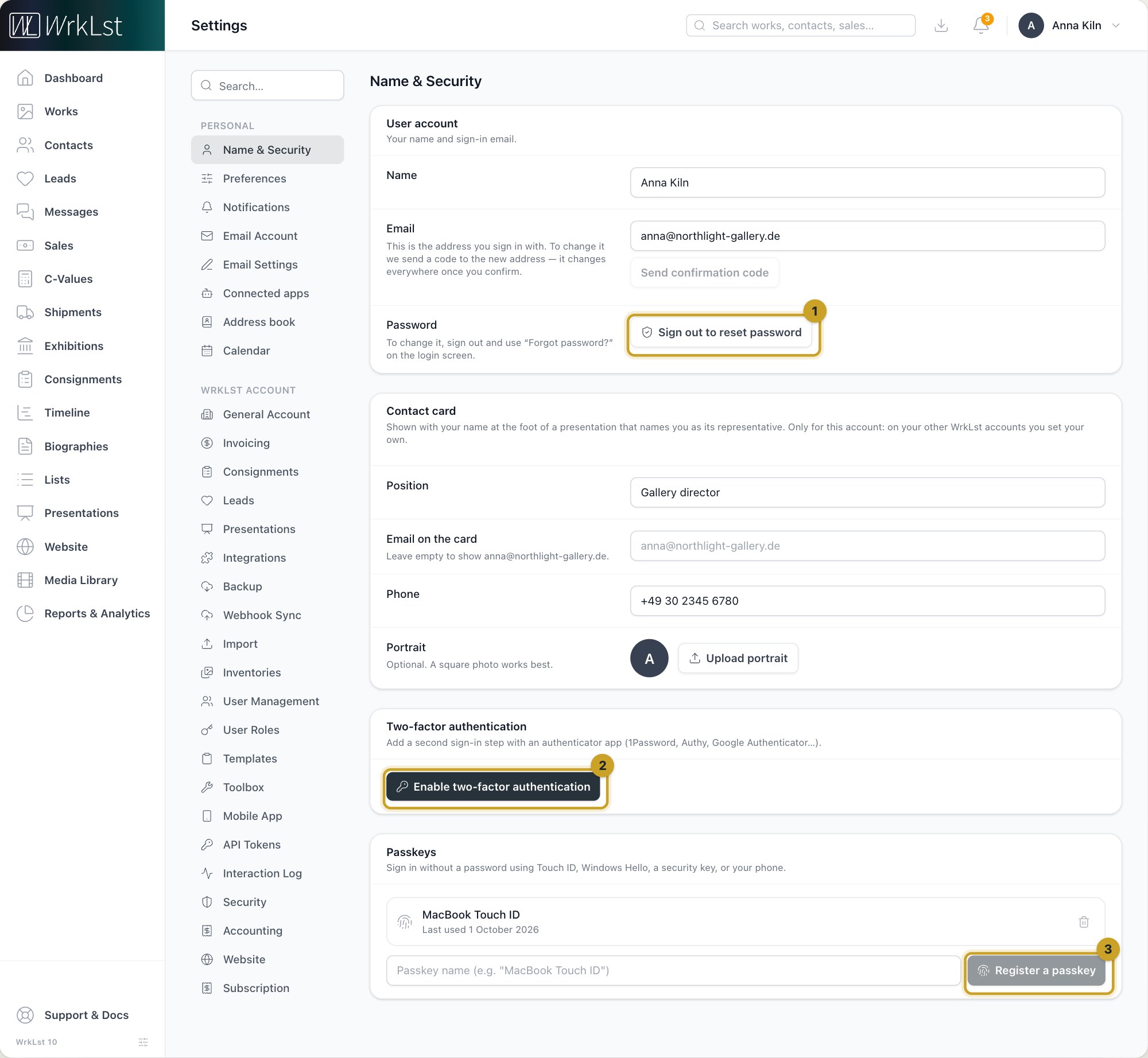
Name & Security: 1 Password · 2 Enable two-factor authentication · 3 Register a passkey
Two-factor authentication adds a second sign-in step with an authenticator app, and Passkeys lets you sign in with Touch ID, Windows Hello, a security key or your phone. Both are explained in Signing in: one login, passkeys and two-factor authentication.
If you belong to more than one WrkLst account, this entry also holds Ask me which account when I sign in, the Account tabs switch and the Account order; see Working in several WrkLst accounts.
Under Contact card you set what a presentation shows with your name when you are its Representative: your Position, the Email on the card (left empty, the card shows the address you sign in with), your Phone and a Portrait, a picture of its own uploaded there, not confidential and not a picture of a work, contact or exhibition. The card is set separately in each WrkLst account, so your position and phone can differ from one account to the next. See A contact card: who presents the page in Presentations.
Preferences
Under Inventory display you choose the Default view when opening an inventory (grid, card list or table) and the Default inventory order, and whether Group editions and Hide group members are on by default; both can still be toggled in the filter. Alternate filter layout applies to WrkLst Classic only. Under Navigation you can have links to other modules always open in a new tab, which is not recommended: ⌘-click does the same when you need it. Under Shipment tracking, Check tracking numbers with AfterShip decides whether WrkLst asks before each shipment's tracking number goes to AfterShip: Ask me for each shipment, Always, without asking or Never, without asking. It appears while AfterShip is switched on for the account.
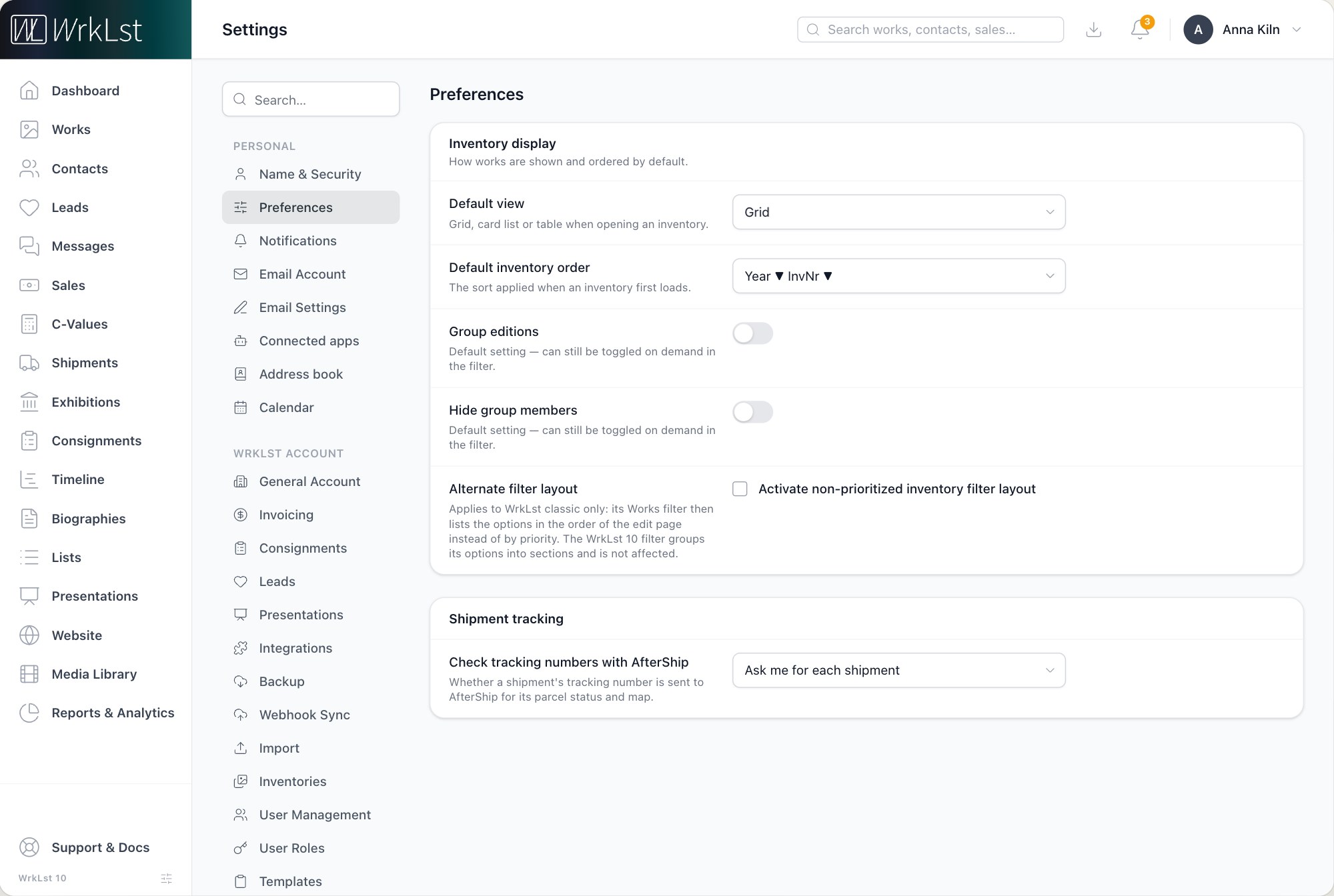
Preferences.
Notifications
Under Channels, Email notifications sends you notifications by email in addition to those inside WrkLst, and Product updates subscribes you to WrkLst feature updates. Notifications are written in your language. Under Notify me about you turn on the categories you care about and choose when to be told: works marked Action Required (a week before due or when due), Holds (three days before expiration or on expiration), a Sale payment past due (on past due or a week after), a Sale paid in full, and Consignments (a week before the end or on the end). If you can see all sales, Holds and the two sale categories can also be limited to your own records (Only mine). New leads sets which new leads you are told about: None, Enquiries from your website and presentations or All new leads — the default, which tells you about every new lead you did not create yourself in WrkLst; a lead you enter in WrkLst yourself never notifies you. New leads and leads assigned to you also come by email, even with Email notifications off, unless you untick Also by email. Check back tells you on the day a contact you set to check back on comes due, and Weekly opportunities tells you every Monday how many people to reach for your next show and how many are due in Stay in touch; it is offered where your account uses Opportunities. Both are on until you untick them. Where a presentation or your website sends each enquiry in full by email (Email each enquiry), that email replaces the short notice email about the new lead for everyone who receives it (the notice still appears in WrkLst): a presentation's enquiry email goes to the person the enquiry is assigned to, the website's to everyone who may see the lead and whose New leads setting includes enquiries from your website. The reminder on a lead's follow-up day and the notice that a lead was assigned to you always reach you; they have no switch.
Email Account
Connect a mail account to send emails and save drafts from WrkLst. The channels are Google Workspace, Microsoft 365, Infomaniak kSuite (with an application password) and IMAP / SMTP; one channel is active at a time. When a Google or Microsoft connection stops working, WrkLst tells you straight away and offers a Reconnect button, and connections survive short outages at the provider. If a Google or Microsoft connection is missing a permission WrkLst needs to keep your own copy of a message untracked, a warning under it says so: your messages then record downloads but no opens until you disconnect, connect again and allow everything the provider asks for. See Email and accounting connections.
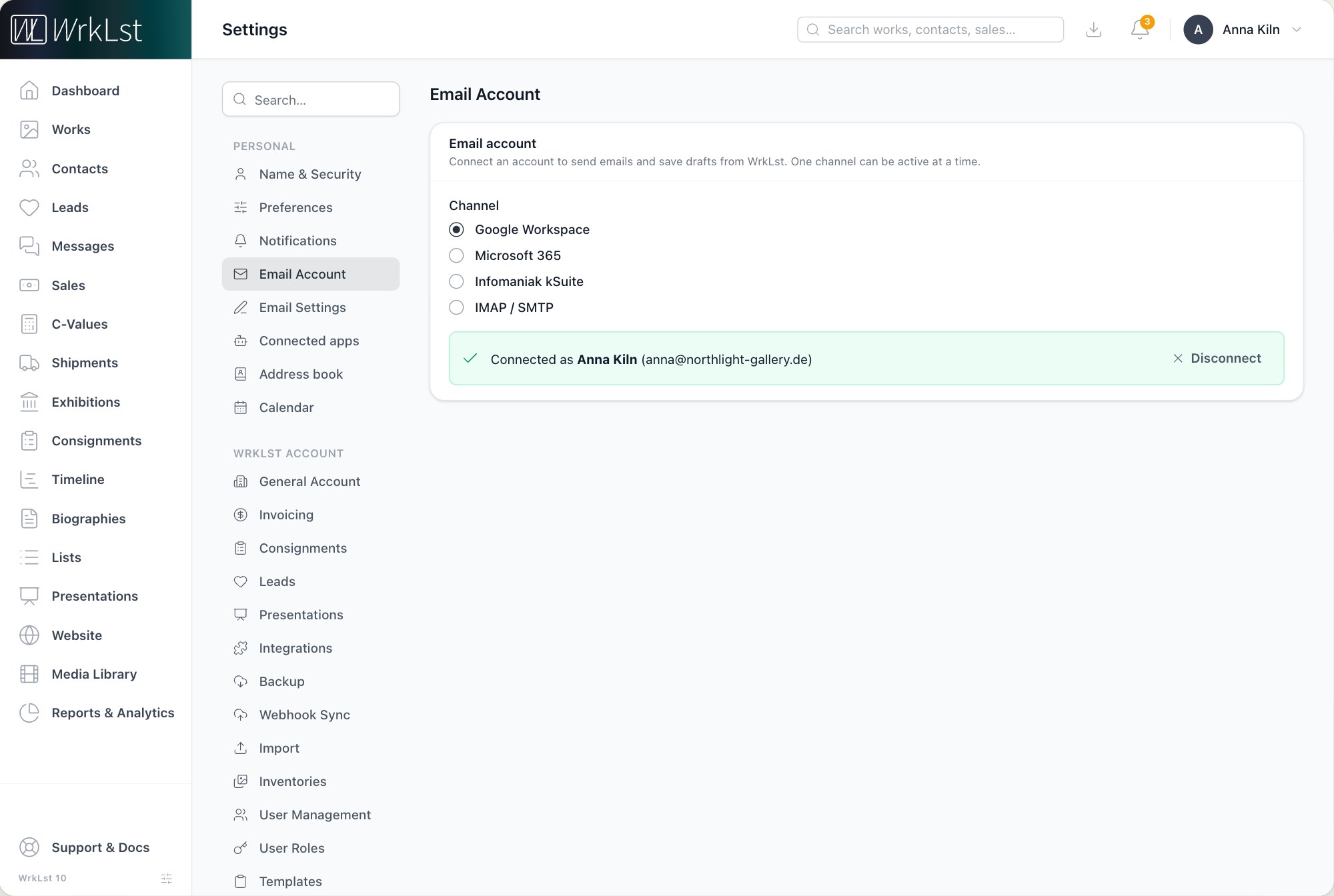
Email Account.
Email Settings
Email defaults are applied to new emails and drafts: whether your Signature is included, whether to Track when a message or one of its documents is opened, the Price in caption, and how Artworks in emails travel (Image, caption underneath, Image with the caption in it or One PDF with the artworks). Unless the artworks go as a PDF, Images in the email draft sets External images or Embedded images; it applies to the email drafts and inbox emails WrkLst prepares for you, not to messages WrkLst sends itself. Below that you write your Signature, in the text editor or as HTML code, choose its Signature placement (Above artworks & attachments or Below artworks & attachments), and keep Email templates, reusable subject and body snippets with placeholders for the recipient's first and last name.
Connected apps
Connected apps lists what is connected to your login: the AI assistants and other applications you signed in with your WrkLst login, each with the account it works in and its last sign-in; Disconnect takes the connection back. Address book and Calendar are separate entries of their own in the settings menu: Address book holds one app password per device that syncs your WrkLst contacts to your phone or computer, and Calendar holds your calendar subscriptions. See AI assistants, Sync your WrkLst contacts to your phone and computer and Calendar feed.
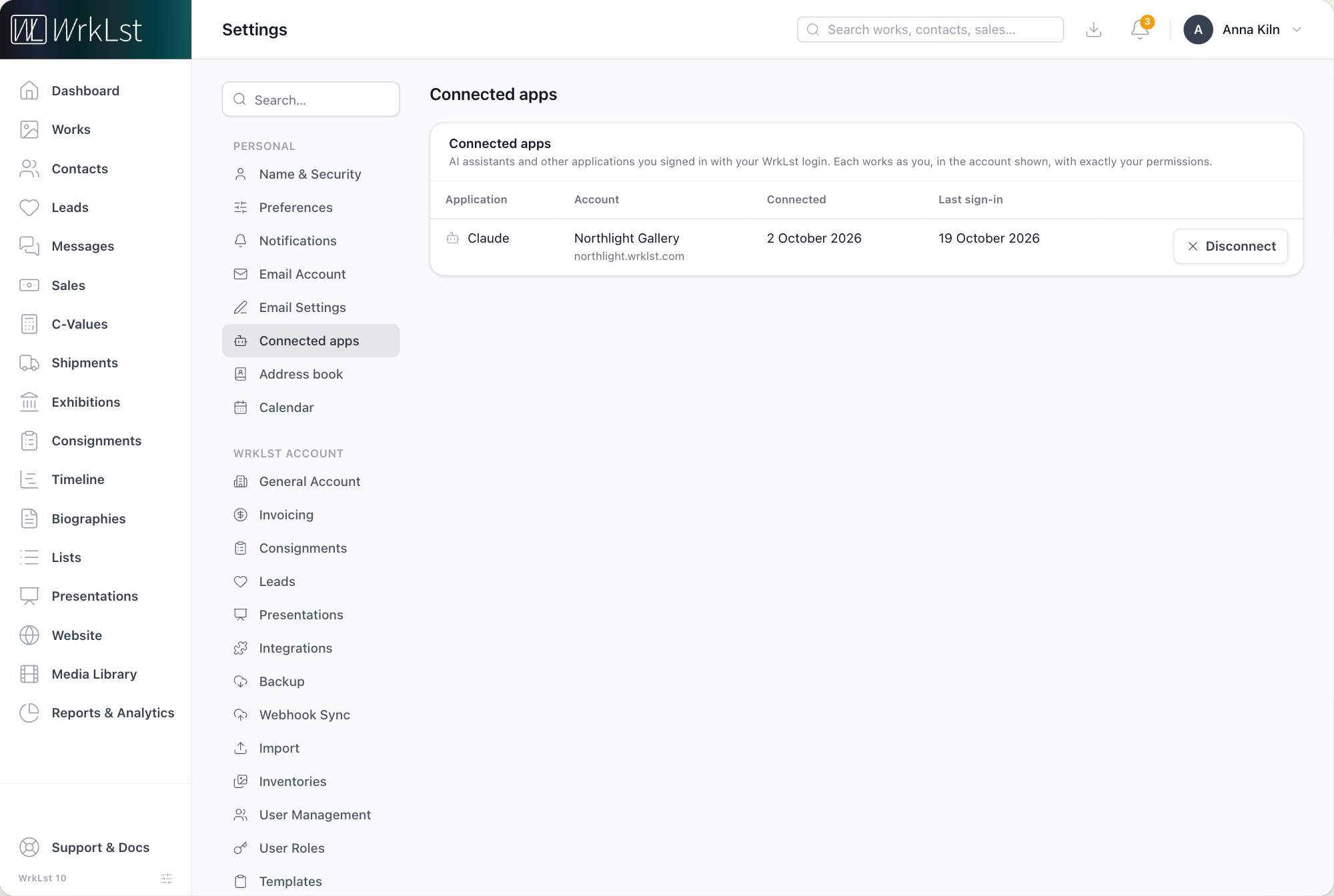
Connected apps.
Language and appearance
Your language and light or dark mode are not in these settings but in the menu under your name; see Appearance, menu and layout.
Related articles
- Signing in: one login, passkeys and two-factor authentication
- Sync your WrkLst contacts to your phone and computer
- Calendar feed: your WrkLst dates in your calendar
- AI assistants: work with WrkLst from Claude, ChatGPT or Cursor
- Email and accounting connections: Google Workspace, Microsoft 365, QuickBooks, Stripe and Shopify