Invoices: numbered invoices, e-invoices and DATEV export
On this page
WrkLst produces an invoice for every sale on your own letterhead. If your bookkeeping requires it, invoice bookkeeping turns those invoices into numbered, locked documents with an embedded e-invoice and a DATEV export. This article describes WrkLst 10.
Two ways to invoice
Free invoicing is how every account starts. The invoice number is typed on the sale or assigned from the counter under Settings → Invoicing when you save. The document is produced from the sale each time you download it; to change it, edit the sale and download again. There is one invoice per sale and one payment status on the sale.
Invoice bookkeeping is for accounts that must keep a formal invoice record: each invoice is issued as a numbered document that is never edited, a sale can carry several invoices — full, partial, advance and final — a mistake is corrected with a cancellation invoice, payments are booked per invoice, and every document has its own history. It is off by default; an administrator switches it on under Settings → Accounting with Switch invoice bookkeeping on. Switching it off later keeps every issued document, its journal and its payments.
Settings › Invoicing: the defaults of every sale
Under Settings › Invoicing an administrator sets what every new sale starts with, whichever way you invoice:
- Invoicing defaults — the Default payment due days, the Default currency, the Default invoice type (Invoiceable or Record only) and the Default credit card fee in % for sales paid through a payment link. Tick Disable payment information if your account does not track payments in WrkLst: payment status, due dates and Record payment then disappear.
- Tax — the Default VAT % and Default VAT label, plus Alternative tax rates you can choose on a sale.
- Invoice numbering — the Next free invoice number and the Invoice number format, built around the Invoice number placeholder; a sale takes the next number when you tick Assign number in its form.
- Invoice terms — reusable terms and conditions, each with a label, which a sale picks under Term template.
With invoice bookkeeping switched on, issued invoices are numbered from the formats under Settings → Accounting instead.
The rules of your country
Rules of is prefilled from the seller's country — Germany (GoBD), Austria, Other EU country, United Kingdom, United States or Other country. The workflow is the same everywhere: gapless numbering, locked documents, cancellation invoices, payments and a history per document. The rules decide the rest: an e-invoice (ZUGFeRD/Factur-X) embedded in every PDF in Germany, Austria and the EU; a DATEV export in Germany and Austria; VAT notes — small business, margin scheme, export and intra-Community supply, recognised from the client's country and VAT ID — everywhere except the UK, which gets VAT invoice details and export notes, and the US, where sales tax is taken per line as entered on the sale. A document keeps the rules it was issued under.
Setting up
- Under Settings → Accounting, complete the Seller block, prefilled from your headquarters: company name, address and a VAT ID or Tax number are required; bank details go on the document too.
- Set the Number formats with the tokens
{{year}}and{{number}}, the Digits and the Payment term (days). A number is taken only when a document is issued; with{{year}}the count restarts each year. - Under Tax scheme tick Small business (§ 19 UStG) or Margin scheme for works of art (§ 25a UStG) if they apply, and enter the Note for other 0 % lines.
- Under DATEV, enter the consultant and client numbers and the account mapping; the defaults follow SKR04 — confirm every value with your tax advisor before the first real export.
- Under Settings → Templates, create a template with the Data source Sale (Invoice) and the Format Invoice document (configurable, PDF). Several may exist, for example per location or per language; you choose one when issuing.
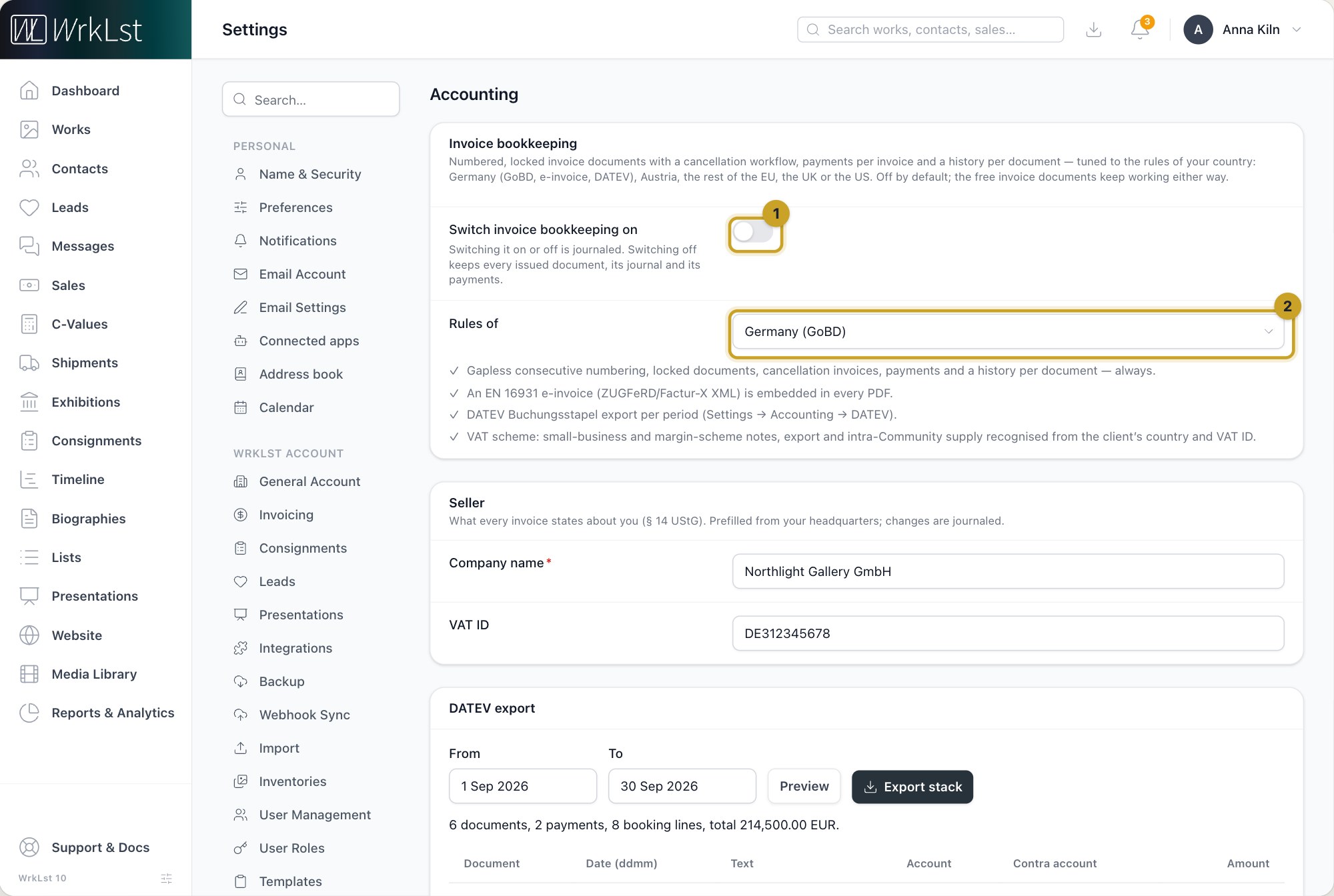
Settings → Accounting: 1 Switch invoice bookkeeping on · 2 Rules of
The invoice document
The document is assembled from elements you switch on and reorder — Recipient address, Invoice details, Title, Introduction, Positions, Totals, Payment terms, Payment link, Closing text, Terms from the sale, Signature and Tax notes. Positions print in the Gallery layout with picture, caption and price, or as a Table. Add your logo and letterhead, a Stationery PDF under every page, the Page format and the Document language, and watch the Preview render from your most recent sale as you work. The same document serves free downloads and, with invoice bookkeeping, every issued invoice.
Payment link puts the sale's online payment link on the invoice, under Pay this invoice online:, with a QR code your client can scan — untick QR code to print the link alone. It appears only when the sale has an active Stripe, Shopify or QuickBooks payment link and something is still due, and never on a cancellation invoice. In a template made before the element existed it starts switched off. You can still send the same link to your client from the sale; see Holds & Sales.
Issuing an invoice
Open the sale's Invoices section and choose Issue invoice. Under What to invoice choose Positions or Advance payment. With Positions, every position not yet invoiced is already ticked: leave them all for a full invoice, or untick some for a partial invoice. While advance invoices are open, Deduct the open advance invoices (final invoice) turns it into the final invoice. With Advance payment, enter a percentage of the sale or a gross amount. Then choose the Document template and the Date of supply, and press Issue. The document is numbered and locked the moment it is issued. WrkLst does not email invoices: download the PDF and send it to your client yourself. The section lists each document with number, kind, date, amount, status and PDF, shows what is invoiced, paid and still open, and warns if the sale changed after an invoice was issued. An invoice needs a client with an address that names a country, priced positions and a sale that is not record-only.
Correcting a mistake
An issued invoice is never changed. Cancel invoice asks for a reason and issues a cancellation invoice with its own number; the positions become billable again, and you correct the sale and invoice it anew. Both documents stay listed, and the cancellation invoice's PDF shows its total as Cancellation total. There is no separate credit note: the cancellation invoice is the correcting document.
The Invoices view
Inside Sales, the switch in the toolbar moves between Sales, Invoices and Payments. The Invoices view lists every document you may see, filtered by Status — Open, Overdue, Partly paid, Paid, Cancelled, Cancellation invoice — Kind of invoice, Year and Client. A document opens with its Positions, Payments, History and Related documents and offers Download PDF and Download e-invoice XML. Book payment records an amount, date, method and reference; a booking is voided with a reason, never deleted. Each payment names its method and, unless it was booked by hand, where it came from — for example Bank transfer · from the account statement. Payments from your bank, Stripe, Shopify or QuickBooks are booked from Sales → Payments; see Payments.
DATEV export
Under Settings → Accounting → DATEV export, pick the period, read the Preview — documents, payments, booking lines, total and findings such as a sale without an invoice document — and press Export stack. Every included document is stamped so it is not exported twice unless you tick Include documents already in an earlier stack. Under Verification, journal and archive you can Verify now, Download journal (CSV) and Download archive (zip) for a year — the archive is what an auditor receives.