Exhibitions
On this page
Keep track of exhibitions in WrkLst — gallery exhibitions, art fairs and any other kind of exhibition project — from the first checklist to the sales report and the costs. This article describes WrkLst 10.
The exhibitions list
Exhibitions shows your shows as cards in the Grid view or as a Table view, sorted by title or date. The list runs by the date a show starts, newest first; a show whose dates are still Dates TBC takes the place of the day it was created, so it keeps its place in the programme. Filter by Kind — Solo, Two person or Group — by When, by Venue type — Institution, Gallery, Fair or Other — and switch on At our Locations for shows at your own spaces — with only your headquarters set up, the switch carries its name: At … only. An exhibition opens without losing the list, which stays beside you as a rail. Its cover is its first installation shot or, if it has none, is put together from its works; in the record a click on a picture in the cover opens it full screen.
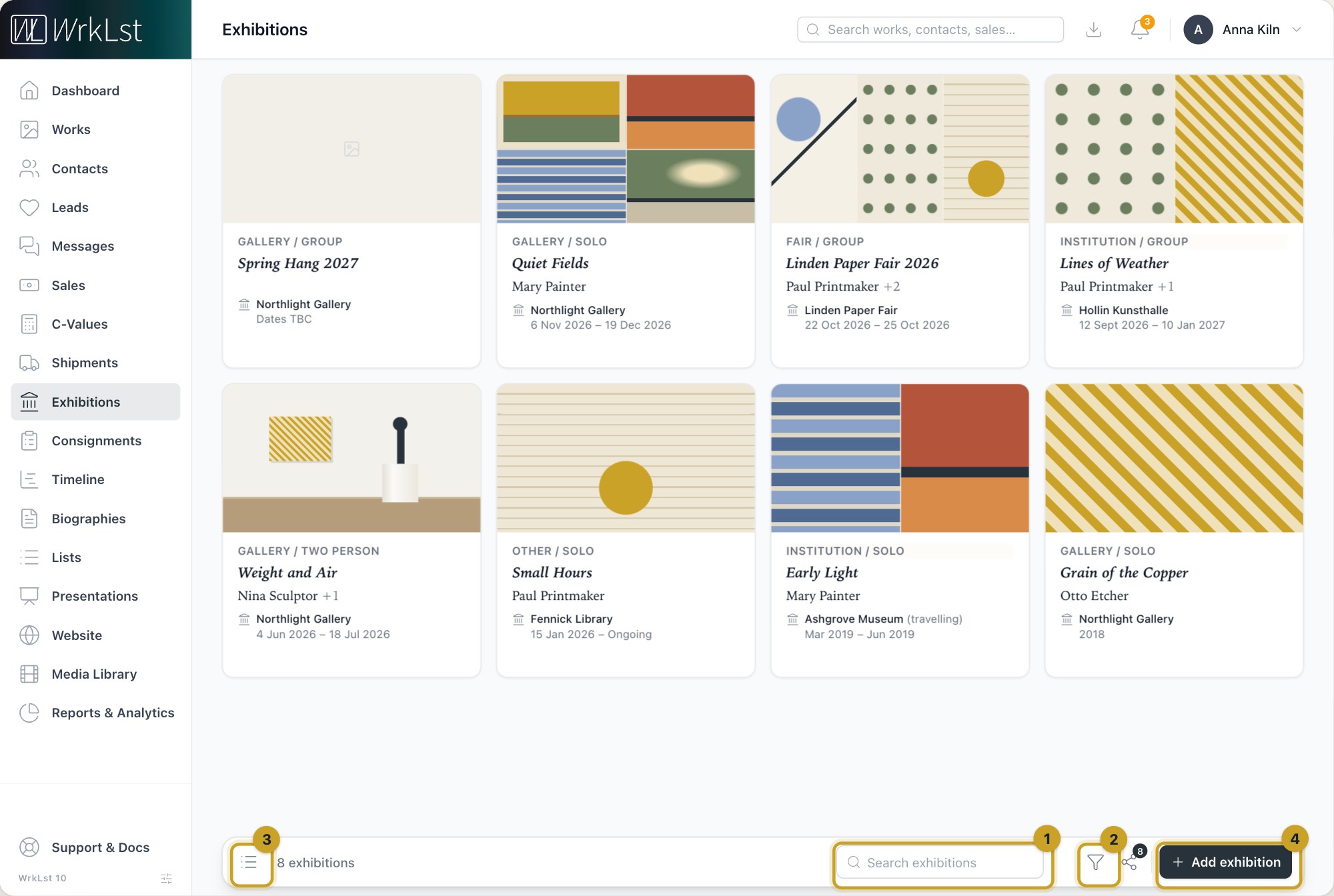
The exhibitions list: 1 Search exhibitions · 2 Filter · 3 Table view · 4 Add exhibition
What an exhibition record holds
An exhibition brings together everything about a show in one place. Under Venues you record the venue, its Venue type, the Exhibition dates with their Accuracy — full date, month and year, or year — and whether the show is Ongoing or its dates are still to be confirmed; a show with several venues is marked as travelling. The record carries the Artists with a Main artist, a Caption generated from title and dates that you can customise, Installation shots with their photo credit, Documents, the Press release, linked Contacts with their roles — Counts as says whether a role is that of a Curator, Director, Registrar, Press or Other, and From the role lets WrkLst read it from the role you typed, which is how Opportunities finds an artist's curators — Tags, Timeline entries and a Provenance entry that writes an exhibition line onto its works. Loans and transport are linked under Consignments and Shipments, and Linked biography items shows the lines in the artists' biographies that are linked to the show. Large shows load their works in pages. The Leads section lists the leads linked to the show — a fair's enquiries, for example — and New lead adds one that is already linked to it. If your account has a WrkLst website, the Website section lists the pages that show the exhibition and lets you Hide from the website or Feature on the website. Campaigns lists the letters and invitations sent for the show, an invitation with how many are attending, have declined or have not replied; New invitation starts an invitation with replies (RSVP) already linked to the show — see RSVP campaigns: invitations with replies. Below the leads, Suggested proposes people to invite or write to for the show, and its Dinner list puts together the guests for the show's dinner — see Opportunities: whom to contact next.
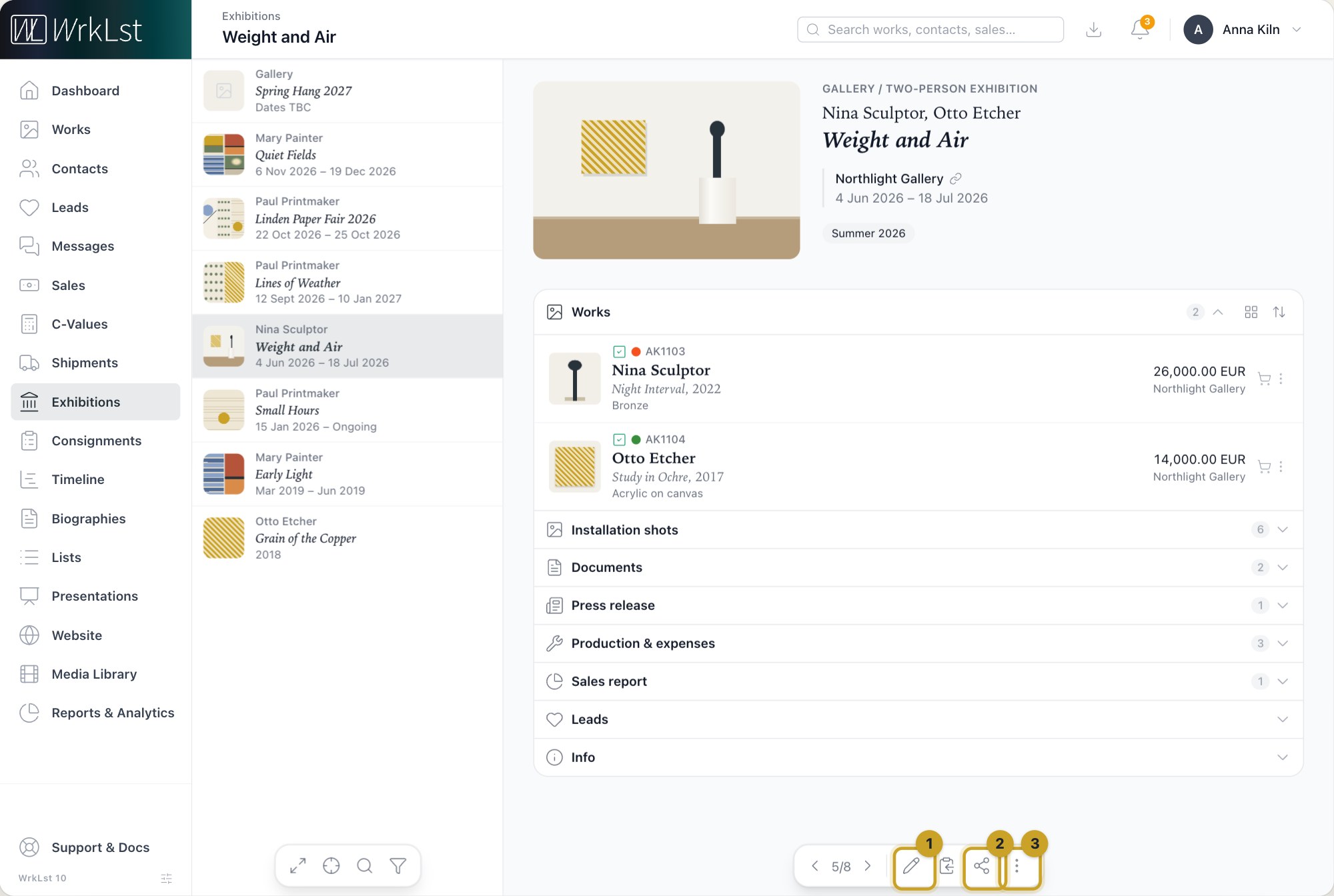
An exhibition record: 1 Edit exhibition · 2 Share / export as · 3 More actions
Years later the record is still there, which is the point — a show you can reconstruct is a show you can cite, insure and publish.
Building the checklist
Checklists usually start as a filtered view or a basket selection of works — see Works: inventories, filter and search, views and the basket. Choose Exhibit and the exhibition opens with those works on it; the ⋯ beside Exhibit offers Add to an existing exhibition instead. In the record, the Works are a list, one per line with inventory number, artist, title, details, price and location — or cards or a grid, if you prefer. Every work you add arrives Confirmed: in the form, clear the tick for works that are still only being considered, and keep your own Order or sort by inventory number or year. Under Location in the form, set the Exhibition location and the Location after exhibition with their From date, so the works' whereabouts stay right while they hang and after the show. Creating and editing happen on the same screen as the exhibition, and WrkLst warns you if a colleague is editing the same show.
Sales report
An exhibition shows what it actually sold: the total, how much each colleague sold, and every sold work with its buyer and invoice. Under Sales by facilitator, unfold a facilitator to see their sales with picture, client, invoice and payment status; one click opens the sale. A bar shows where every work stands — sold, donated, gifted, on hold, offered, available, not available — by Works or by Value. A sold work counts its value as in Reports & Analytics: its price without VAT and after discounts, without shipping or additional costs. The report counts the sales of the show's works from its start date on — the first dated venue, or the day the exhibition was created — whether or not a work is marked Confirmed. In the Value view, works sold before that start date have no figure and are counted apart as Sold earlier: n; No figure: n counts only works that have no price or whose sale the report cannot see. Your own sales, external sales and Donations & gifts are kept in separate groups; donations and gifts are valued at the work's list price. A work that came back or was resold no longer counts, so a work on the wall is never reported as sold. The report is shown to everyone who may see sales reports.
Production & expenses
Expand Production & expenses to see what the show cost. The production and framing costs of the works are summed and grouped By payer or By work; in the exhibition's form, Add expense under Production & expenses books the exhibition's own costs — Production, Framing, Shipping, Photography, Hospitality/Dinners or Other — with amount, currency, date, description and Paid by. The report shows Artwork costs, Exhibition costs and the total. Download PDF gives a dated document headed with your gallery's name and address, grouped by payer, ready for your accountant; Download spreadsheet gives one row per entry. Both sit behind the Download button; when the show has both artwork costs and costs of its own, Include lets you choose All costs, Artwork costs only or Exhibition costs only. The panel is shown to everyone who may see the values of works.
Connections to other records
Share the whole selection in the list's toolbar turns every exhibition the filter matches into one document from one of your templates — the number on the button says how many it will include; it arrives in your Downloads.
Loans and incoming works are handled as consignments (Consignments), transport as shipments (Shipments), and anything sold from the show as a sale (Holds & Sales). The calendar feed can put Exhibition runs into your calendar app.
Still using WrkLst Classic? This topic in the Classic documentation: Exhibitions