Timeline
On this page
The Timeline puts exhibitions, art fairs and projects on a calendar so you can see a clash before it happens. This article describes WrkLst 10.
Adding entries
Press the plus and choose where the entry comes from: From an exhibition…, From a consignment…, From a shipment… or a Blank entry. Pick the record and its dates fill in the entry. They are copied once: if the exhibition's dates change later, adjust the entry too. The entry links back, so one click reopens the exhibition, consignment or shipment. A blank entry has a Title, dates From and To, and a Group; tick Dates to be confirmed to mark it TBC on the timeline. Exhibitions can also add their own timeline entries from the exhibition record; a new entry there takes the exhibition's dates, and its title starts with the show's type and venue type as the form names them — for example "Solo/Gallery- …" — for you to finish.
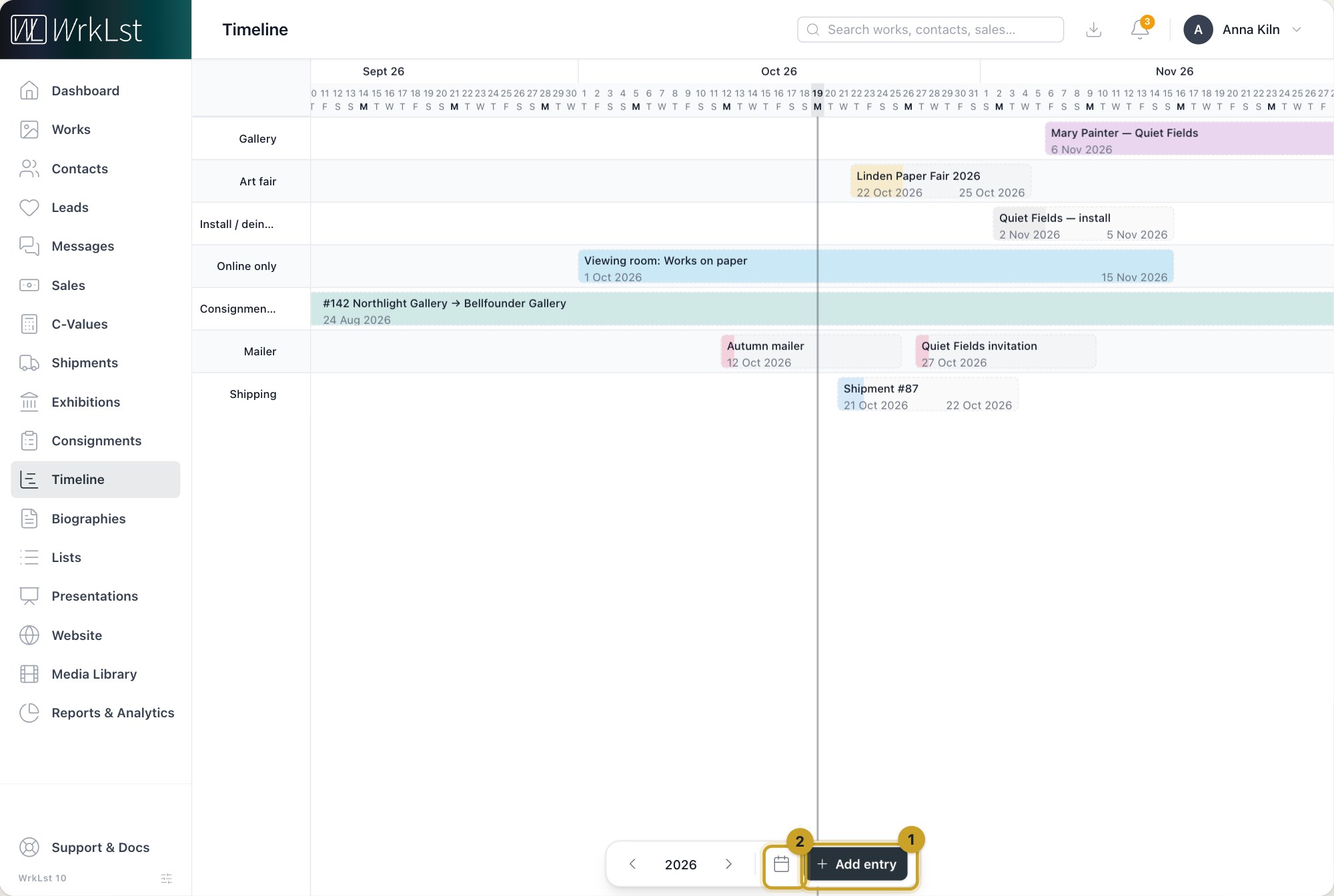
The Timeline: 1 Add entry · 2 Today
Groups
Every entry belongs to a group with a Colour and an Order — higher numbers sit higher on the timeline. Choose an existing group or name a new one. WrkLst offers a few groups from the start: Gallery, Art fair, Online only, Website, Mailer and Install / deinstall. These and the colour names appear in your language; a group you name yourself keeps its name. Renaming a group renames it on every entry in it; if another group already has that name, the two are merged.
Reading the timeline
Entries are drawn at their real length, so a month-long exhibition is a month-long bar. The chart spans three years: the year you choose with the one before and the one after, so a show that runs over New Year stays in one piece. A marker shows Today, and the chosen year is named at the bottom of the screen with a step to the year before and after. That year is part of the web address, so you can bookmark a particular year or send a colleague a link straight to it.
Planning space and teams
To show how long a space is actually occupied, add separate entries for installing and deinstalling in the Install / deinstall group, next to the exhibition's own entry. That makes double bookings visible and lets you coordinate preparators around them.
Removing entries
Entries can be deleted. Deleting one removes it from the timeline only — never the exhibition, consignment or shipment behind it. The other way round, deleting an exhibition, consignment or shipment also deletes the timeline entries made from it.
The timeline in your calendar
The calendar feed can put the Timeline into Apple Calendar, Google Calendar, Outlook or Thunderbird, alongside exhibition runs, consignments and pickups and deliveries.