Creating New Artwork
On this page
How to add a work to WrkLst: what needs to exist first, where the form opens, which fields it holds, and how to fill it faster by pasting a caption or dropping in images. This article describes WrkLst 10.
The order to do things in
A work in WrkLst is not an isolated entry: it belongs to an artist and it lives in an inventory. Creating those two things first means the work has somewhere to go and someone to belong to, and it saves you from tidying up afterwards.
- Create the artist contact — see Create a New Artist Contact.
- Set up the inventory the work belongs to — a group of works, usually one per artist or collection. See Inventories.
- Create the work itself.
A new account opens on a Getting started card on the Dashboard that walks through the same steps: Create an inventory, Add your first work, Add your artists and clients. Dismiss the card when you are done; Customize brings it back.
Opening the form
Open Works and pick the inventory you want to work in — with more than five, Search inventories finds one by name, so a long list is no obstacle. Then choose Add work. The form opens in the page itself, with the inventory already set — and, if that inventory belongs to an artist, the artist too; if you start from All Works, pick the Inventory first, because the form asks for it before anything else.
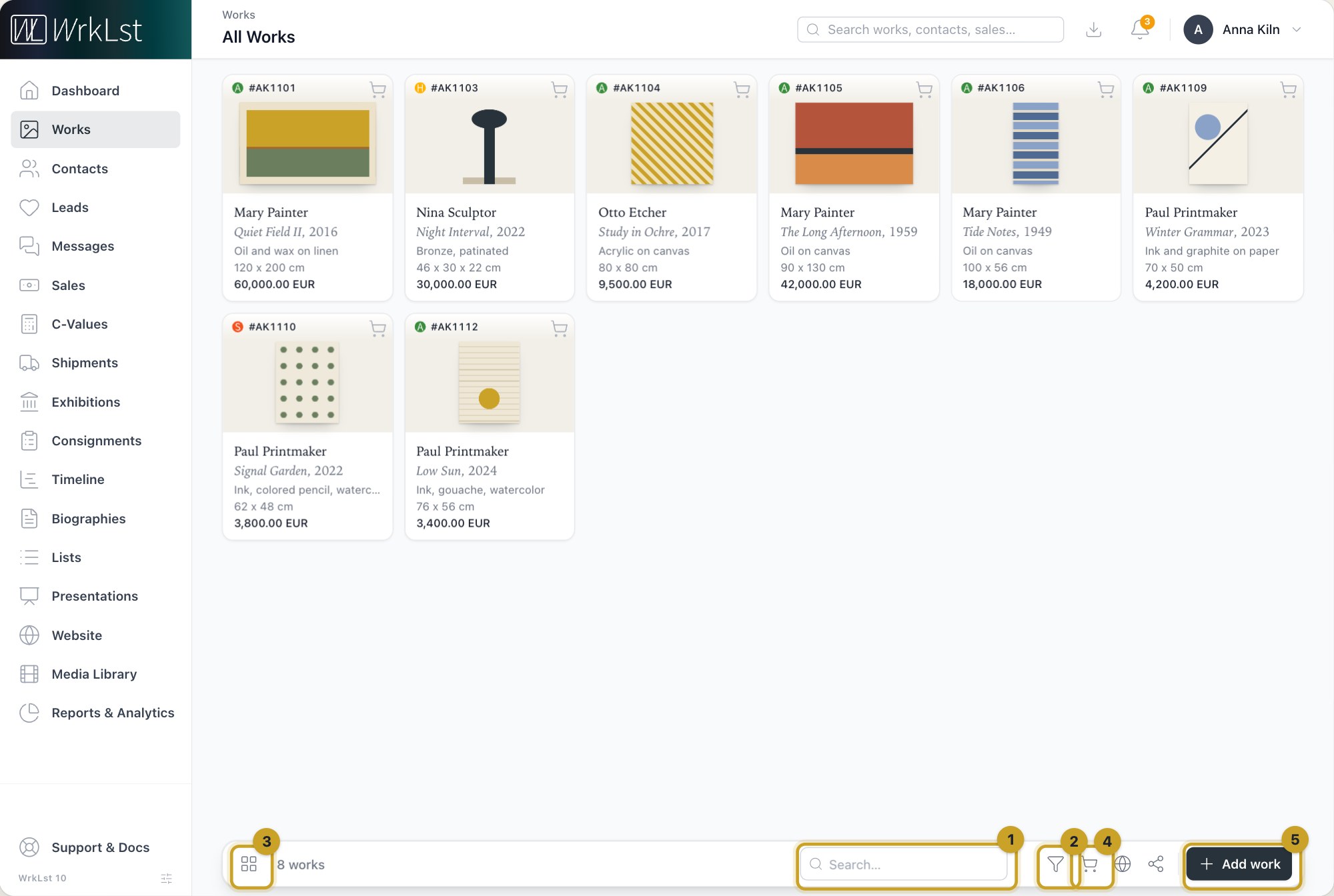
Open Works and choose: 1 Search… · 2 Filter · 3 Switch view · 4 Basket · 5 Add work
The same form is used wherever you edit a work. If you open a sale, shipment, exhibition, consignment, list or presentation and edit one of its works, the editor opens right there and saving takes you back to that work inside the record.
What the form holds
The form is divided into sections, so you can fill in as much or as little as you have:
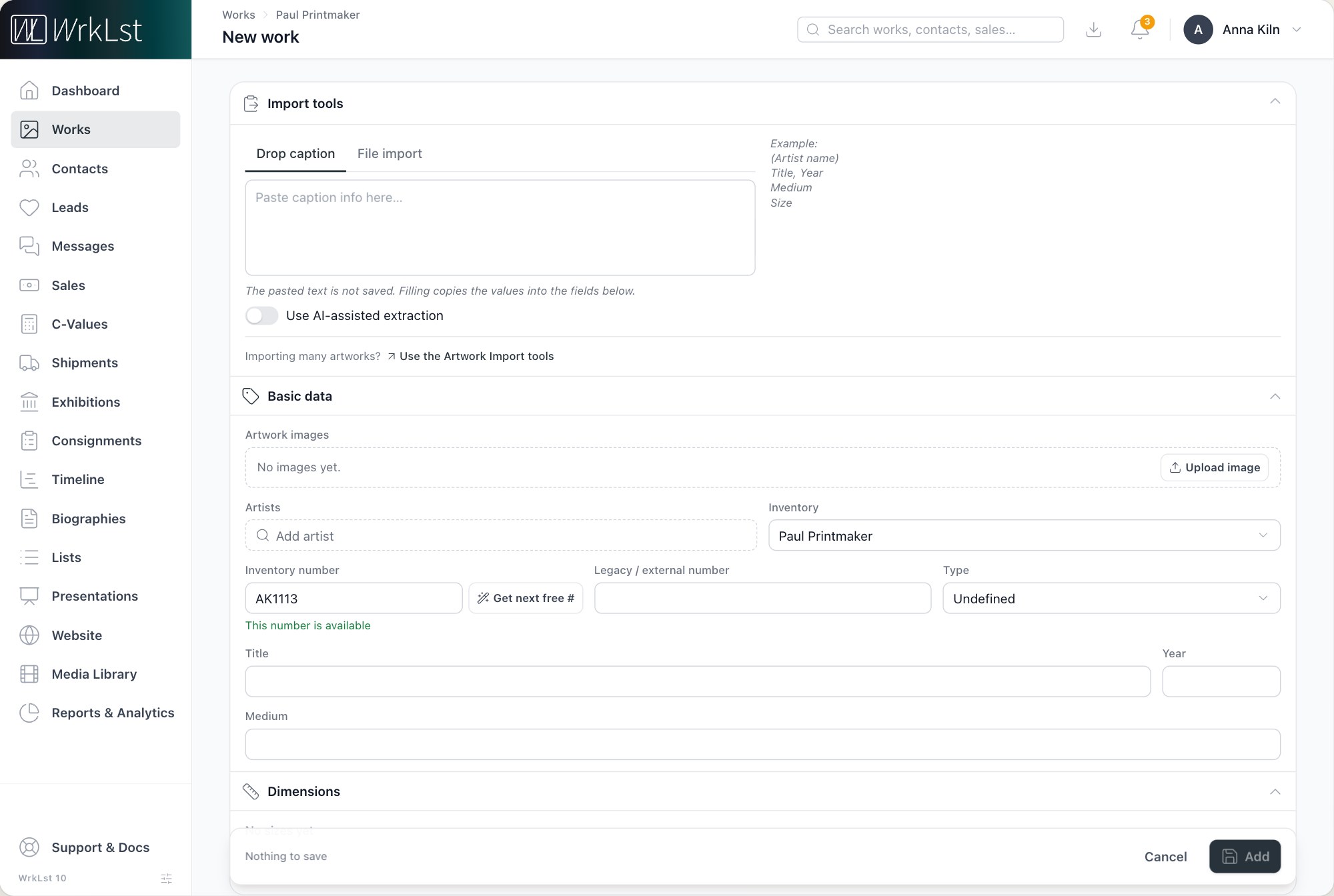
The form for a new work.
- Basic data — Inventory number (a new work gets the next free number as soon as it has an inventory; the form tells you whether a number you type is still free, and Get next free # fetches the next one again if you clear the field), Legacy / external number, Title, Alternative title, Year, Medium, Type.
- Artists — Add artist, or Create new artist without leaving the form.
- Dimensions — one or more sizes with height, width and depth, a Size unit, and Swap height / width for the quick fix.
- Prices — one or more prices with Currency and Tax; Set as active price marks the one that is used, and Prices are confidential hides them from users without the permission to see them.
- Website — only if your account has a WrkLst website and your role may see the Website module: Show on the website, Show its availability, the Price (Not shown, Price on request or Shown, and Which price — only that one is published, never the others; it offers the prices already saved, so on a new work save first, then choose it; offered only if you may see prices), Visitors can (Enquire or Only look) and a Public note. Once the work is saved, a line at the top says what still keeps it off the website — see Works, artists and exhibitions on your website.
- Edition and Group / set — see Create and Manage Editions.
- Artwork images, Videos and Attached documents — upload, add a link, or search what is already in the Media Library. In Attached documents, Add document opens the document picker: next to the Media Library it has a tab for each kind of record, so you can add a document that an exhibition, consignment, shipment, work or biography already holds, or make a new PDF from one of your templates — see Adding a document to a record in Media Library.
- Locations — where the work is and since when; Track shelf location adds the shelf.
- Provenance, Condition, Certificate, Insurance values (insurance value, estimated value, date and source) and Acquisition (Acquired from, Acquisition date, Acquisition price).
- Tags, Notes (with Confidential notes), Packing, Production & framing and Related works.
- Assigned galleries — only if this field is switched on under Settings → General Account: the galleries the work is assigned to. Create gallery contact adds a gallery that is not in your contacts yet.
The sale status of a work — hold, sold, donated — is not set in the form but from the work's Actions menu; see Holds & Sales.
Paste a caption instead of typing
The Import tools section at the top of the form has a Drop caption tab. Paste a caption as you would find it on a price list or in an email — artist, title and year, medium, size — and choose Fill found information: WrkLst copies the title, year, medium and size it found into the fields below. The pasted text itself is not saved. If AI features are switched on for your account, Use AI-assisted extraction reads less tidy text as well and also picks up the artist, the price and an old inventory number, which goes into Legacy / external number.
With AI features switched on, a second tab, File import, does the same with a document: upload a PDF, Word or OpenDocument file of up to 25 MB, pick the pages to read, and choose a work if several are found. For many works at once, use the Artwork Import instead — see Automatic Import: let AI do the data entry.
Add images
Drag photos straight onto the work's image area, or use Add images. They upload in the order you drop them, and you can name the Photo credit or Choose photographer once for the whole batch. See Artwork images: upload, edit, view and download.
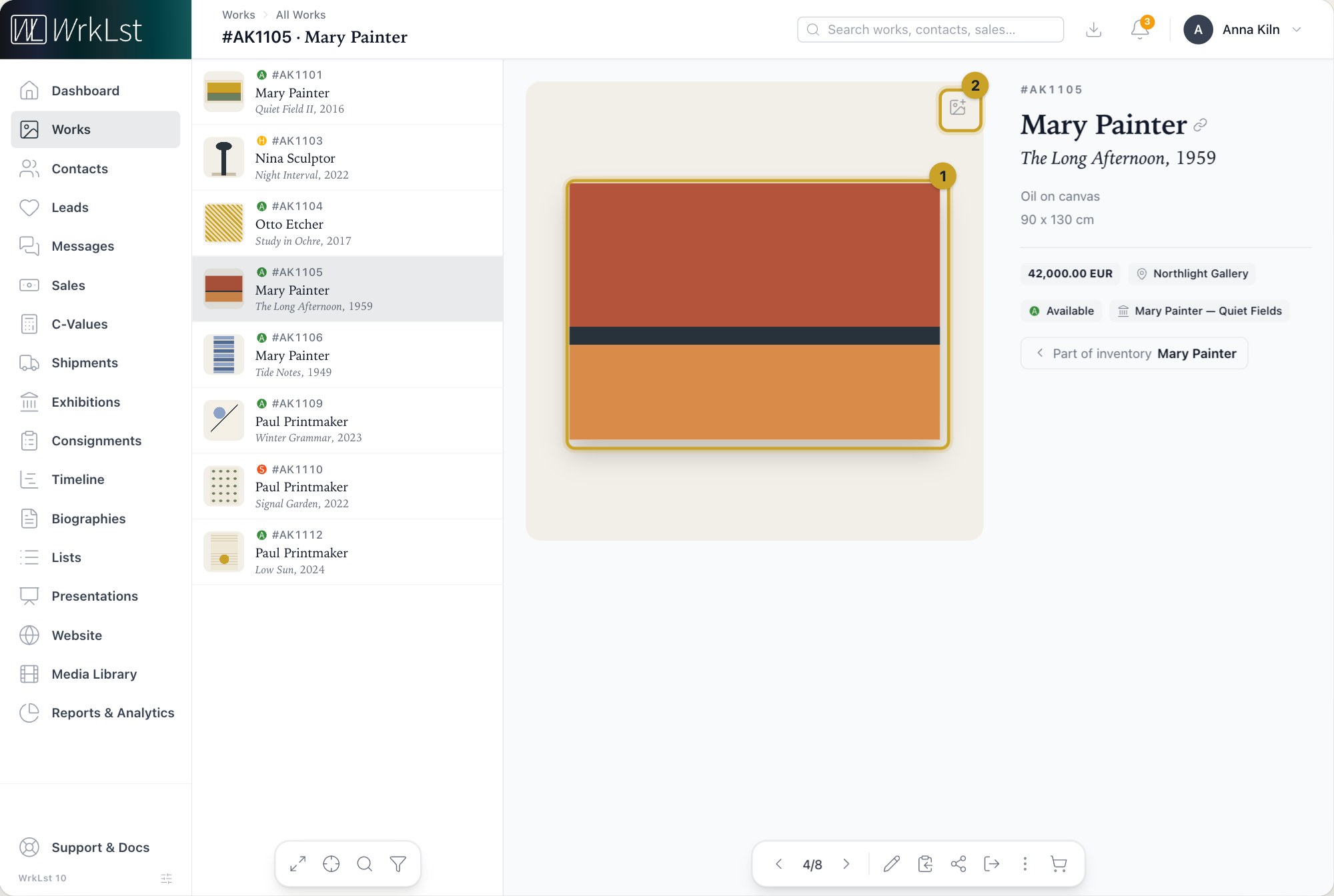
On the work: 1 Enlarge image · 2 Add images
Starting from an existing work
For a work much like one you already have — a second version, a work from the same series — open that work and choose Duplicate in its More actions menu (the ⋯). The form for a new work opens filled with its details: images, sizes, prices, locations and the rest. It gets an inventory number of its own and starts as available, with no hold or sale, and a numbered edition is not carried over. Change what differs and save; the original stays as it is.
When a colleague is already editing a work, its button reads Edit (in use), so two people cannot overwrite each other — see Editing and Multi-Editing.
One record, the whole life of the work
WrkLst keeps a single record per work and everything attaches to it: images and documents, exhibitions, consignments, shipments, leads, holds and sales, and its location. The more complete the record is at the outset, the more useful every later module becomes.
Still using WrkLst Classic? This topic in the Classic documentation: Creating New Artwork