Dashboard
The Dashboard is your home screen in WrkLst 10: tiles for your works, contacts, sales and everything else you want to see the moment you sign in, arranged the way you work.
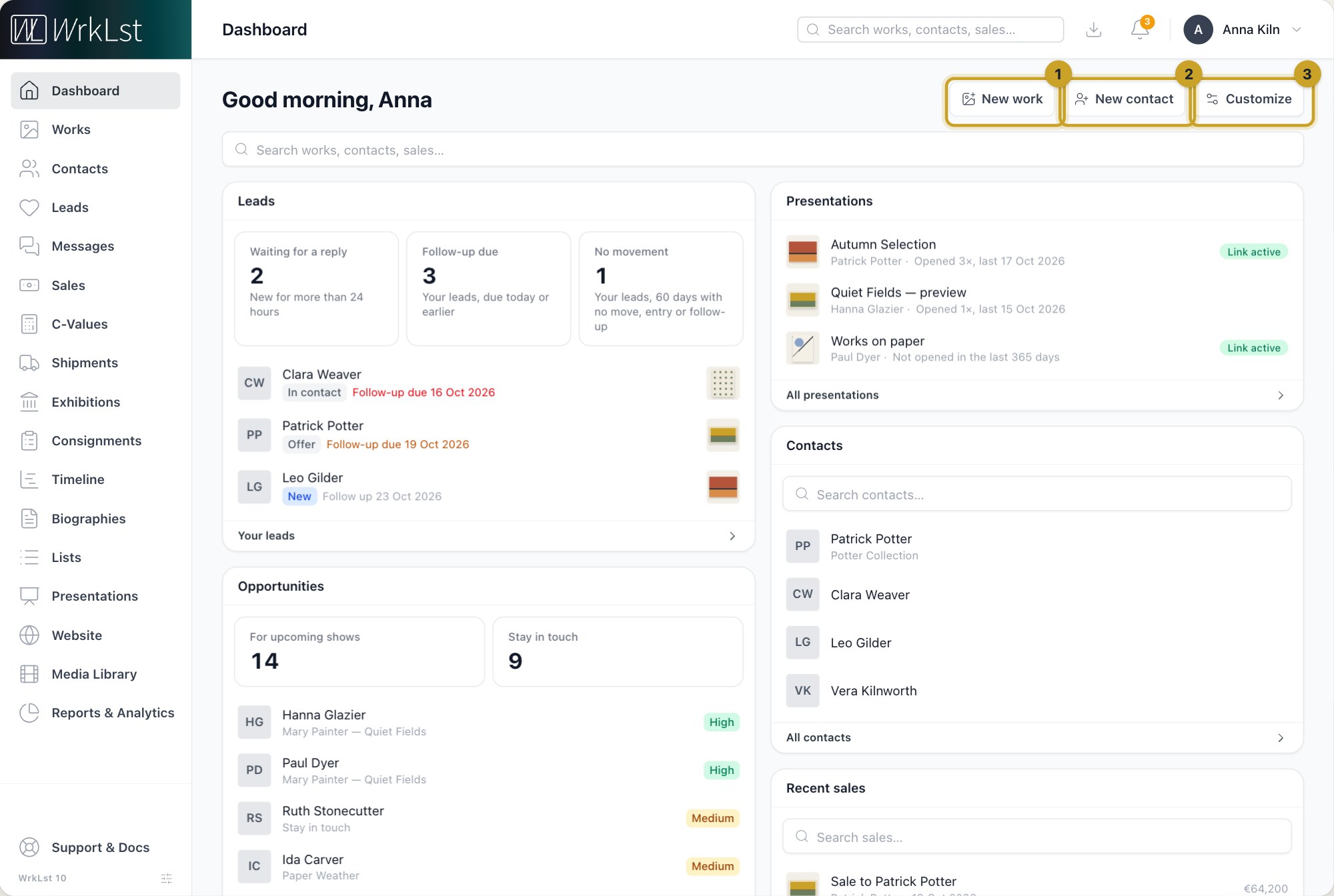
The dashboard: 1 New work · 2 New contact · 3 Customize
Tiles
The Dashboard is built from tiles, each showing one part of your account: Leads, Opportunities, Presentations, Recent works, Contacts, Inventories, Recent sales, Shipments, Your recent lists, Active consignments, Exhibitions, Notifications, Activity and What's new. Most tiles link to their module — All works, All sales and so on — and some can be searched or filtered in place. Tiles that show your data, such as Leads, Recent sales, Shipments or Exhibitions, appear once there is something in them, so an empty tile never takes up room; Activity is hidden by default and can be added under Customize. The Leads tile lists your own open leads, due and overdue follow-ups first, and shows three counts, Waiting for a reply (new for more than 24 hours — your own leads and those not assigned to anyone yet, never a colleague's), Follow-up due and No movement (your leads with no step, entry or follow-up for 60 days); the Opportunities tile shows two numbers, For upcoming shows and Stay in touch, and the strongest people to get in touch with, each linked to their contact; the Presentations tile shows the presentations edited most recently, who each one is for, and how often and when it was last opened. The Exhibitions tile sorts shows into current and upcoming, each with its venue and dates; Active consignments puts those ending within 30 days first with an Ends in N d badge; the Shipments tile marks each shipment In planning, In transit, Upcoming, Not arrived or Arrived; Activity lists what colleagues created, edited or deleted recently. Above the tiles sit a search across works, contacts, sales, consignments, exhibitions and shipments — each result names its kind, such as Work or Sale, under its title — and the buttons New work and New contact.
What's new runs across the full width at the bottom of every dashboard and stays there however you arrange the other tiles: the latest updates to WrkLst 10, newest first, each with its date. Click a line to open that update's text under it; several can be open at once. Load more at the end adds the next 10. The tile works on its own, apart from the What's new dialog behind the sidebar's WrkLst 10 badge, which lists the same updates in one go. In Customize you can hide it with ✕ like any other tile.
Arranging it
Choose Customize. Drag tiles by their header to rearrange them, drag the bottom-right corner to resize them, and hide a tile with ✕. Add tile brings hidden tiles back; Done finishes. The arrangement is yours, so a registrar's dashboard can look nothing like a director's.
What to put on it
There is no single right layout, but a useful starting point is one tile for what needs your attention today, one for recent activity so you can see what colleagues have changed, and one for the numbers you are judged on. Everything else can be hidden and brought back when you need it.
Getting started
A new account opens on a short Getting started card with three steps: Create an inventory, Add your first work and Add your artists and clients. It counts the steps you have done and, if AI features are on for your account and you may import, offers to import many works at once from a spreadsheet. The card disappears by itself once every step is done. You can dismiss it earlier with ✕; while a step is still open, Add tile under Customize brings it back.