Works: inventories, filter and search, views and the basket
On this page
How Works is organised: inventories, the three views, search and filter, the list that stays beside an open work, and the basket for building a selection of works from anywhere. This article describes WrkLst 10.
Moving between inventories
Your works are grouped into inventories, and you switch between them to change what you are looking at. Opening Works shows a card for each inventory, and All Works for everything at once; works that belong to no inventory are gathered under Not Associated. While your basket holds works, a Basket card sits beside them, with how many works it holds and a preview of the first ones — one click opens it. With more than five inventories, Search inventories finds one by name, and when some of them are priority inventories (marked with a star), All and Priority switch between every inventory and only those. An account with a single inventory skips this screen and opens it straight away. See Inventories if you need to create or rename one.
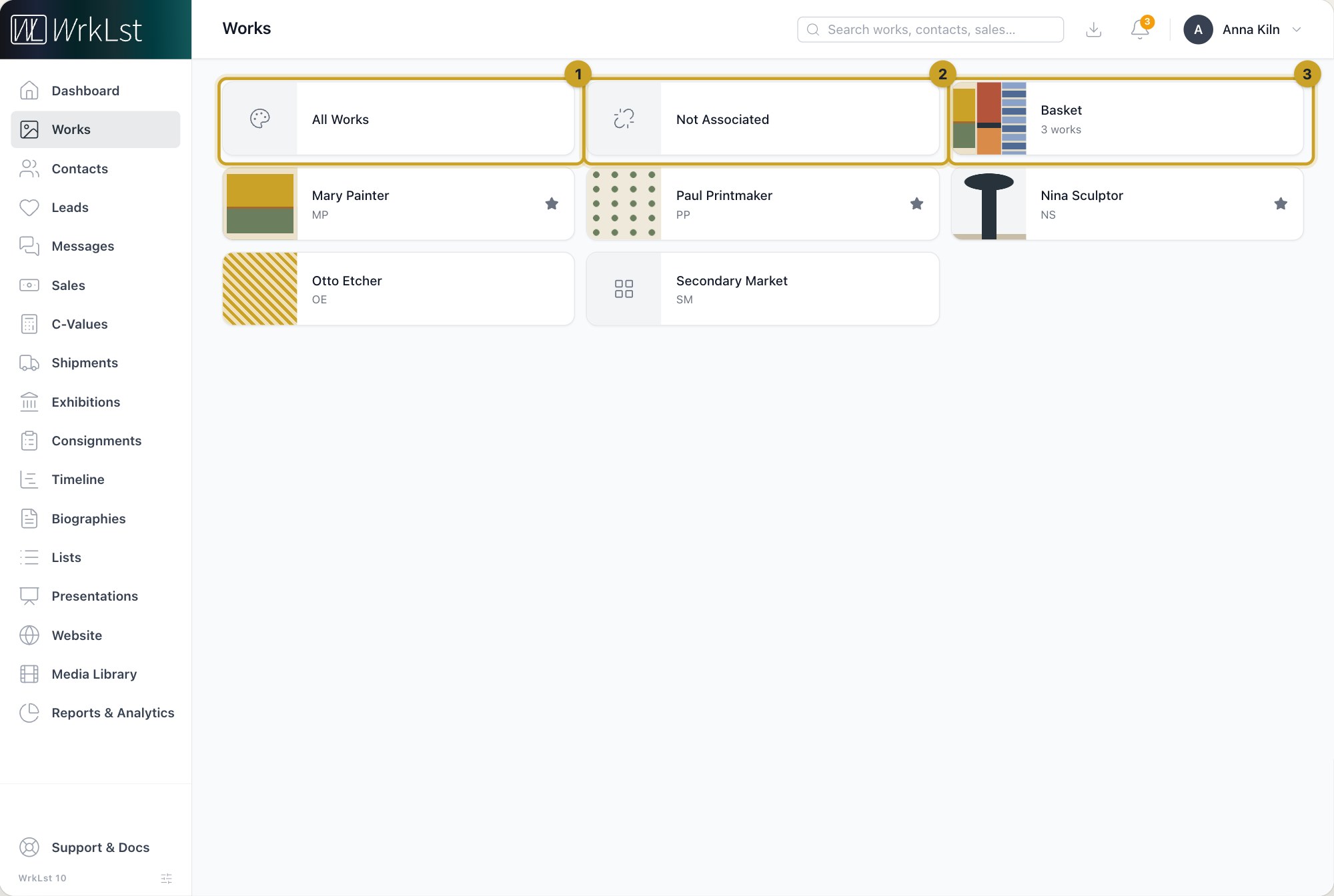
Opening Works: a card for each inventory, plus 1 All Works · 2 Not Associated · 3 Basket
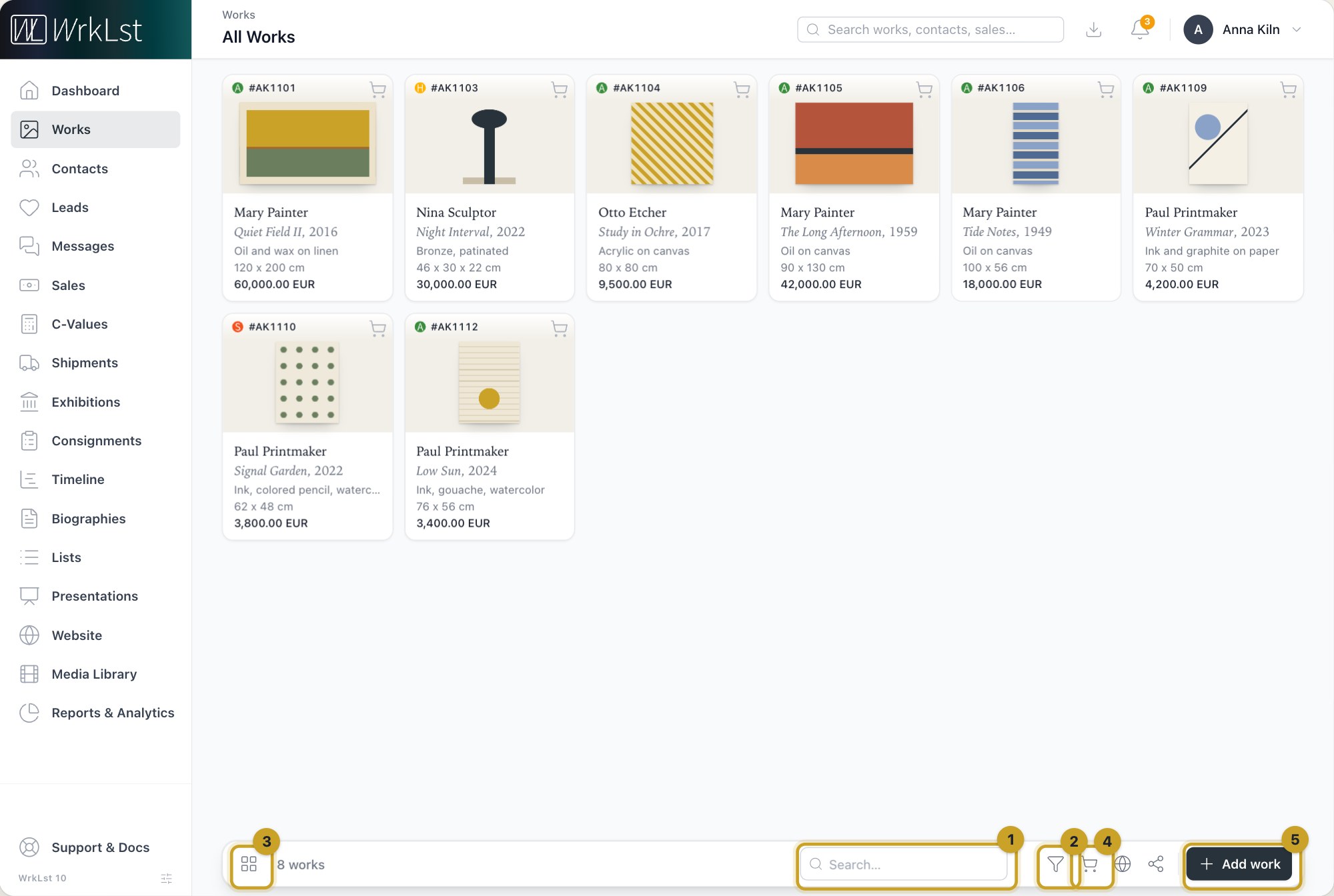
The works list and its toolbar: 1 Search… · 2 Filter · 3 Switch view · 4 Basket · 5 Add work
Under Settings → Preferences you set the Default view and the default sort order an inventory opens with.
Three views
The view button in the Works toolbar — or Alt+V — steps through three views:
- Grid view — a card grid of thumbnails.
- Card list view — a large picture beside the work's details, its price, owner, location, consignment and exhibition.
- Table view — a sortable table. Click anywhere on a row to open the work; the buttons at the end of the row stay in place on the right, and on a narrow window the table scrolls sideways rather than squeezing its columns.
The works inside a list, exhibition, consignment, sale, shipment or presentation have their own view button in the section header — List view, Card list view or Grid view — and a small button for their order: Custom order, or by inventory number ascending or descending.
A work beside the list
Open a work and the list stays beside it. Previous record and Next record step through the list while the work stays open, and the list has its own search and filter, so you can look for the next record without closing the one you are reading. Focus current record jumps back to the open work in the list; it only appears when that work is in the list you are looking at.
Below its picture and caption, the open work shows its sections one under another, each opened with a click — among them Availability, Leads, Messages, Prices, the Shipments, Exhibitions and Consignments it is on, Artwork images, Dimensions & weight, View in Room, Location history, Provenance, Documents, Lists, Presentations and Info. A section appears when it applies to the work and your role may see it.
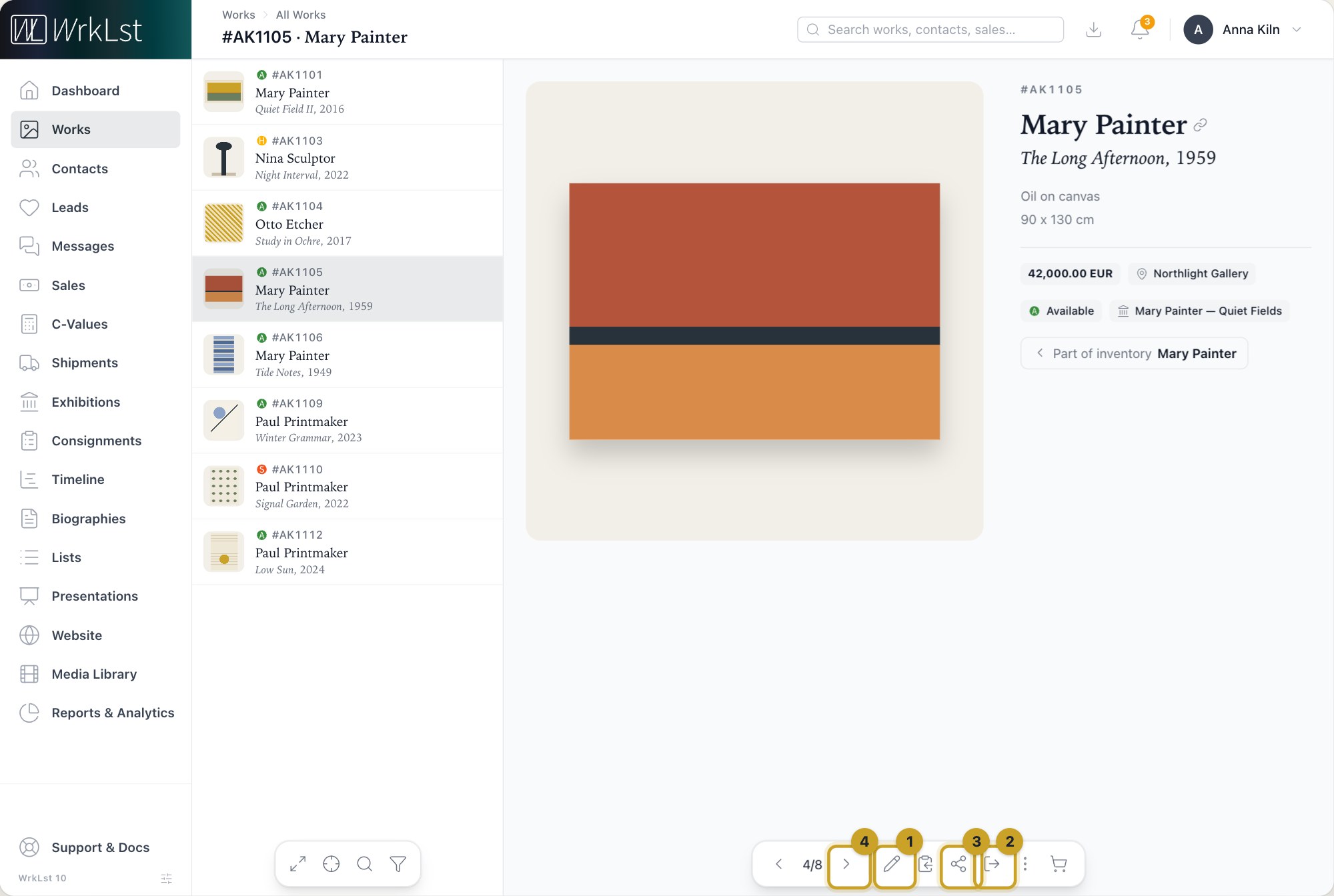
A work open beside the list, with the bar at the bottom: 1 Edit · 2 Actions · 3 Share as · 4 Next record
How wide the list is, is yours to choose: under WrkLst 10 at the foot of the menu, Layout settings offers Full list, Thumbnails only (hover one to see the whole row) or Hidden. Each part of WrkLst remembers its own setting. ⌘/Ctrl-click a work to open it in a new browser tab (or right-click it and open the link in a new tab from the browser's menu), handy for comparing two records side by side.
Searching and filtering
Filter and search narrow a large archive down to the works you actually need, and a filtered view is the starting point for most other work in WrkLst: an exhibition checklist, a consignment or a client selection usually begins here.
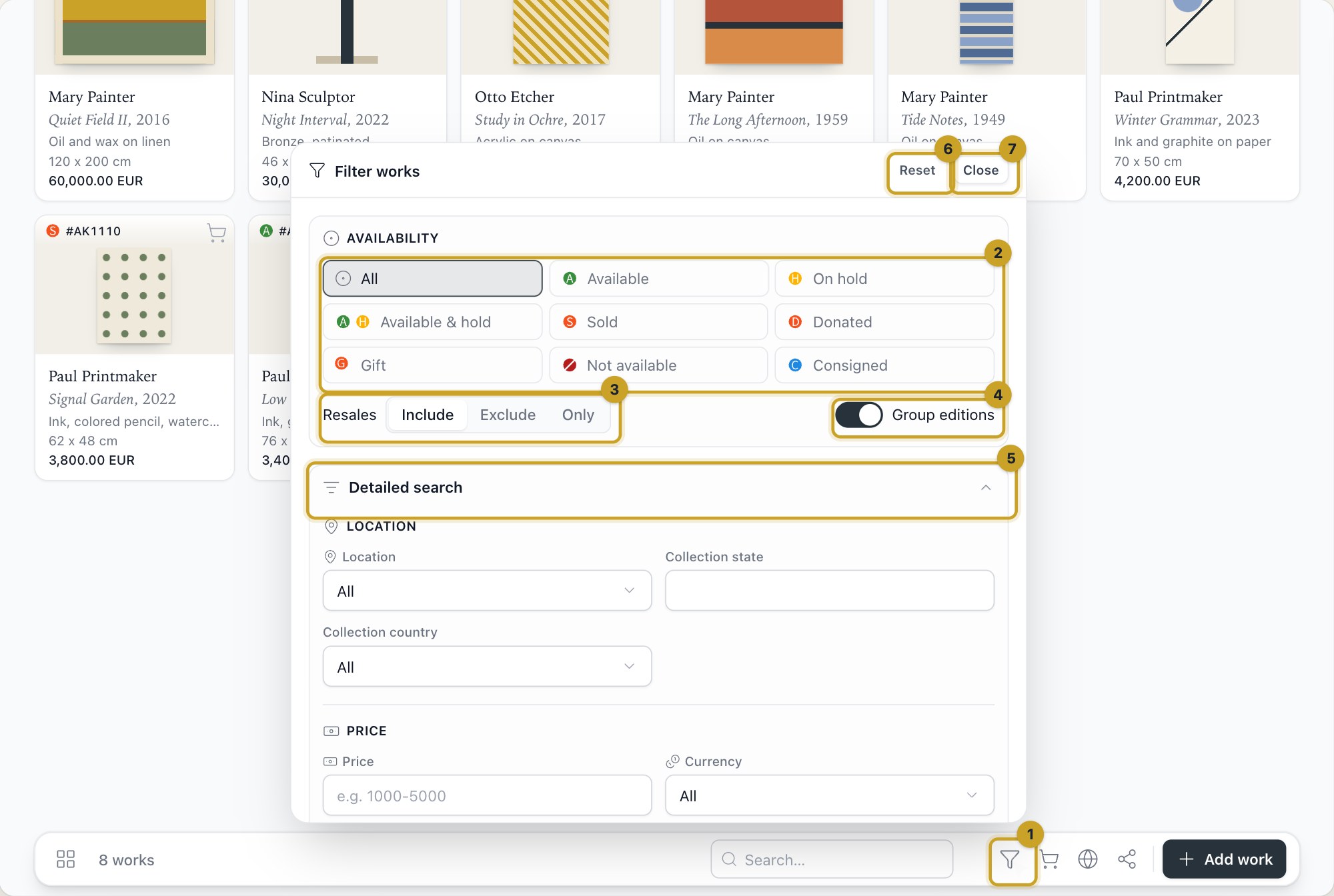
The filter panel: 1 Filter · 2 Availability · 3 Resales · 4 Group editions · 5 Detailed search · 6 Reset · 7 Close
Type in the search field — it sits open in the toolbar, so you just click and type (on a phone, tap the magnifying glass first) — or open Filter. The panel starts with the quick search, always on view: Availability (Available, On hold, Available & hold, Sold, Donated, Gift, Not available, Consigned), and below it Resales — Include (the default), Exclude (for example, available works on the primary market only) or Only (just the resales on offer, available or on hold) — and the Group editions switch.
Everything else is under Detailed search, in this order: Location, Price (with Price ±20%), Tags, Size (with Size ±20%), Search (inventory number, year, type, medium, series, title, notes, provenance, credit and Acquired from — the gallery, dealer or auction house you bought it from), Relationships (the artist, the owner or consultant, the shipment, exhibition, list, consignment or presentation a work is on, and its assigned gallery), Sort order (by inventory number, year, size, price, series or artist name), Attributes (framed or not, Groups with Group parents and Group members, Hide group members, Editions only, Missing information and more) and Search for empty fields. Detailed search stays open or closed the way you last left it on this device, opens by itself whenever one of its fields is in use, and while closed counts those fields in its title. If your account has a WrkLst website, Website under Attributes offers On the website, Shown on the website, Hidden from the website and Price shown. Reset filter clears everything.
Share selection in the toolbar turns every work your search and filter found into a document from one of your templates — a price list, say, or a page per work. WrkLst makes it and it downloads by itself; the Downloads menu at the top shows its progress. The button is there once your account has a template for works and your role may share works, and it steps aside when more works are found than your role may share at once — narrow the filter and it comes back. See Document templates: PDFs, Word and Excel on your own letterhead.
The basket
The basket works like a shopping cart for artworks. Add to basket on any work, or Add current results to basket and Remove current results from basket from the Basket menu in Works, build a selection across views and inventories. For an edition shown as one entry, the cart opens the Editions basket, where you put each copy in or take it out by its number. The basket then sits next to Works in the main menu with a count of what is in it, and from anywhere in WrkLst its menu offers Use basket, Share basket, Copy basket captions, Save basket to new list, Save basket to existing list, Load list into basket, Show basket and, right below it, Clear basket, which empties the basket and leaves the works themselves untouched. Saving and loading use a dialog with a searchable list picker; see Lists. Copy basket captions opens the captions of every work in the basket in two panes, Price and Owner: adjust the text if you like, then Copy puts it on the clipboard, ready to paste into an email or a document.
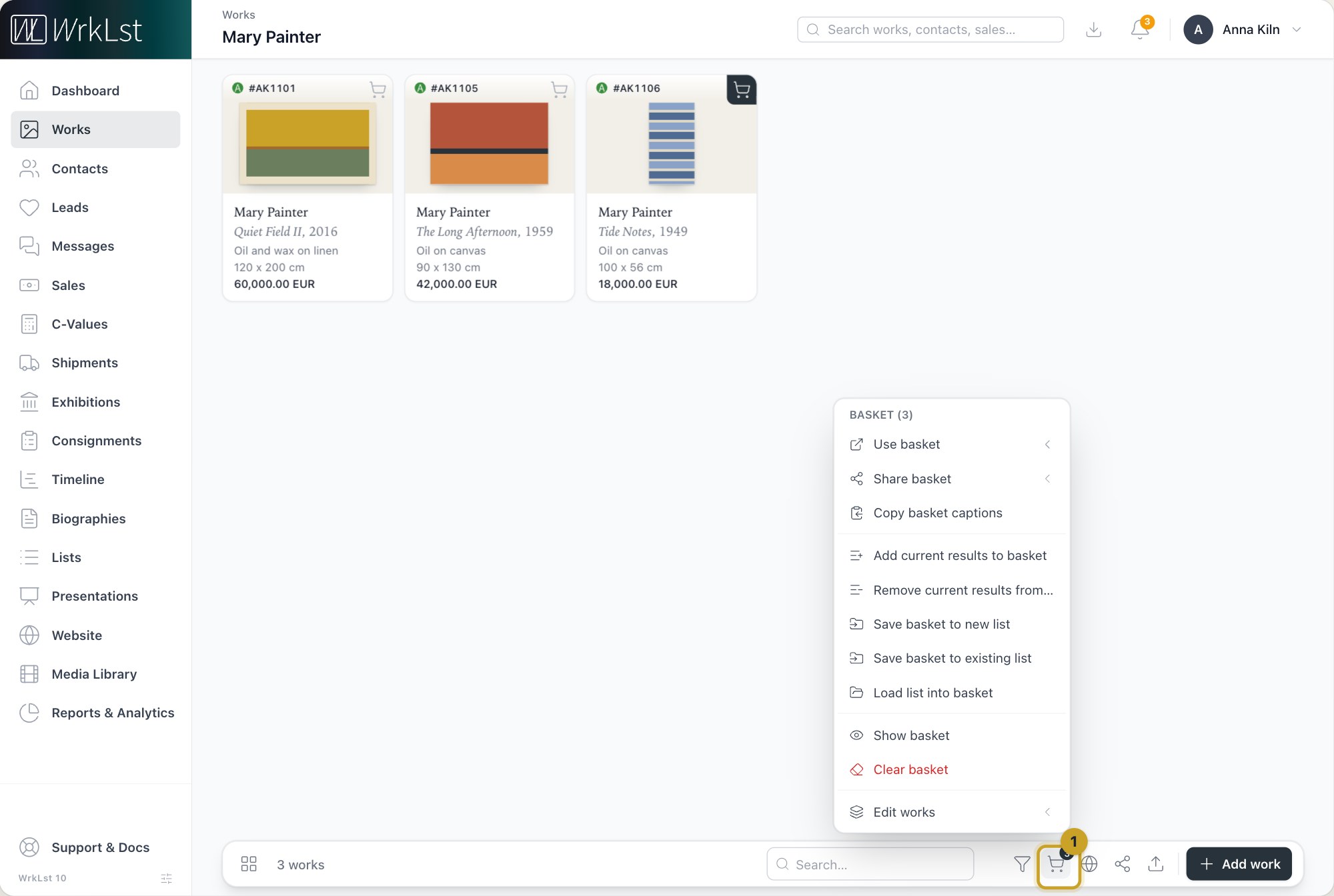
The basket menu: 1 Basket
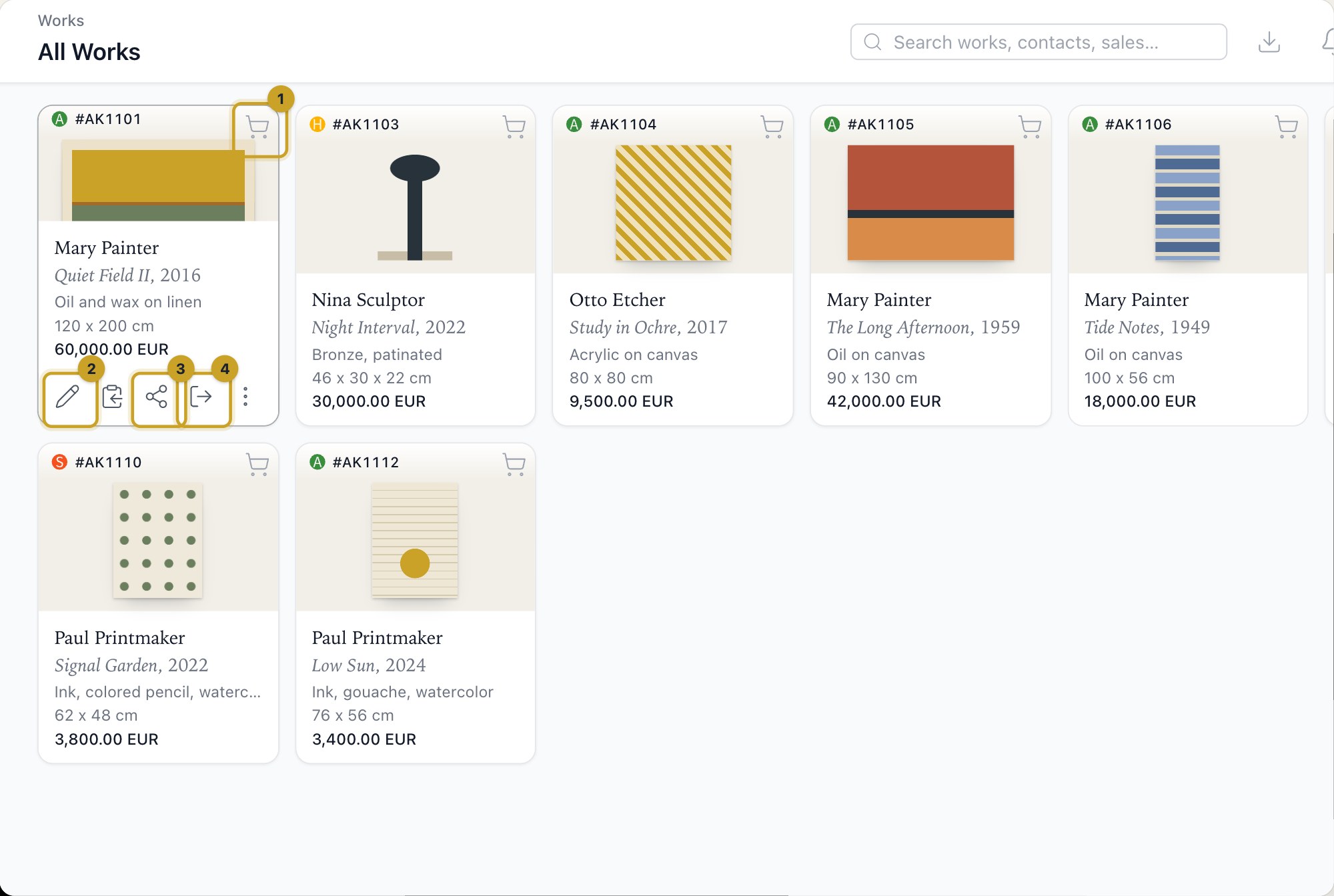
The buttons on a work card: 1 Add to basket · 2 Edit · 3 Share as · 4 Actions
A selection is where most records start. Under Use basket, choose Ship, Exhibit, Consign, Present, Offer, Hold or Sell: the new record opens with those works already on it, with their prices, captions and sizes filled in; Lead instead records one lead with all of those works, and Email and New campaign start a message or a campaign with them. The ⋯ beside Exhibit offers Add to an existing exhibition: find the exhibition, and its form opens with the works added — saving keeps them — or choose New exhibition. You only see the actions your role allows. If your account has a WrkLst website, the Website menu beside the basket offers Show on the website and Hide from the website for the basket's works and sets whether their price is shown — a work it cannot apply to is left as it is. Share basket generates documents from a template, and Edit works at the foot of the basket menu holds Multi-edit and Delete works…, which removes several works at once — the dialog lists exactly which works go and which stay, because a work on a sale, in a group, on a shipment, in an exhibition or on a consignment is kept. See Editing and Multi-Editing.
Holds one click away
A work on hold shows its hold right where you see the work. On a card in the grid, click the hold sign at its top; in the card list, the table and the bar at the bottom of an open work, a timer button does the same. The menu says who the work is held for, until when and by whom, and offers Edit hold, Release hold and Hold to sale, as well as Lead, Email and New campaign. Saved or cancelled, Edit hold brings you back to where you opened it — your basket, for example — rather than to the sale. See Holds & Sales.
Still using WrkLst Classic? This topic in the Classic documentation: Inventory, Filter and Search, and the Selections Tool