Media Library
On this page
How to upload images, documents and links in bulk, find them again, edit their details, see which works they belong to, and add documents to your records from one picker. This article describes WrkLst 10.
What the Media Library is for
The Media Library is the single place your images, documents and links live. Rather than uploading files one work at a time, you can bring in a batch and see which artworks each file belongs to.
Browsing
Open Media Library. Depending on your role, it shows every file in your account or only the files you uploaded yourself. Switch between Grid view and List view and search with Search files: it finds a file by its name, the name it was uploaded as, its Upload batch name and its photographer, and every word you type has to match. The Filter narrows the library by Type — Images, Documents or Links — and its Sort by orders it by name or by when a file last changed. Open a file and it sits beside the list, so you can step from one to the next with Previous file and Next file; its Works section shows every work it is attached to, Info shows the name it was Uploaded as and, if it has one, its Upload batch name (shown, not editable); and History records its changes.
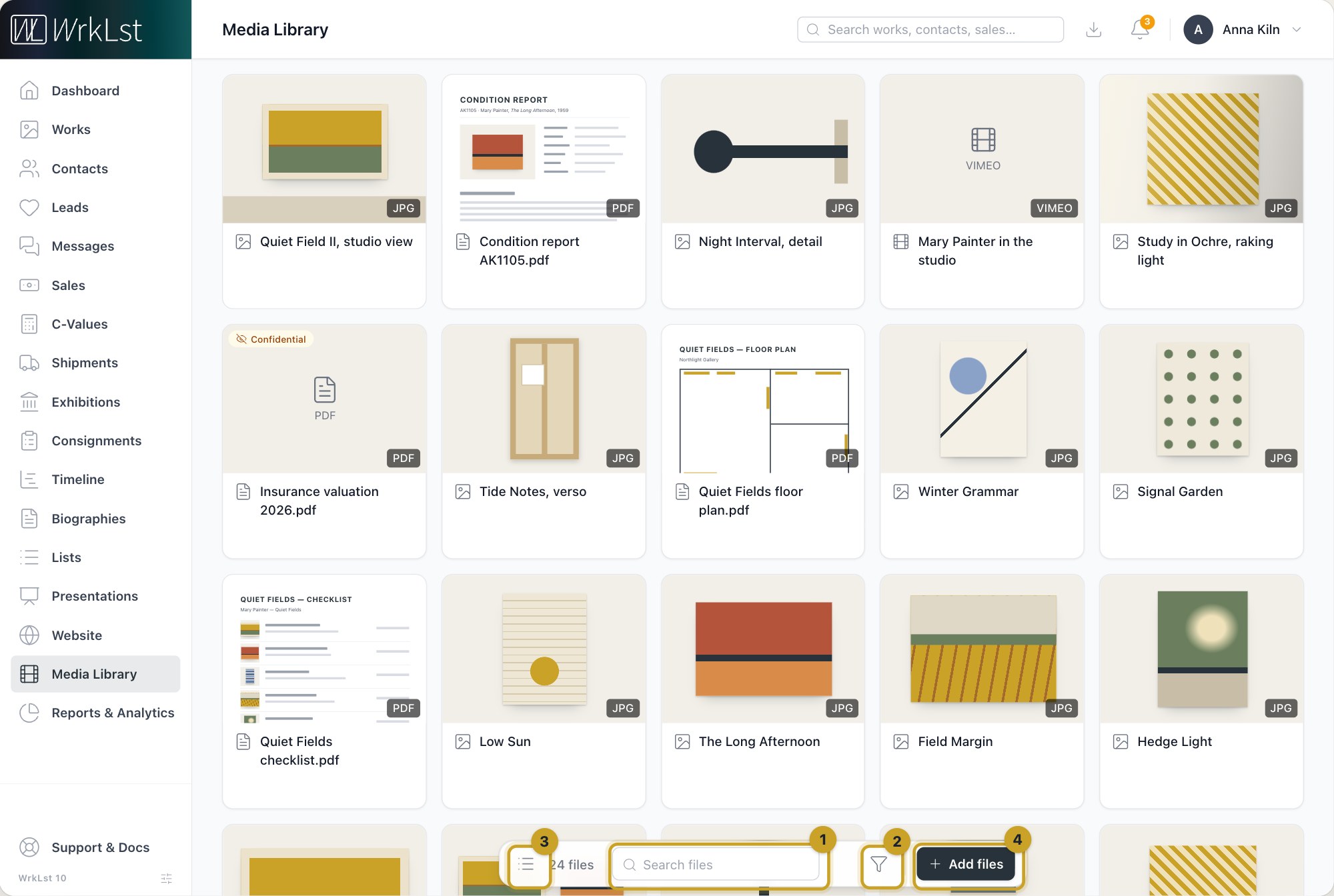
The Media Library: 1 Search files · 2 Filter · 3 List view · 4 Add files
Because files are linked to the works they belong to, you can tell at a glance whether a work has its installation shots, its condition report or its certificate — and find the right file without hunting through folders.
Uploading
Choose Add files. The form has three tabs:
- Images — Select images, or drag and drop them. Up to 100 MB per file; images larger than 9000 px are downsized automatically.
- Documents — Select documents, or drag and drop. Up to 100 MB per file.
- Weblinks — enter a Web address and choose Add link.
Before you add the files, give the batch an Upload batch name: it goes onto every file you add next. On the Images tab you also set a Credit and the Documentarian / photographer once, and every image you upload next carries them; leave Credit empty and the credit line saved on the photographer's contact is used. On the Documents and Weblinks tabs, people allowed to mark files confidential see Confidential instead. Each file shows its own progress, and you can rename a file as soon as it has arrived. Back to the library when you are done. Images can also be dropped straight onto a work — see Artwork images: upload, edit, view and download.
Editing a file
Edit file changes a file's Name, and for an image also its Credit and Documentarian / photographer. A document or a link has Confidential there instead, for people allowed to mark files confidential; an image cannot be marked confidential. Edit image opens the image editor for rotation and the focal point — the spot that crops and covers centre on — with a preview of exactly what will be shown. While someone else is editing a file, WrkLst shows Being edited by someone else; the file becomes editable the moment they finish.
Deleting a file
Delete file removes the file from every work it is attached to. A deleted file (an image, a document or a link) can be brought back within seven days from Settings → Toolbox → Recover recent records — see Toolbox: recover deleted records and tidy up.
Adding a document to a record
Every Add document opens the same picker: in works, exhibitions, consignments, shipments, sales, presentations and biography lines, and behind Attach document in a message. Its icon tabs show where you can add from: Media Library, Exhibitions, Consignments, Shipments, Works, Lists, Contacts and Biographies (point at an icon to see its name). You see only the tabs your role and your account's modules allow.
- Media Library — search the library and click a file to attach it. A file that is already attached reads Already added.
- Exhibitions, Consignments, Shipments, Works and Biographies — search for a record and open it. The list shows the documents it already has, and one click links one: the same file, not a copy. Below them are its templates, each marked New PDF from this template. In a saved work, exhibition, consignment or shipment, its own tab already has that record open; in a biography line, the Exhibitions tab has the line's exhibition open (if it links one) and the Biographies tab the artist's biography.
- Lists and Contacts hold no documents of their own, so their tabs offer templates only, and appear only where there are templates to offer.
The arrow at the top (Back to …) returns to the list of records. A biography line holds one document; once it has one, Choose another document swaps it.
A PDF made from a template is saved to the Media Library and attached at once, so nothing is downloaded and uploaded again. It is named after the template and the record. Its progress shows in the panel, and saving the form (or sending the message) waits until the PDF has arrived; if you stop waiting, it is not attached but still arrives in the Media Library. To make the new PDF confidential, tick Confidential first. That box is in the documents of an exhibition, a consignment or a shipment and in a biography line, for people allowed to mark files confidential; works, presentations and messages have none. Templates are set up under Settings → Templates — see Document templates: PDFs, Word and Excel on your own letterhead.
Some things the picker does not offer:
- Templates appear only for people whose role has Edit & delete in the Media Library and the rights a download from the same template needs (Shareable for that kind of record).
- There is no tab for sales and no templates at all in a sale's documents: invoices stay with the sale and with Invoicing.
- No PDF is made of a private list or a confidential contact (nor of a confidential artist's biography); the picker says so instead of offering its templates.
- In a presentation, a confidential file cannot be picked. For people who may see confidential files it stays in the list, marked Confidential: never shown on a presentation.
Where files show up
Documents attached to a sale, a shipment, a consignment, a presentation or an exhibition appear as visible previews — the same tiles the work pages use — rather than a list of file names. Click one to open it right in WrkLst: images open large, PDFs page through in the window, and Vimeo and YouTube links play inline. Download and Open in new tab sit right below the file, on the phone as on the desktop; a link offers only Open in new tab, and a file that is neither an image nor a PDF (a Word document, a spreadsheet or a video file, say) only Download.
Still using WrkLst Classic? This topic in the Classic documentation: Media Library