Shipments
On this page
Shipments keep track of what is moving where — the works in the crate, the carrier and its live tracking, the proforma invoice and the customs paperwork — nationally and internationally. This article describes WrkLst 10.
The shipments list
Shipments shows your shipments as cards in the Grid view or as a sortable Table view. Filter by Direction — Outgoing, Incoming, Internal transfer or Third party — by Transport window — In transit, Upcoming, Past or In planning — and by whether a shipment has Arrived; the filter also searches the Notes and sets the Sort order. A shipment opens beside the list; its works lie as a small pile of pictures on the card, and at the top of the record a click on any picture opens that artwork full screen.
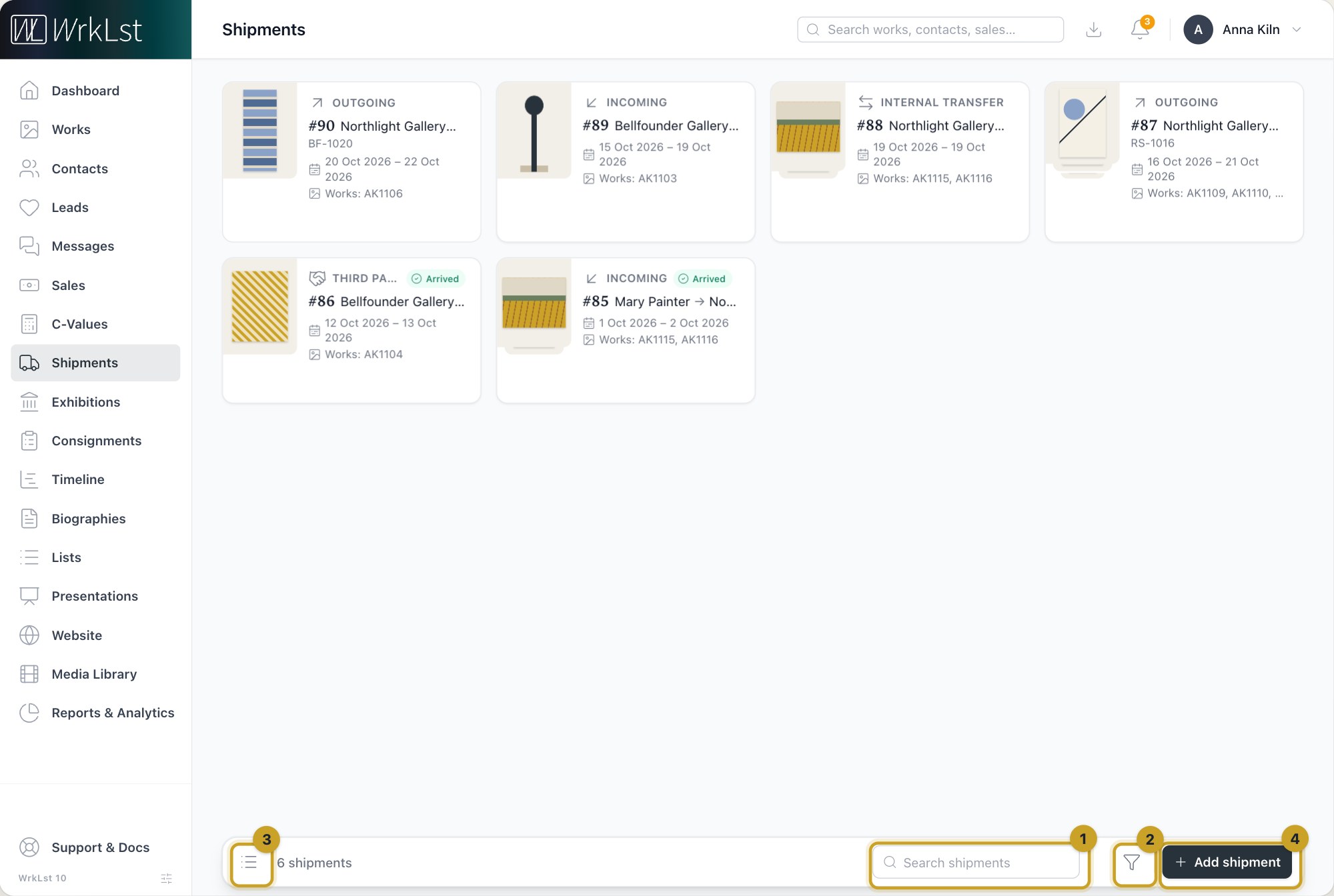
The shipments list: 1 Search shipments · 2 Filter · 3 Table view · 4 Add shipment
What a shipment record holds
A shipment records the Sender, the Recipient, the Facilitator, the Pickup and Delivery dates — or No dates (in planning) — and an External reference. Under Carrier & tracking you pick the Carrier and type the Tracking number; for DHL, FedEx, UPS and USPS the Tracking link fills itself in as you type. For carriers with live tracking, WrkLst first asks whether to check the number with AfterShip — Check with AfterShip or Don't check; tick Remember my choice to keep your answer, which you can change under Settings → Preferences. With your yes, the shipment shows the tracking history with a map and a Public tracking link you can pass on, beside the Carrier tracking link. Mark as arrived marks the shipment Arrived; it stays editable, and Mark as not arrived takes that back.
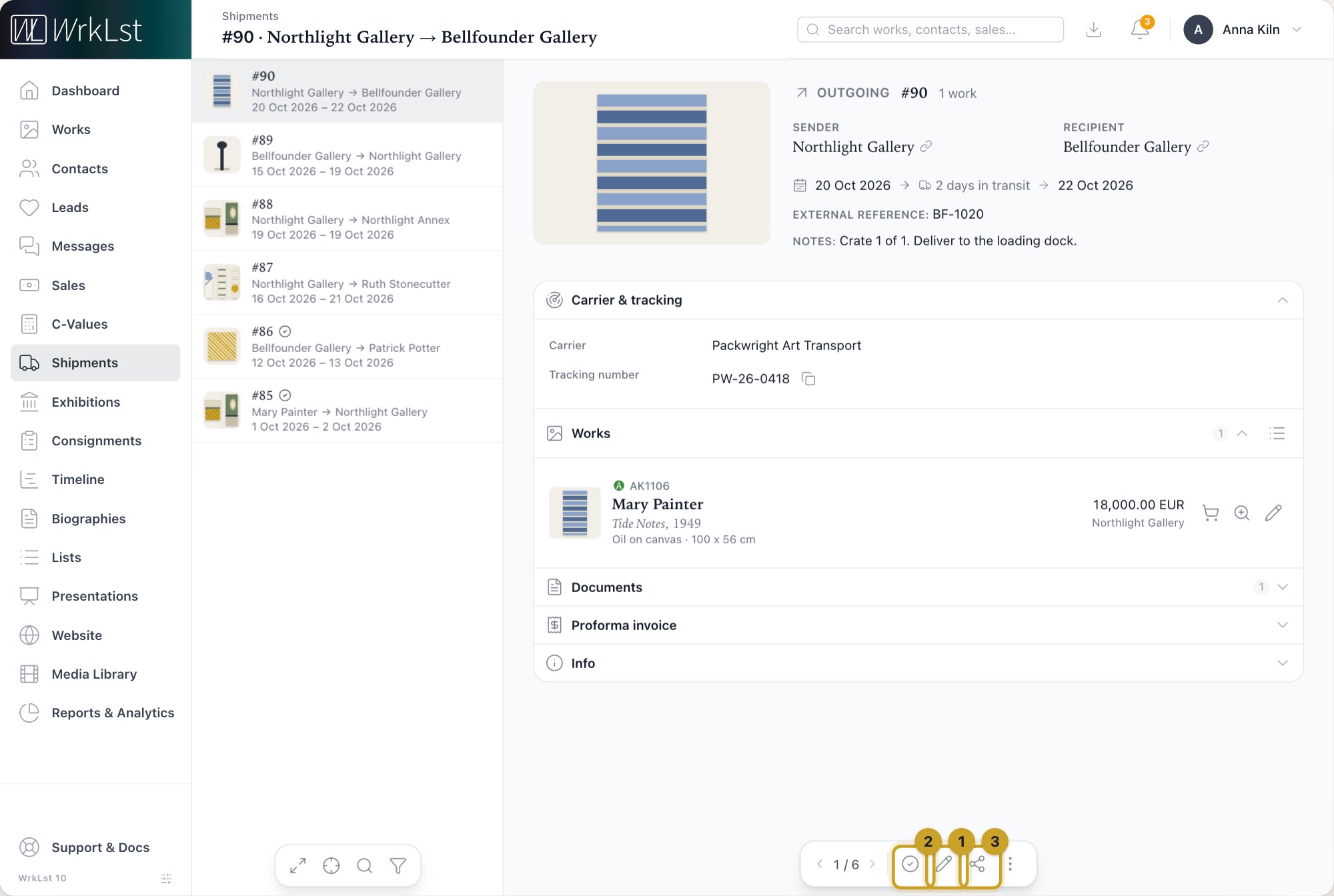
A shipment record: 1 Edit shipment · 2 Mark as arrived · 3 Share as
The shipment's Works are a list, one per line with inventory number, artist, title, details, price and location (the switch beside the sort shows them as cards or a grid instead), in your own order or by inventory number; clicking a work opens it with the others beside it. Under Work location you record the Location while shipping and the Location after shipment with its Arrival date, so the works' whereabouts stay right. WrkLst suggests "En Route" and "Gallery" only if your account's location list has them; otherwise a switched-on location asks you to Select a location. Documents appear as previews, and linked Exhibitions and Sales connect the shipment to the show or the deal it serves — so you can get from a work to its shipment, or from an exhibition to everything moving for it.
Creating a shipment
Pick works in the basket and choose Ship: the shipment opens with those works on it, captions, sizes and prices filled in. On a sale, Ship this sale brings the sale's works and its reference across, links the sale, and — where they are still empty — makes your headquarters the Sender and the sale's client the Recipient. Add shipment on the Shipments page starts from scratch.
Proforma invoice and customs paperwork
Under Proforma invoice, Add invoice builds the paperwork from what is already in the shipment: a Proforma title (a new proforma invoice starts with Pro Forma Invoice in your language) and date, the From and To addresses (Fill address from sender and Fill address from recipient copy in one of their saved addresses), a Purpose statement, a Signature statement, and one line per work with Description of goods, Unit value, Qty, Dimensions, Weight and Total value; Add other item adds a line for anything that is not a work, such as a crate. % of retail sets every unit value as a share of the retail price in one go, and the Proforma currency converts the lines. The customs paperwork is then made from these details rather than retyped: once your account has a shipment template, Share as on the shipment fills it in and downloads it as a PDF, Word or Excel file. Under Settings → Templates, the gallery adds a ready-made Proforma invoice in one click — from and to, every work and item with its dimensions, value and quantity, and the total; a shipment without a proforma invoice prints with it as a list of the shipped works, without prices — or you build your own; see Document templates: PDFs, Word and Excel on your own letterhead.
Carriers
For trackable carriers such as FedEx, DHL and UPS, live tracking and delivery status are available directly on the shipment once you agree to the AfterShip check (Settings → Integrations can turn AfterShip off for the whole account), so you can answer "where is it?" without leaving WrkLst. Carriers you type yourself are listed under Settings → Toolbox → Shipping carriers; rename one there and every shipment using it is updated at once. Carriers with live tracking are built in and stay untouched.
Internal transfers and dates
If you run more than one space, list them under Settings → General Account → Additional locations: moves between two of your own spaces then show as an Internal transfer, and you can filter for them. In the Timeline, the plus adds a shipment as an entry, and the calendar feed puts Pickups and deliveries into your calendar app.
Still using WrkLst Classic? This topic in the Classic documentation: Shipments