Create a New Contact
On this page
How to create a contact in WrkLst, what the record holds, and how to find a contact again. This article describes WrkLst 10.
Why contacts are worth doing properly
WrkLst is built on the connection between works and people. A contact is not just an address book entry: it accumulates that person's history with you — the works they have shown interest in, the waiting lists they are on, their sales, the exhibitions they were part of, and their connections to other contacts. That is what makes it possible to approach a collector with something relevant rather than cold.
Creating a contact
Open Contacts and choose Add contact. The form opens in the page; its sections, from the top:
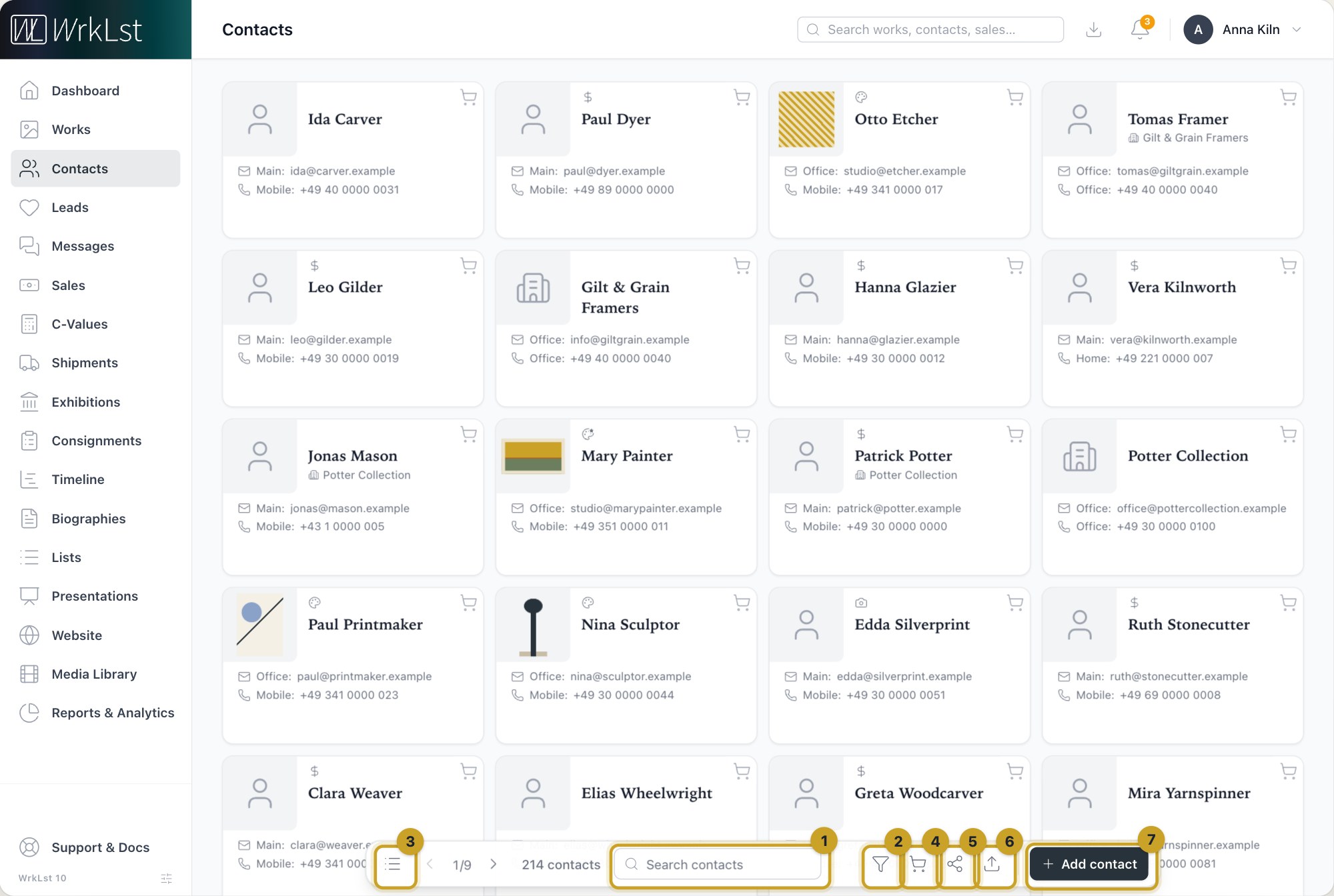
The contacts list and its toolbar: 1 Search contacts · 2 Filter · 3 Table view · 4 Basket · 5 Share selection · 6 Import contacts · 7 Add contact
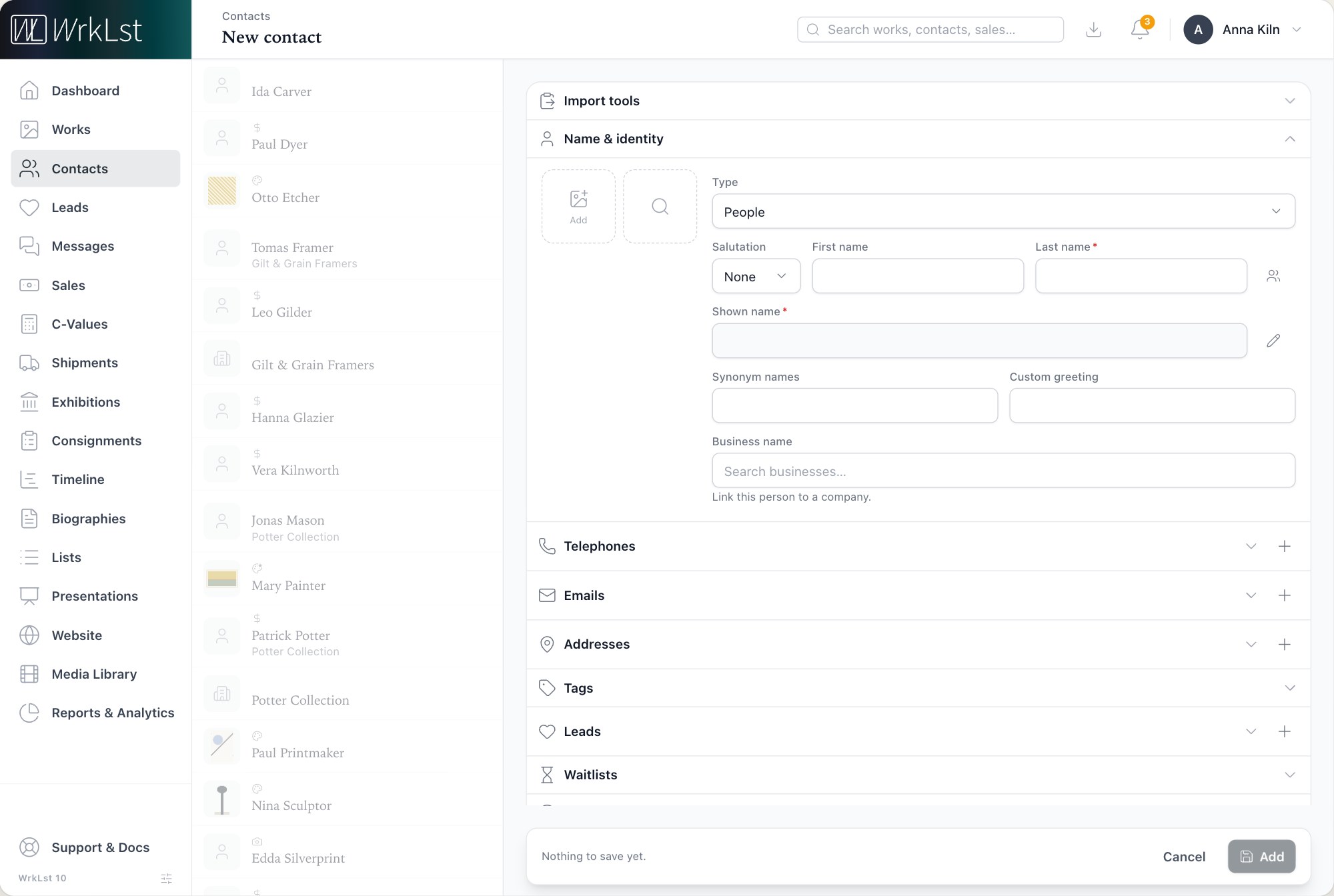
The form for a new contact.
- Name & identity — the Contact images, the Type (a person or a business), salutation, First name and Last name, or the Business name. A person can be linked to a company: click Business name and your businesses appear straight away, each with its logo. The Partner button beside the name adds a second person to the record; the shown name then becomes the couple name, and Default shown name switches between Main name, Partner name and Couple name; Synonym names are other names the contact can be found by, and Custom greeting overrides the salutation. While you type, WrkLst points out Possible duplicates already in your contacts.
- Telephones, Emails and Addresses — as many of each as you need, one marked Primary. Find address… looks an address up and fills in the parts, its place on the map included; on the record, Show map then shows it on a map. Countries are named in your language in the address form, in the filters and on the record's address; the invoice address of a sale keeps the country name as it is stored.
- Tags, Leads (artists or works, with notes, optionally Confidential; Add lead adds one) and Waitlists — see Waitlists. A lead added here is filed under Long-term when you save; its stage, who it is assigned to and its follow-up are set on the lead itself.
- Notes & information — notes and Confidential notes, birthdate, Contact source and art fair, Mark address as verified, VAT ID # (EU) and Resale # (US), and Confidential contact, which hides the record's details from users without the permission to reveal them.
- Links & social media (as many as you need, one marked Primary), Connections to other contacts — Married, Partner, Related, Employed, Represented and more, professional or personal — and the two roles Inventory artist and Documentarian / photographer.
Choose Add, and the new contact opens. When you edit a contact later, Save changes returns you exactly where you came from: the list you were browsing, at your place in it, or the contact you were reading.
Paste a signature block
The Import tools section at the top of the form takes a pasted email signature or contact block. Choose Fill found information and WrkLst fills in the name, email, phone, address and web address it found. The pasted text itself is not saved.
What a contact record shows
Contact details sit at the top of the record: email addresses (with their newsletter status when Mailchimp or MailerLite is connected), phone numbers, addresses (Show map opens the map for one with a map position) and links. Below sit Leads & waitlist — the artists the person waits for, their leads, their opportunities and any Released holds — Messages, Invitations (the RSVP invitations they were sent and how each went — see RSVP campaigns: invitations with replies), Sales & resales, Exhibitions, Connections and the linked records; Works acquired from this contact lists what you bought from a gallery, dealer or auction house, with Show in Works to select them or put them on a list. Everything recorded as interest before is now a lead, filed under Long-term on the Leads page; Lead in the contact's action menu or New lead in Leads & waitlist records a new one — see Leads: follow every enquiry from first contact to sale. The Messages panel holds the mail you exchanged — see Correspondence: the mail you exchanged with a contact. The Change history reads each edit back in your language and time, and What changed shows an edit's old and new values side by side to administrators, for changes made within the past year.
Actions on a contact
Beside the pencil that edits it, a contact offers Copy address — the address alone, with the phone, or with phone and email, ready to paste — and Write an email. Share as makes a document from your templates, such as a letter or a label. Under Actions sit Lead and Edit waitlists, then Don't reach out… — see Opportunities: more lists, the contact log and Don't reach out — and Delete. A deleted contact can be restored for seven days under Settings › Toolbox › Recover recent records; a contact still linked to other records cannot be deleted until they are unlinked, and the menu says how many there are.
When someone else is editing a contact, WrkLst shows Being edited by someone else instead of letting you both change it; if the contact changes while you have it open, you are told before you save.
Finding a contact
Pick a contact from the list and the record slides in beside it. Sort the list by name, email, phone or city by clicking a column heading or choosing a Sort order in the filter. The Filter groups its choices as Who (role — Collectors, Artists, Photographers, the roles WrkLst marks with an icon — and type, People or Businesses), How to reach them (email, phone, street, city, state, country), What you know (leads, sales and waitlist, notes, tags) and Relationships (Collector of artist, On the waitlist for). Further down come Purchased, the newsletter status when Mailchimp or MailerLite is connected, and Lists with Is on this list. The basket works as it does for works, and sits next to Contacts in the main menu.
Artists are a special case
Artist contacts are created slightly differently, because works are attached to them — see Create a New Artist Contact. Contacts can also be imported from a phone and synced to its contacts app — see the related articles.
Still using WrkLst Classic? This topic in the Classic documentation: Create a New Contact