Messages
On this page
Messages is a mail client inside WrkLst 10. Write to a contact from your own mail address, attach works and documents, and have every letter filed against the people and works it concerns.
Before you start
Messages go out through your own mail account, which each user connects under Settings → Email Account: Google Workspace, Microsoft 365, Infomaniak kSuite or any account over IMAP / SMTP. Your signature, your email templates and the defaults for new messages are under Settings → Email Settings. Messages appears in the sidebar once your mail account is connected.
Writing a message
- In Messages, choose New › New message to write to one person; New › New campaign starts a campaign to many, and New › New RSVP campaign an invitation guests answer — see Outreach and RSVP campaigns: invitations with replies. If you may not send campaigns, the button is simply Write.
- Under To, search a contact or type an address; add Cc or Bcc if needed — Bcc recipients receive the message with every mail account, Google Workspace included, without the others seeing them. Write the Subject and the text, or start from one of your Templates.
- Add artwork to include works. Their captions write themselves from the work records, so prices and details are right without retyping; the pencil, Write the caption yourself, lets you write one by hand, and Back to the automatic caption returns to the one from the record. Attach document adds files; they travel as download links, so with Track on you see when one is opened. Add a presentation… puts a presentation after your text as a designed email; its images and buttons open the presentation. When the message carries works and you may edit leads, Record as a lead turns each recipient into a lead with these works — in Offer when prices are included, otherwise In contact — unless they already have an open sale lead you can see for one of these works. Works and documents appear below your text in the order you set.
- Choose how the works travel: Text caption — the image, with the caption as text underneath, so the recipient can still select, copy and search it; Caption in image — one image per artwork, with the caption underneath, so image and caption can't be separated; or PDF — the works arrive as a single PDF attachment. WrkLst estimates the size. When the images are more than one email can carry, they are sent smaller; if even then they need more than one email, the works are split across several emails, in order, and the panel says how many. No work is left out. After sending, the message says how it went out — for example "This message went out as 2 emails, the works split across them in order."
- Preview shows the message as the recipient sees it. Then Send, Save for later, or Send as draft to your mail app — the message is placed in the drafts folder of your mail account, you finish and send it there, and WrkLst keeps a copy for the record. For a draft you choose Embedded images (attached to the email, so it opens even without an internet connection — a larger email) or External images (a small email whose images load from WrkLst when it is opened).
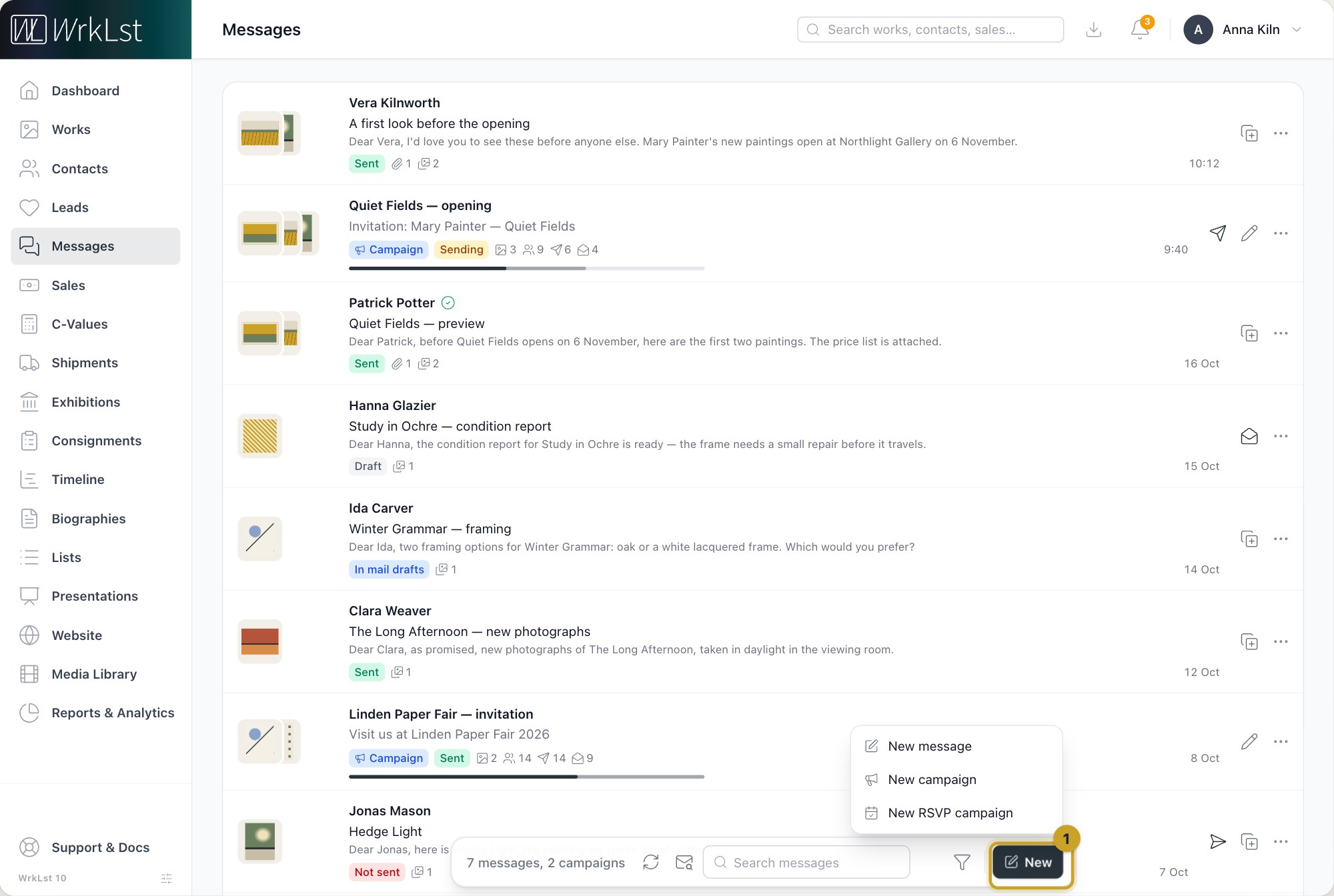
New starts a message to one person, a campaign to many or an RSVP campaign: 1 New
With Track switched on, WrkLst records when the recipient opens the message or one of its documents, and your own copies never count — see Opens and downloads below.
You can also start from a work or the basket: Email among its actions opens this editor with the works already in it. Share → Email is a different, shorter panel, titled after what it sends — Email works in basket, Email found works, or Email work followed by the work's number and title. Under Send to it puts the works into a draft in your mail app (Email draft) or, where offered, into your own inbox (Email inbox); you choose how the Artworks travel, what the Caption shows, whether to add Additional Artwork Images and, for the images, External images or Embedded images. With Email draft the image choice applies to the email draft WrkLst sends to your mail program, not to messages WrkLst sends itself; with Email inbox, to the email WrkLst puts in your inbox. When you send several works, Order of works shows As in the list; Change order lets you drag the works into the order your client should see them in, and List order goes back. The panel remembers your choices for next time. Only images marked Publishable go out this way: a work's main image is its first publishable image, or the work goes without one, and with Additional Artwork Images its other publishable images follow, each with a short caption — artist, title and year with "(detail)". That works in all three ways the artworks can travel, and the size estimate counts them. The panel names the works that would go out without an image, and why; Send their images that are not marked publishable instead sends their other images for this one email — confidential images never go. An email draft too large for one email is split across several, in order.
Your sent mail
Messages lists every message you wrote from WrkLst and the mail you kept from your mailbox, together with the campaigns — your colleagues' included. Each row shows the other person, the subject, the first line and whether it was opened. Filter by status — Draft, Sent, In mail drafts, Sending (a message that is stuck is listed here too), Not sent or Received — tick Only opened, or pick a Recipient; Sort by changes the order. Search finds a name, an address or a subject, and looks through the text when nothing else matches. Open a message to read it exactly as it went out: who was copied in, the Artworks in this message, the Documents, and, when Track was on, Opens and downloads: when it was first and last opened, and each open and download in turn. Conversation shows the exchange it belongs to — what you sent and what you kept from your mailbox.
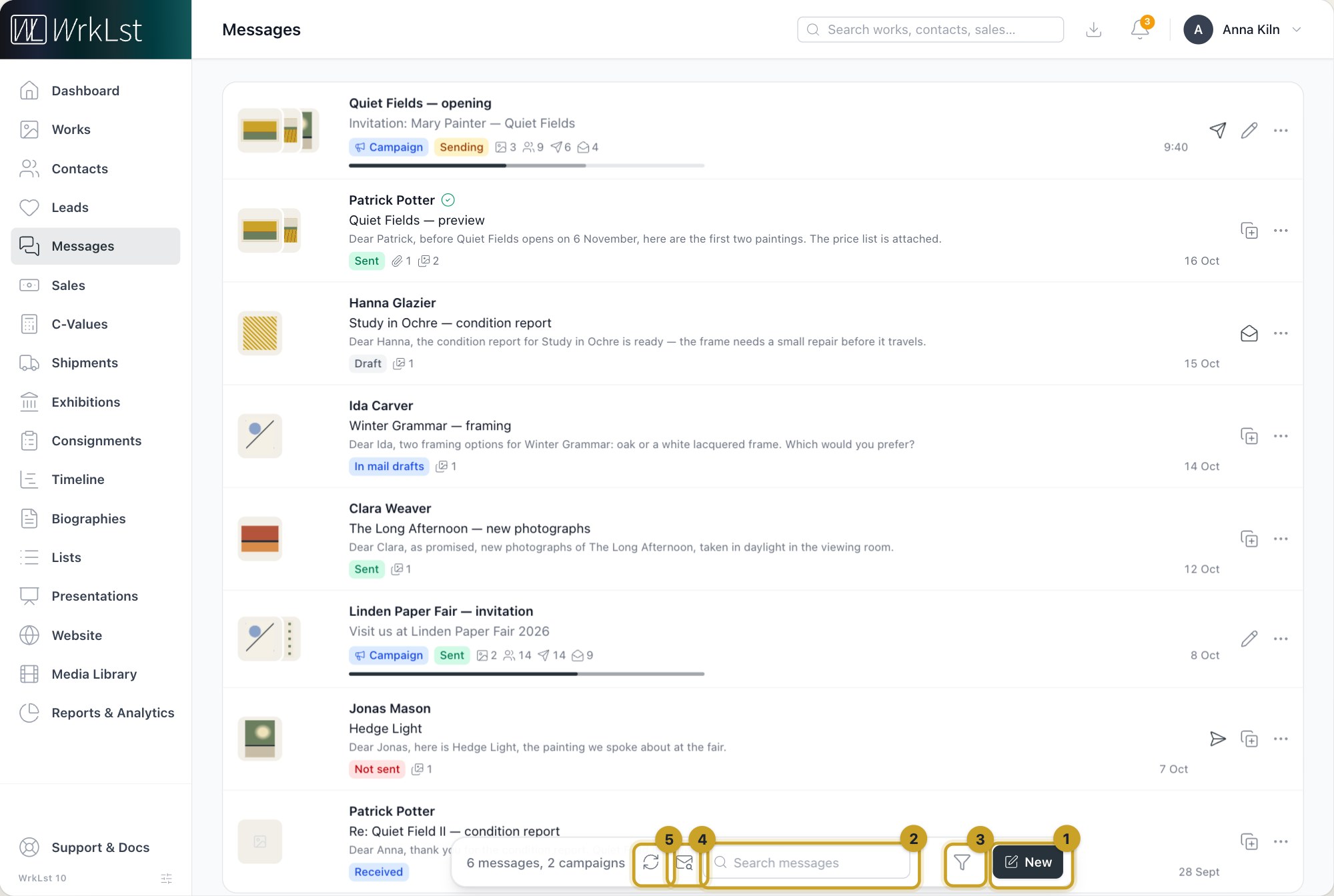
Messages: 1 New · 2 Search messages · 3 Filter messages · 4 Find mail in your mailbox · 5 Refresh the mailbox
Reply is there on a message someone sent you that you kept from your mailbox. It opens the same editor, so an answer can carry works and attachments; WrkLst sets the subject (adding "Re:") and keeps it fixed, so the answer joins the conversation in the recipient's mail program. A reply cannot be sent as a draft to your mail app, and with a Microsoft 365 account it cannot carry works or attachments yet. Forward sends a message on to someone else, with its works and documents, as a new conversation. New message from this reuses a message as a template; New campaign from this turns it into a campaign. Make a lead starts a new lead for the message's contact. Deleting a message removes it from WrkLst only — it is not unsent, and the copy in your mail account stays where it is.
Opens and downloads
With Track on, a message records when it is opened and when one of its documents is downloaded. Open the message, and Opens and downloads shows when it was first and last opened ("First opened …, last opened …"), then every open and download in turn. A message counts as opened once, however often it is read, and a campaign counts the recipients who opened it, not the times they did. With IMAP / SMTP (Infomaniak kSuite included) and several recipients outside your account, each of them gets their own copy of the letter, so WrkLst shows for each recipient when they first and last opened it. With Google Workspace and Microsoft 365, every recipient gets the same letter, and opens count for the message as a whole.
Your own reads never count. The copies your account keeps carry no open pixel, and opening a document from them isn't counted: the copy in your Sent folder, a copy to yourself in Cc or Bcc, and a copy to a colleague in your account. How WrkLst does this depends on your mail account:
- IMAP / SMTP — WrkLst files its own copy, without the pixel, in your Sent folder, and delivers that copy to anyone in your account the message goes to.
- Microsoft 365 — WrkLst creates the copy in your Sent Items itself.
- Google Workspace — WrkLst puts a copy without the pixel into the same conversation and moves the tracked original to the trash.
Some messages record no opens. Where WrkLst can't be sure that every copy in your account is free of the pixel, the message goes out without open tracking and records downloads only:
- with Google Workspace, when the message also goes to a colleague in your account;
- with Microsoft 365, for a reply, and when the message also goes to you or a colleague in your account;
- when your mail connection is missing a permission — Settings → Email Account then shows a warning; connect your mail account again there to restore it;
- when the mail provider refuses the untracked copy for your Sent folder and keeps the tracked one;
- for a message sent as a draft to your mail app.
Such a message says so under Opens and downloads and names the reason — for a missing permission, for example: "Opens are not recorded for this message: the mail connection is missing a permission WrkLst needs to keep your own copy untracked. Connect it again in Settings › Email account. Downloads are still recorded."
Possibly automatic opens. Some mail programs and mail servers fetch a message's images and links on their own: Apple Mail Privacy Protection loads every image as soon as a mail arrives, security filters open each link before the reader does, and a fetch within the first minute after sending is usually a server downloading everything on arrival. WrkLst lists these, marked "possibly loaded automatically by a mail app" or "possibly fetched automatically by a security filter", but doesn't count them: they don't make a message opened or a document downloaded. When Gmail loads images through its own servers, it does so as the reader opens the mail, so that counts as a real open.
Your team's addresses and devices. As a second layer, opens and downloads from your team are left out: anything from an internet connection that someone on your account has used WrkLst from in the last 30 days — in the browser, the WrkLst app, the API, an AI assistant, or contact and calendar sync — anything from a browser in which someone on your account uses WrkLst 10, and anything in the first ten seconds after sending. A recipient on that same network, such as a colleague in your office, is not counted either. A message that went only to people in your account records nothing.
Opens and downloads ends with a reminder worth keeping in mind: "Opens are approximate: some mail apps load images automatically. Downloads and presentation views are the stronger signal."
Messages on works and contacts
Because messages sit next to the records they concern, the history of a relationship is on the contact rather than scattered across mailboxes. A work shows the messages it was sent with. A contact's Messages panel lists what you wrote to them and the mail you kept, plus the campaign letters your colleagues sent them, and Look up mail there searches your own mailbox for the mail you exchanged with that person — narrowed by subject or content — so you can read it, Keep in WrkLst or Reply without leaving WrkLst.
If a message gets stuck
A message still waiting to be sent says so plainly. After ten minutes it offers Try sending again. WrkLst never sends the same message twice, so it is always safe to press. If your Google or Microsoft connection has stopped working, a banner says so and offers Reconnect.