Users, roles and permissions
On this page
Who can do what in your WrkLst account: how to invite team members, what a role controls, and how an administrator can follow what happened in the account.
Inviting a team member
- Open Settings → User Management and choose Add.
- Enter the Name and Email and pick a Role.
- Choose Save & Send Invite.
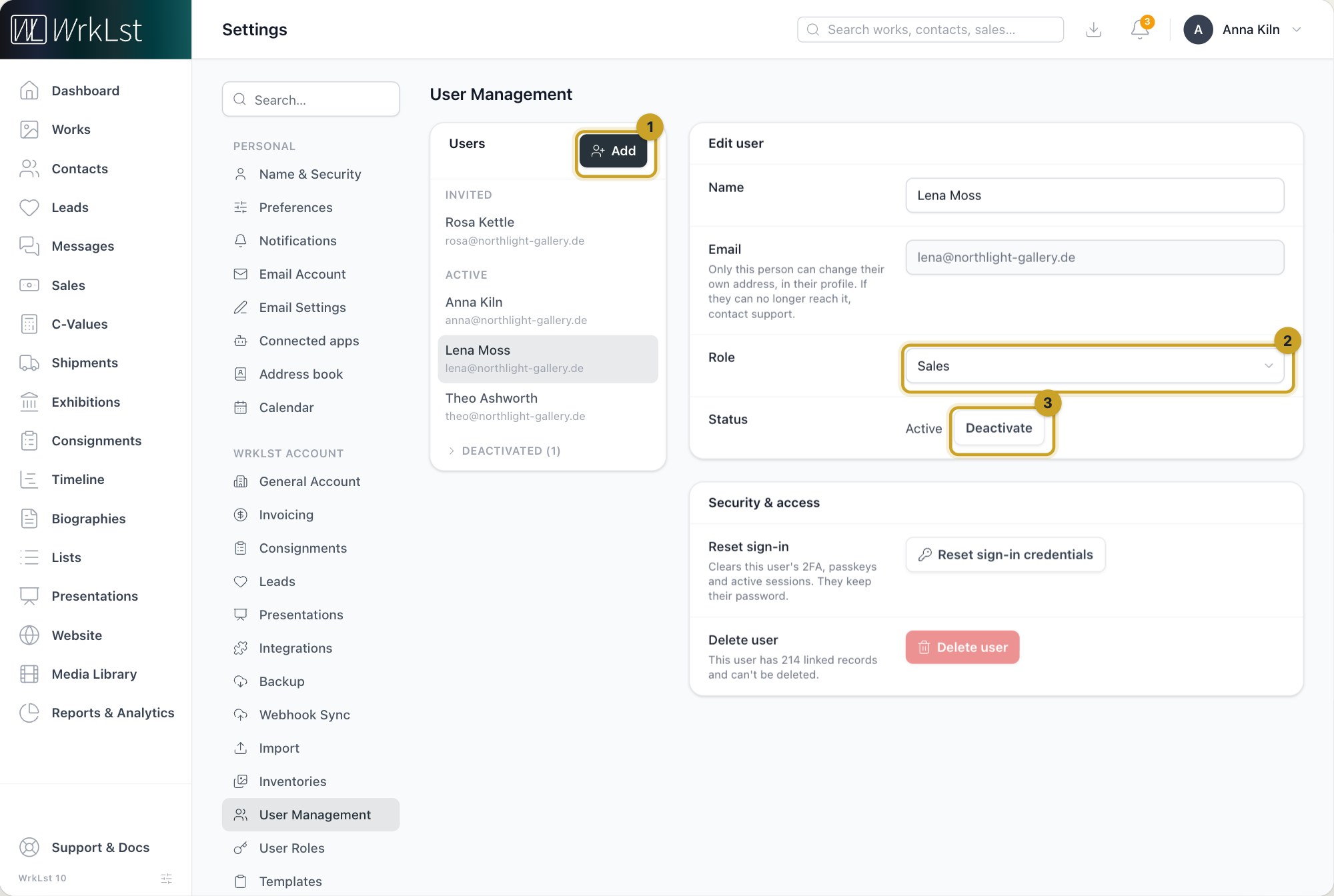
Settings → User Management: 1 Add · 2 Role · 3 Deactivate
New users are always invited: they set up their own sign-in through the invitation link, and their Status stays Invited until they do. Saving the user again sends the invitation again. You can invite a colleague with the email address they already use at another gallery or collection; they keep one user account and one password and simply gain access to yours.
Deactivating, reactivating and deleting
Deactivate stops a user from signing in; their records stay untouched, and Reactivate lets them back in at any time. Delete user removes a user permanently; it is not possible while the user has linked records. A user's email address can only be changed by that person, in their own profile. If they can no longer reach it, contact support.
Helping a user back in
Under Security & access, Reset sign-in credentials clears a user's two-factor authentication, passkeys and active sessions; WrkLst asks for your own password first. They keep their password, so this is the way to help someone who has lost their authenticator and recovery codes.
Roles
Settings → User Roles lists your roles. For each area of WrkLst a role grants View and Edit & delete separately, and a Share limit sets how much a user may share. Bulk edit switches everything on or off at once. System roles have fixed permissions and cannot be edited; your own roles can. To delete a role, choose Delete role, pick the role its users move to — another of your own roles or a system role, so even your only own role can be deleted — and confirm with Delete & reassign. System roles themselves cannot be deleted.
You rarely have to build a role from scratch:
- Duplicate makes a copy of any role, the system roles included, named after it with (copy) added. The copy is a role of your own, so you can change it. If you have unsaved changes, save them first; the copy is made from the saved role.
- Copy settings from… takes over every permission of another role into the role you are editing. Review them and choose Save.
- People with this role lists who has the role. Assign to people… gives it to several people in one step: tick them and confirm; everyone you tick gets this role in place of their current one. You see this card if you may also manage users.
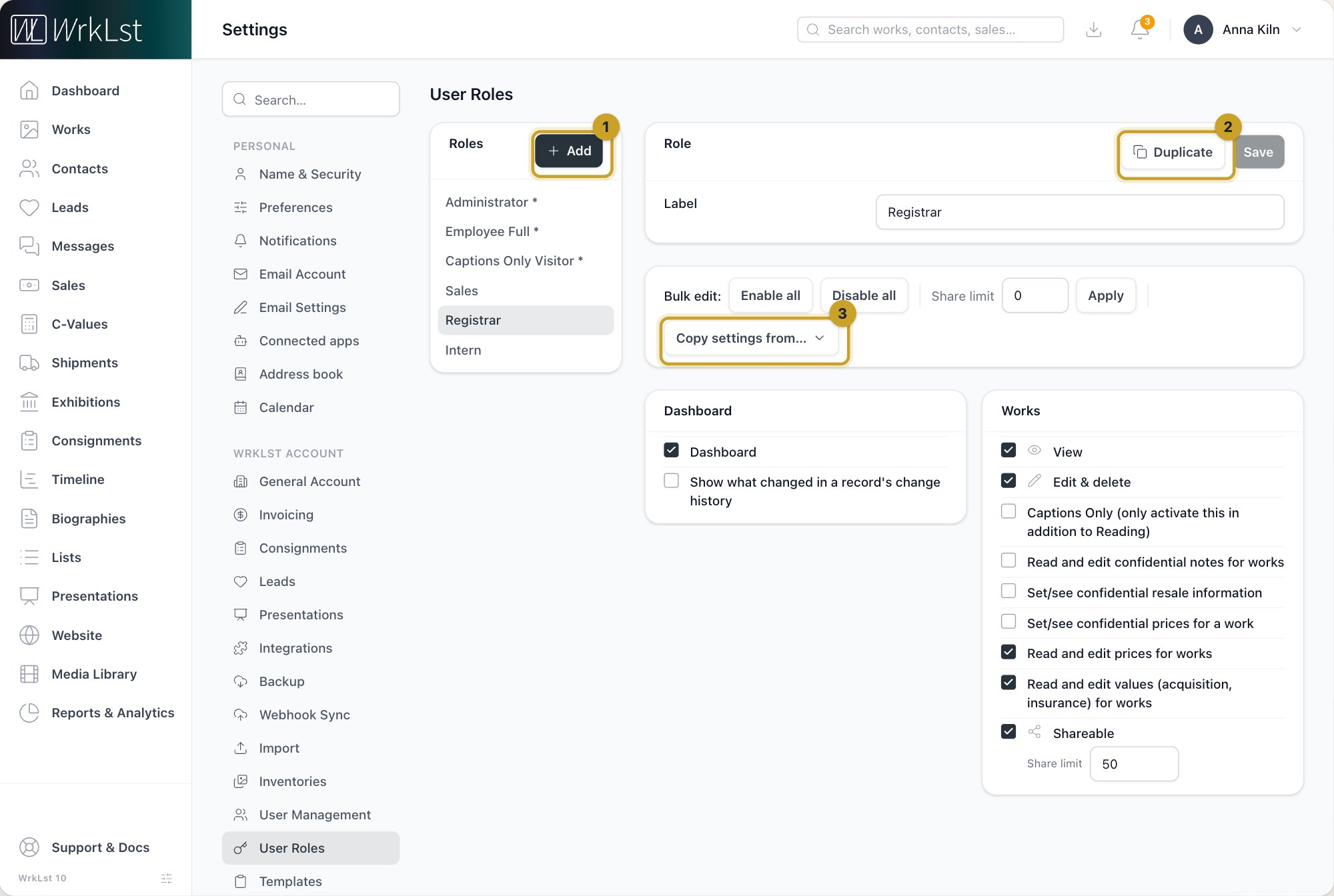
Settings → User Roles: 1 Add · 2 Duplicate · 3 Copy settings from…
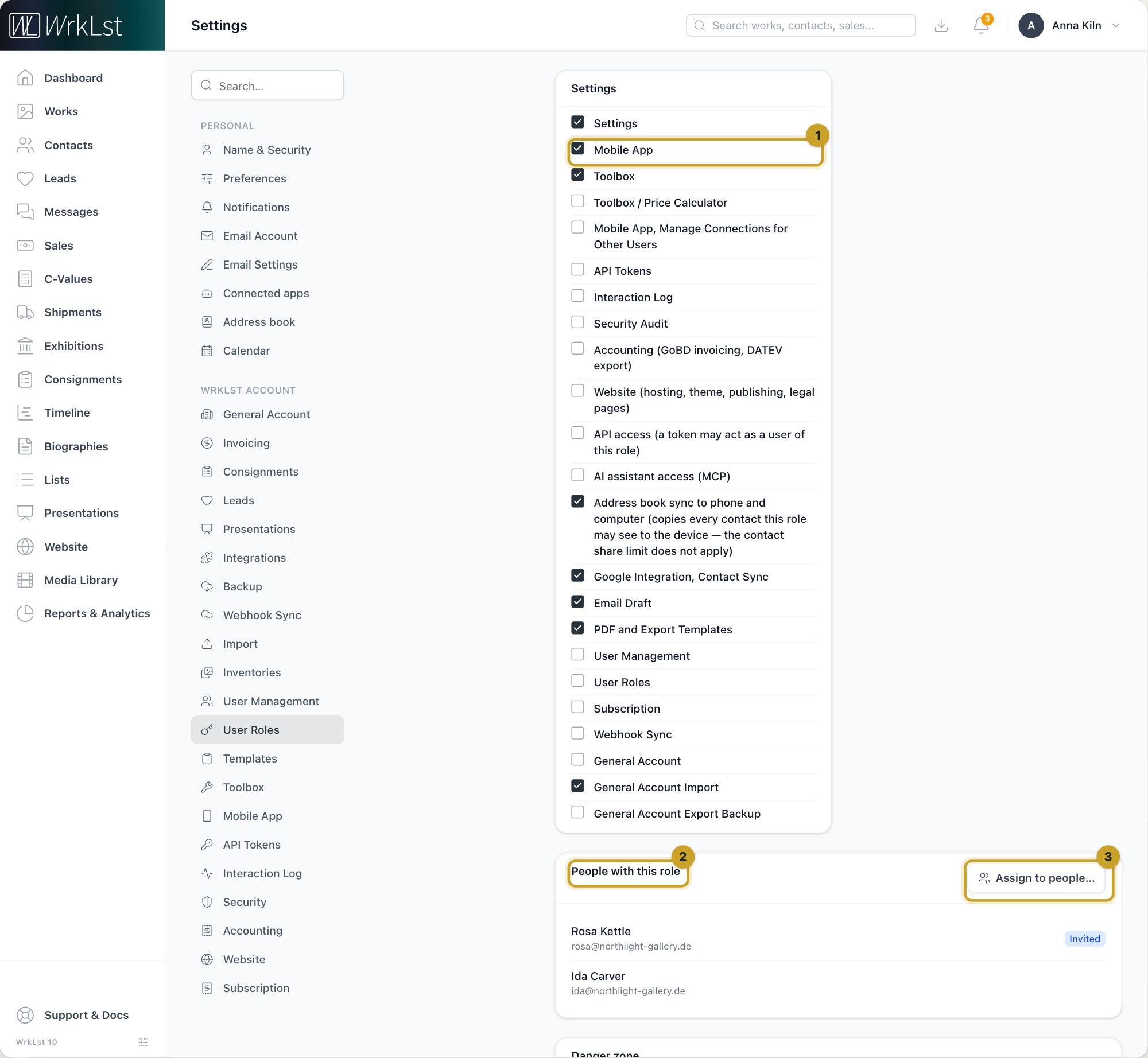
Further down in a role: 1 Mobile App · 2 People with this role · 3 Assign to people…
Some permissions are decided per role and are worth knowing about:
- API access and AI assistant access let a role connect other software and AI assistants. Admin roles have them; others do not until you grant them.
- Security Audit opens Settings → Security, the account's security check; Interaction Log opens the log below. Both are part of the Administrator role. See Security: how well your account is protected.
- Syncing the address book to a phone or computer is allowed per role.
- Payments, the bank reconciliation under Sales, is available to administrators and can be granted to other roles.
- Sales reports on exhibitions and consignments are shown to everyone who may see them.
- Reports & Analytics, with its item in the sidebar, opens for any role that may see one of its tabs: sales reports, User Performance, Acquisition / Insurance, or leads for the Leads tab.
- C-Values is part of the Administrator role. The other system roles do not include it; give it to others through a role of your own.
- Sharing documents from templates needs the share permission.
- Whether a role sees other people's leads. On the Leads card, See every lead, not only your own gives that; without it, a user sees only the leads assigned to them or where they are the second person, and the unassigned leads they entered themselves — everywhere in WrkLst. Read and edit confidential leads decides who sees confidential leads. System roles with access to leads have both, and every role that could already see leads was given the first one once, when it was introduced.
- With a WrkLst website, the Website card adds, beside View and Edit & delete, the right to Publish and unpublish the website, connect a domain, which by default only administrators have. The website's settings, its theme included, are a settings right of their own, Website (hosting, theme, publishing, legal pages).
- The Mobile App permission is needed for the WrkLst mobile app; see Permission Requirements.
Administrators also see, in the change history of a work or contact, what changed in each edit, with the old and the new value side by side, for changes made within the past year.
Who did what: the Interaction Log
Under Settings → Interaction Log an administrator can follow every request made to the account: per day and per channel (Web interface, Mobile app, API, AI assistant (MCP), WordPress plugin and Address book sync), on a map of where requests came from, and as a searchable list filtered by channel, user, day and text. Entries are kept for one year.
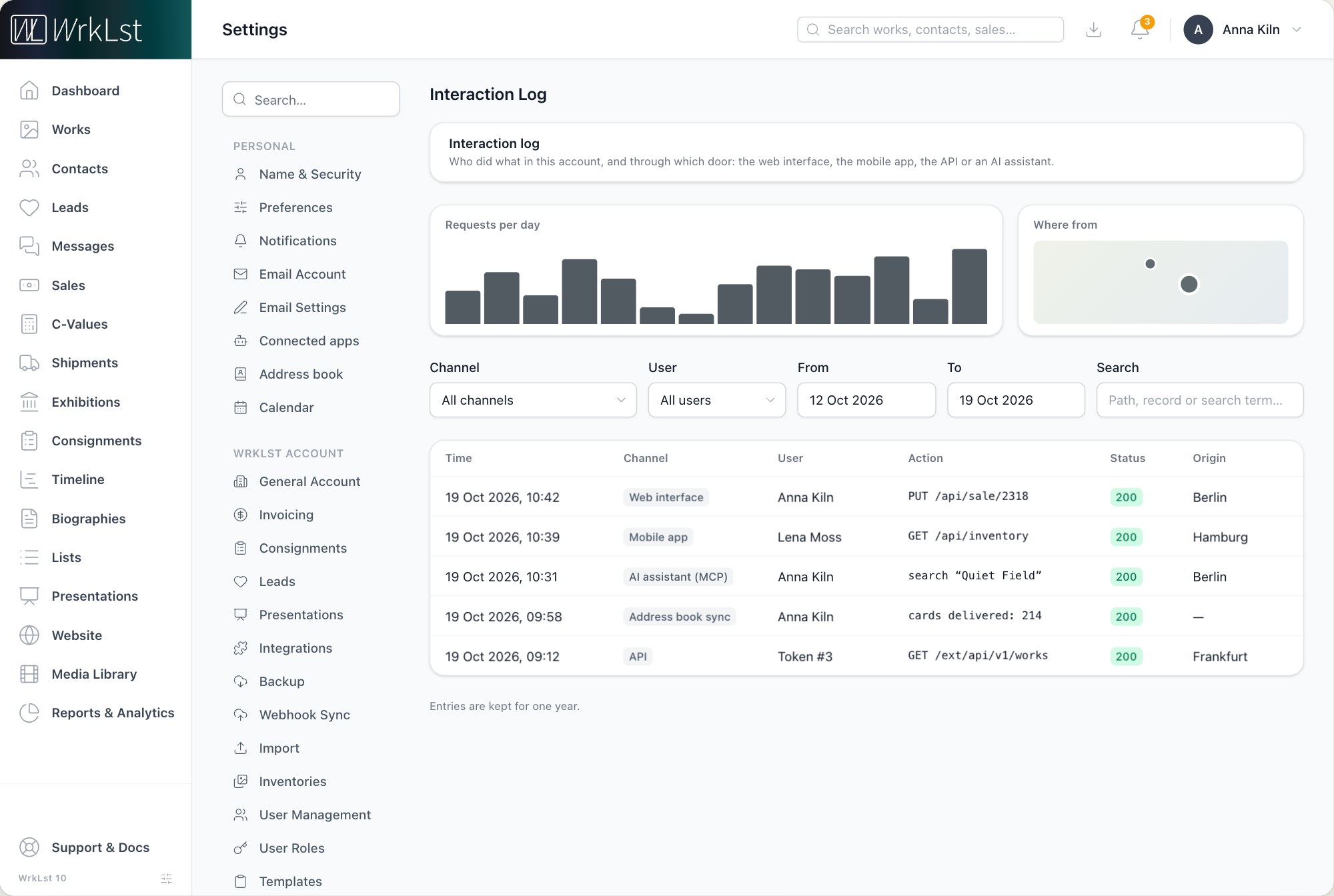
The Interaction Log.
Working at the same time
When someone else is already editing a contact or an exhibition, WrkLst shows you that it is in use instead of letting you both change it at once, and warns you before you save if the record changed while you had it open. On a work you see at a glance when a colleague is already working on a linked sale, exhibition or consignment.
Related articles
- My Profile: security, preferences and connected apps
- Security: how well your account is protected
- Signing in: one login, passkeys and two-factor authentication
- Permission Requirements
- Leads: follow every enquiry from first contact to sale
- Website settings: hosting, look, enquiries and legal pages
- AI assistants: work with WrkLst from Claude, ChatGPT or Cursor
- Sync your WrkLst contacts to your phone and computer