Biographies
On this page
Biographies keeps artist CVs in one place, so a line is updated once and is correct everywhere it appears — in your documents and on your website. This article describes WrkLst 10.
Starting a biography
Open Biographies. The page shows every artist who already has a biography; Search artists finds one among them. For an artist without one yet, choose Start a biography, which lists the artists still to start. Every artist has two parts: a Short paragraph bio — a few sentences used in shared documents and on your website — and a structured CV made of categories and lines.
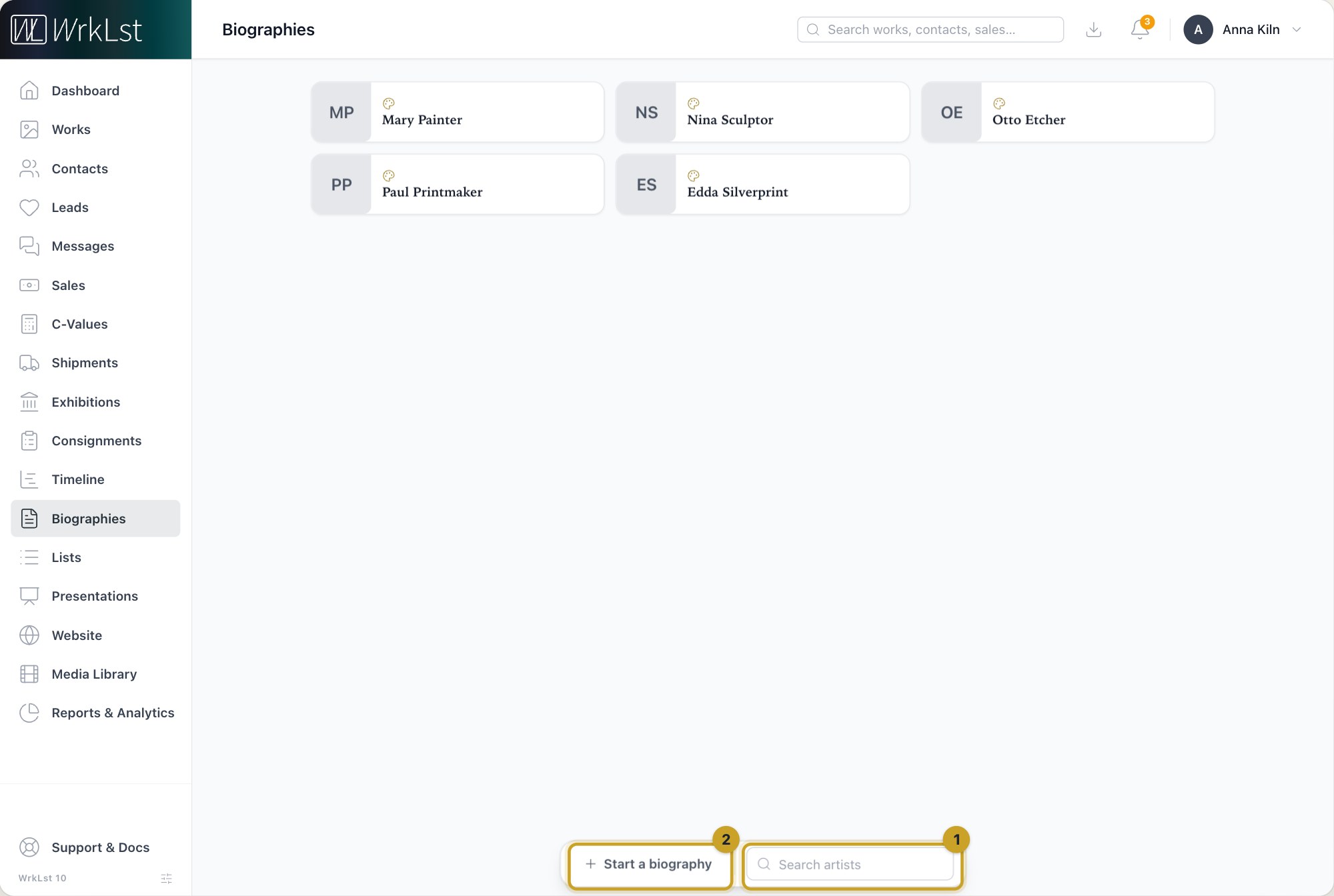
Biographies: 1 Search artists · 2 Start a biography
Categories and lines
Add a New category or Add an existing category. A category has a Public name, shown in documents and on a website connected through the WordPress plugin or a custom integration, an Internal name shown inside WrkLst, and a Type that says what kind of entries it holds: Life, Education, Exhibitions, Press, Bibliography or Other. Categories are shared by every biography in your account: renaming one renames it for every artist, and deleting it from one biography removes it everywhere if no other artist uses it. To use a category for something else, create a new one instead.
Add a line inside a category: a Year, optionally Until — a year, or a word such as "present" — the Text, and, where it applies, a Link, the Exhibition in WrkLst it refers to, or a Document you have already uploaded to the Media Library. Reorder categories and lines by dragging them, or with the arrow keys; Expand all categories and Collapse all categories keep a long CV manageable.
What goes on your website
You decide per line what appears in public. Published lines appear in shared documents and on a website connected through the WordPress plugin or a custom integration; an unpublished line stays internal, so a note can sit alongside a public exhibition history without leaking. Show in news also lists a line in the news block of that website.
Pasting an existing CV
Paste many lines takes a whole CV at once. Start with a year — or a range such as 2016–2017 — and every line below it becomes one bio line, until the next year appears. Lines above the first year get the current year. WrkLst shows how many lines it will add before you confirm, and a short line such as "Solo" is read as text, not mistaken for a year. Pasted lines arrive Published and not in the news; change either per line afterwards.
Exhibitions you record
Recording an exhibition does not write biography lines by itself. Instead, link a line to the exhibition with its Exhibition field: the exhibition then lists the biography lines linked to it, and the line opens the exhibition with Open exhibition. See Exhibitions.
Publishing
Biographies can be shared as documents from Share on the biography. WrkLst ships no biography template, so Share appears once your gallery has set one up under document templates. They can also be synchronised with your website through the WordPress plugin or a custom integration — see WordPress Plugin and REST API. This is what makes the single-source-of-truth idea work: your website, your PDFs and your Word documents all derive from the same version. The artist's contact record shows the Biography too. A WrkLst website uses the Short paragraph bio, through the About the artist block — see Your WrkLst website.