Document templates: PDFs, Word and Excel on your own letterhead
On this page
Templates turn your WrkLst records into documents, PDFs, Word files and spreadsheets on your own letterhead, straight from any list of works, a sale, a shipment or an exhibition. You set them up under Settings → Templates, add a ready-made one from the gallery, or have WrkLst build them for you.
How templates work
Every template has a Data source (Works, Contacts, Sale (Invoice), Sales (Report), Consignment, Shipment (Proforma), List of Works, List of Contacts, Exhibition or Bio) and a Format: HTML → PDF, Excel, PDF (no HTML needed), CSV, JSON (WrkLst transfer), Word .docx (Mustache) or Invoice document (configurable, PDF). Which formats are on offer depends on the data source: PDF (no HTML needed) for Works, List of Works and Exhibition, CSV for Contacts, JSON (WrkLst transfer) for Works and the invoice document for Sale (Invoice); a Bio template is always Word .docx (Mustache). A template is offered in the share menu of every record of that kind as soon as it is added, a Word template as soon as it has a template file: after uploading one, save the template. Add opens the gallery Add a template with ready-made starting points, ready to use as soon as you pick one: on a gallery template you can change Sort, Name and Output filename right away, and Customize this template opens everything else, from the data source and format to the page and the fields. Start from a blank template creates an untitled Word template for works with every setting open, which you can switch to another data source and format.
Besides the PDF layouts described below (PDF List, PDF Full Page, Images with Captions), the Invoice document (configurable PDF) and Labels, Word, A4, 4x2 — a sheet of 4 × 2 labels for your works, as a Word file you can adapt — the gallery holds four documents you add in one click:
- Proforma invoice — the customs paperwork for a shipment: from and to, every work and item with its dimensions, value and quantity, and the invoice total. A shipment without a proforma invoice prints as a list of the shipped works, without prices.
- Price list — a PDF price list of the works on a list.
- Address list — a PDF of the contacts on a list, each with address, phone and email.
- Insurance schedule — an Excel sheet of your works with their insurance values and acquisition details.
A template from the gallery is named, and writes its printed words, in your account's language. Templates you added earlier keep their names.
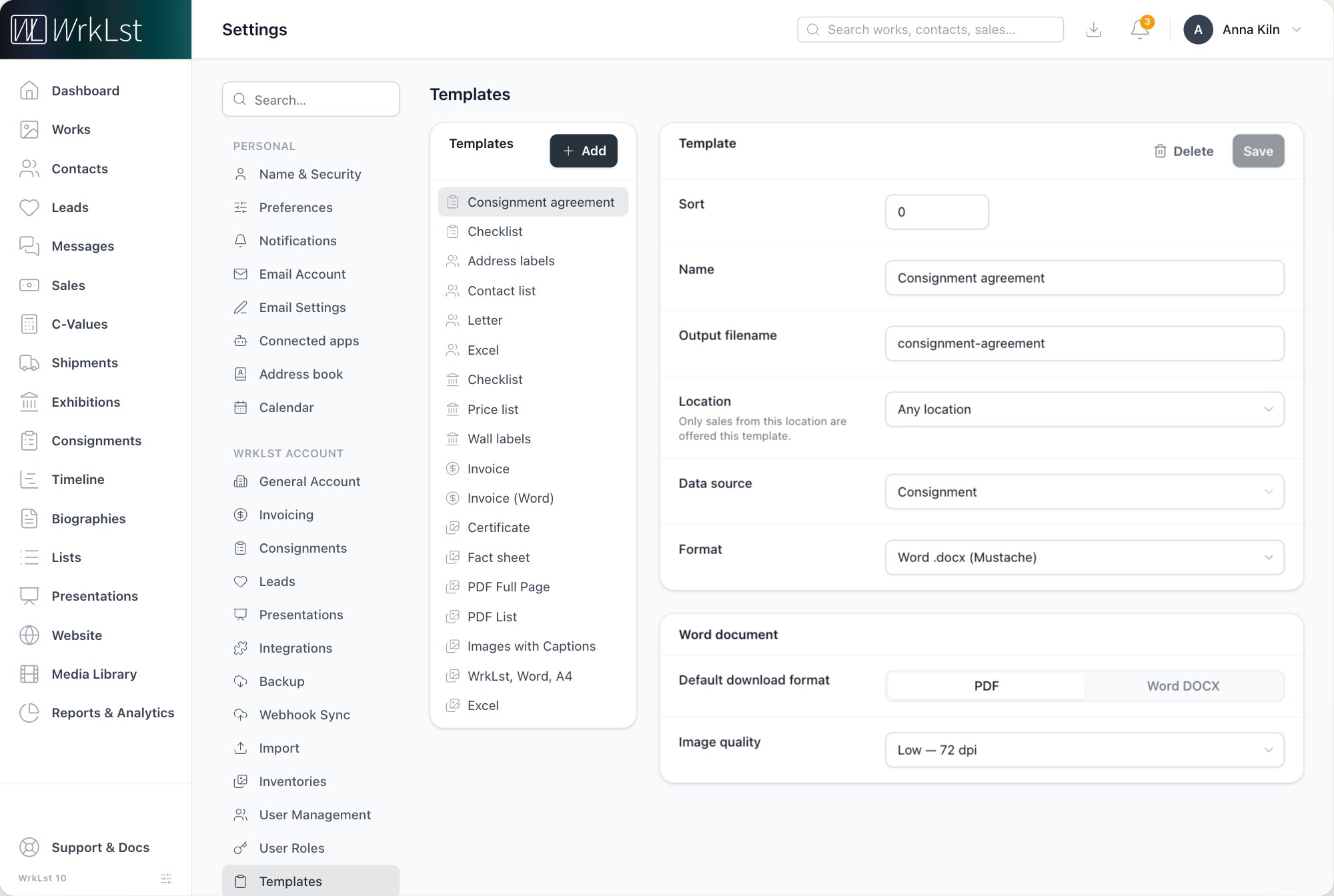
Settings → Templates.
The document is created for you, even if you close the tab. The Downloads menu in the header shows its progress and lets you retry or clear a failed export. In the tab you started it from, the file downloads by itself when it is ready; in any other tab, or when you come back later, it waits in Downloads with a Download button.
Ready-made PDF layouts for your works
With the format PDF (no HTML needed) you set the whole document up in a form. Under PDF document you choose the Layout:
- List — one work per row: a small picture, the caption and the details you pick.
- Full page — one work per page: a large picture with the details underneath.
- Images — every picture on its own page: each picture sized to the artwork with its caption underneath, no letterhead, no footer and no page numbers. At download time you choose between one PDF and single images with the caption inside the picture, and what the caption says.
Font, Font size (pt) and an optional Document title complete the page; the Images layout adds Resolution and Include works without images, the List layout Image size. Under Letterhead, switch on Print a letterhead, choose the Logo (Use the account logo, Use a different logo or No logo), set the Logo width (mm) and Alignment, check the Letterhead lines (one line each, such as company, address and website) and decide whether to Repeat on every page; Space below the letterhead (mm) moves the content down. Under Footer, Print a footer switches on the Footer lines, which have their own Alignment, and Print page numbers the page numbers. A template from the gallery, the invoice document and the PDF templates every account starts with arrive with the letterhead, the footer and the page numbers switched on: the letterhead lines carry your company name and address, and the footer your Presentation credit from Settings → Presentations (by default © with the year and your company name).
The account logo is set once under Settings → Presentations and used everywhere; a single template can still use a different logo, or none.
Word templates
With the format Word .docx (Mustache) you upload your own Word file under Template files; the first file (★) is the default style, and you can add further styles. Default download format decides whether the result arrives as PDF or Word DOCX, and Image quality sets the resolution of the pictures. The download icon next to a file name gives you the Word file a template is built on, handy for editing it or reusing it in another template.
Choosing what goes in
Under Fields you select which fields are customisable when exporting and which are selected by default; for PDF (no HTML needed) the list offers only what the chosen layout can print. When you download a document, Customize lets you pick the fields, set the start position on a label sheet (for a Word .docx (Mustache) or HTML → PDF template with This template has columns and rows ticked under Layout grid) and, for Word templates, choose the style and PDF or Word.
The invoice document
For a sale, the format Invoice document (configurable, PDF) assembles the invoice from elements you switch on and arrange: recipient address, invoice details, title, introduction, positions with pictures, totals, payment terms, a payment link with a QR code, closing text, terms from the sale, signature and tax notes, with your logo, a stationery PDF, Letter, Legal, A4 or A5 paper, and a live preview. The same document is used for downloads and, once invoice bookkeeping is on, for issued invoices. If your account has more than one location, a template can belong to one Location, so only sales from that location are offered it.
Documents for a single record
A PDF or Word document for a single sale, exhibition, shipment or any other record comes from the record's share menu (the share icon: Share as, or Share / export as on exhibitions, consignments and lists) wherever you have the share permission and templates set up. The cost report of an exhibition or consignment needs no template: expand Production & expenses and download it as a PDF or a spreadsheet.
You can also make the document where you need it. Wherever you click Add document (on a work, an exhibition, a consignment, a shipment or a presentation), and when you add a document to a biography or a message, the picker has a tab for each kind of record next to the Media Library: Exhibitions, Consignments, Shipments, Works, Lists, Contacts and Biographies, as far as your role and your account's modules allow. Choose a record to see the documents it already holds and your PDF templates for it, marked New PDF from this template; lists and contacts hold no documents, so their tabs offer templates only. Pick a template: the PDF is made, saved to the Media Library and attached, with nothing to download and upload again. This works with templates in the formats HTML → PDF, PDF (no HTML needed) and Word .docx (Mustache), if you have the share permission for that kind of record and may add files to the Media Library; a private list or a confidential contact cannot be saved there this way. Sales are left out: a sale's documents come from its Share as menu and, once invoice bookkeeping is on, from Issue invoice under Invoices. More on the picker in Media Library.
Custom templates built for you
WrkLst creates templates tailored to how your organisation works. Once a template is in place, the document is generated straight from your WrkLst records, with no copying and no reformatting. Typical templates include tear sheets, checklists, consignment forms, condition reports, invoices and full work reports, all with your letterhead and fonts applied.
To request one, write to WrkLst support through the in-app support messaging feature or at support@wrklst.art. Send examples of the documents you want to produce, preferably as Microsoft Word files: your existing paperwork shows how your documents are laid out and which fields matter to you, which makes the result far closer to what you had in mind.