Editing and Multi-Editing
On this page
How to edit a single work, change many works at once with multi-edit, read what changed in a record's history, and delete or recover works. This article describes WrkLst 10.
Editing a single work
Open the work and choose Edit. The form opens in the page, with the same sections as when you created the work — see Creating New Artwork — plus Availability: whether the work is Available for sale, which of its linked holds or sales applies, and Availability notes. A new hold or sale is still started from the work's Actions menu. Change what you need and save; Work saved confirms it. Because everything in WrkLst hangs off the work record — images, documents, exhibitions, consignments, shipments, holds and sales — keeping it accurate is what makes the rest of the system trustworthy.
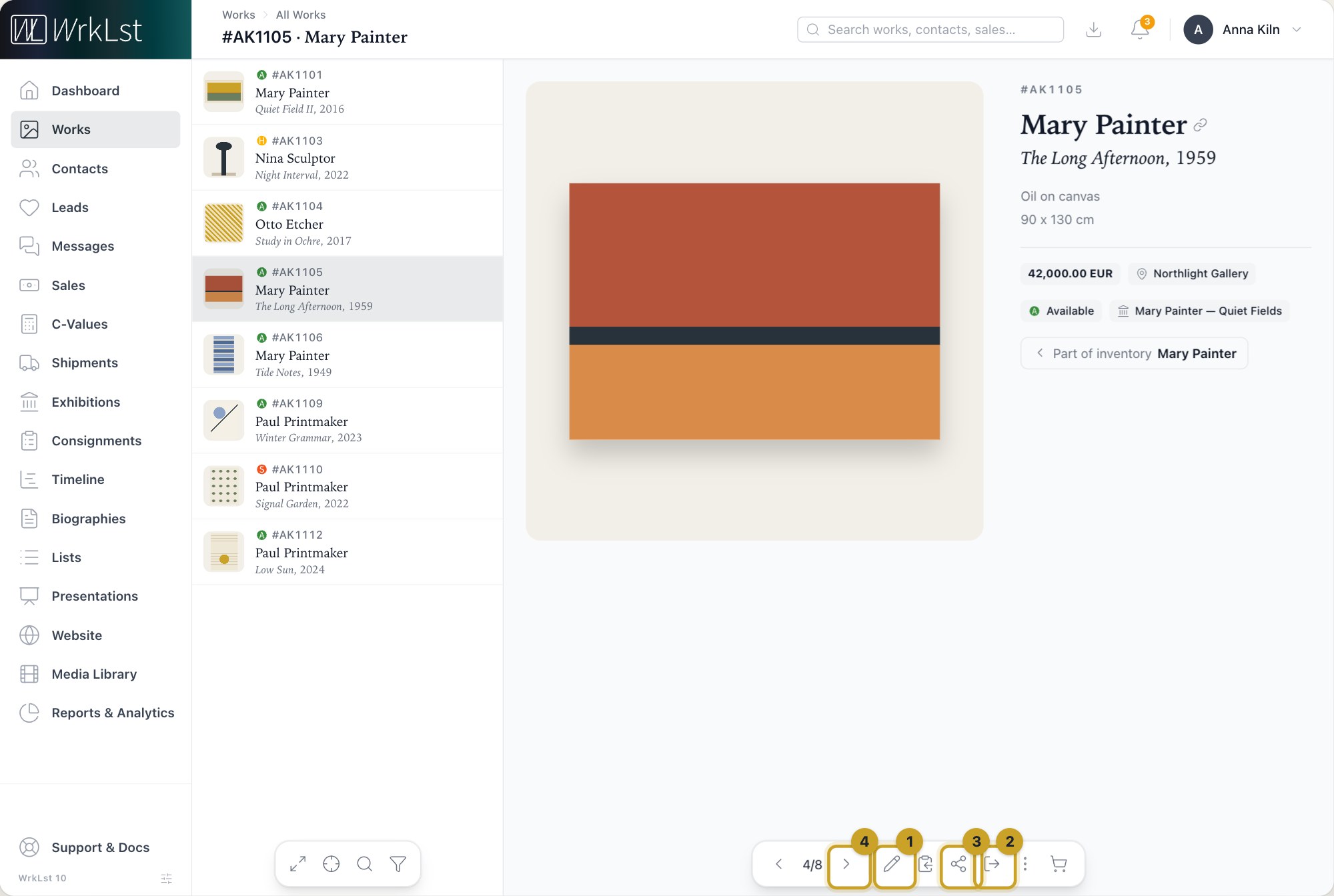
The bar at the bottom of an open work: 1 Edit · 2 Actions · 3 Share as · 4 Next record
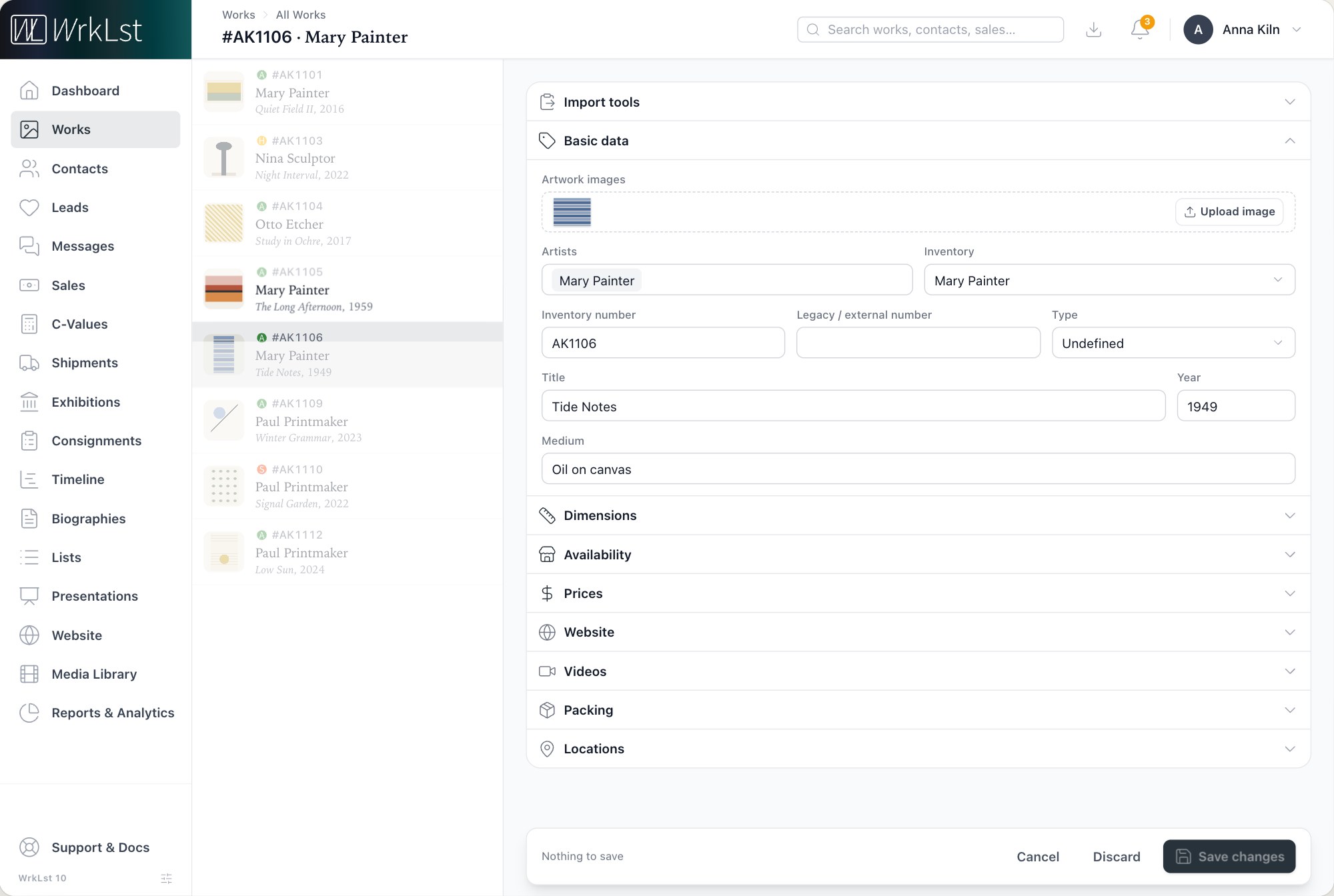
The edit form opens in the page.
The same editor opens when you edit a work from inside a sale, shipment, exhibition, consignment, list or presentation, and saving takes you straight back to that work inside the record.
Working alongside colleagues
When someone else is already editing a work, its button reads Edit (in use): the form opens read-only, names who is working on it, and becomes editable by itself as soon as they are done. If someone else saves the work while you have it open, your save does not overwrite theirs: WrkLst stops it and tells you, and Reload gets the latest version so you can apply your changes again. After a period of inactivity your edit access is released; Check status tells you whether the record is still free and unchanged, so you can Reclaim editing, or whether a colleague has taken it over or changed it in the meantime.
Multi-editing
Multi-editing applies the same change to a group of works in one operation. It is the right tool whenever the same correction or update applies across many records: a location change after a rehang, a credit line that needs standardising, a price adjustment across an artist's work, or a batch of records imported with the same missing field.
- Put the works in the basket first — filter or search and choose Add current results to basket, or add works one by one — see Works: inventories, filter and search, views and the basket. Multi-edit needs at least two works; opened from an edition, it loads every copy, artist's proofs included.
- In the basket menu, choose Edit works → Multi-edit. The form shows the same panels and fields as the normal editor, with a tick box beside each one; only ticked fields are applied. The Edition, Group / set and Website sections are left out; for the website settings of many works, use the Website menu beside the basket instead. Changing a field ticks it for you. At the top, Works to edit lists the works the change applies to: Add a work brings in another one, and Remove takes one out.
- Choose the Mode. It starts on Add only (keep existing entries): new entries in list panels — prices, locations and the like — are added on top of what is there, while ticked single fields are replaced. Use … as template instead pre-fills the fields with one work's values, and then ticked panels replace the matching entries on every selected work.
- Check the summary — Will be applied to … works, with each entry marked as added or replacing — and choose Apply to … works.
The inventory number is never changed by a multi-edit. Availability has its own switch, Change availability — Set all available, Set all not available or Keep as is — and WrkLst warns you that this cannot be undone.
A word of caution
Multi-editing is fast, which is exactly why it is worth checking the selection before you commit. Make sure the works in front of you are the works you meant to change.
What changed, and by whom
Every work has a Change history that reads each entry the way the rest of WrkLst does — "5 Apr 2018, 19:39 by Tobias", in your language and your own time. Next to an entry, What changed shows the details that edit touched, the old value and the new one side by side. It is available to administrators, for changes made within the past year. A record that was recovered after deletion shows that too, and by whom.
Deleting works
Delete on a work opens a confirmation that spells out what happens to linked records: which are deleted with the work because it is the only work on them, which are kept with their other works, and which sales block the deletion until the work is removed from them. A work that is part of a group has to be disconnected from the group first.
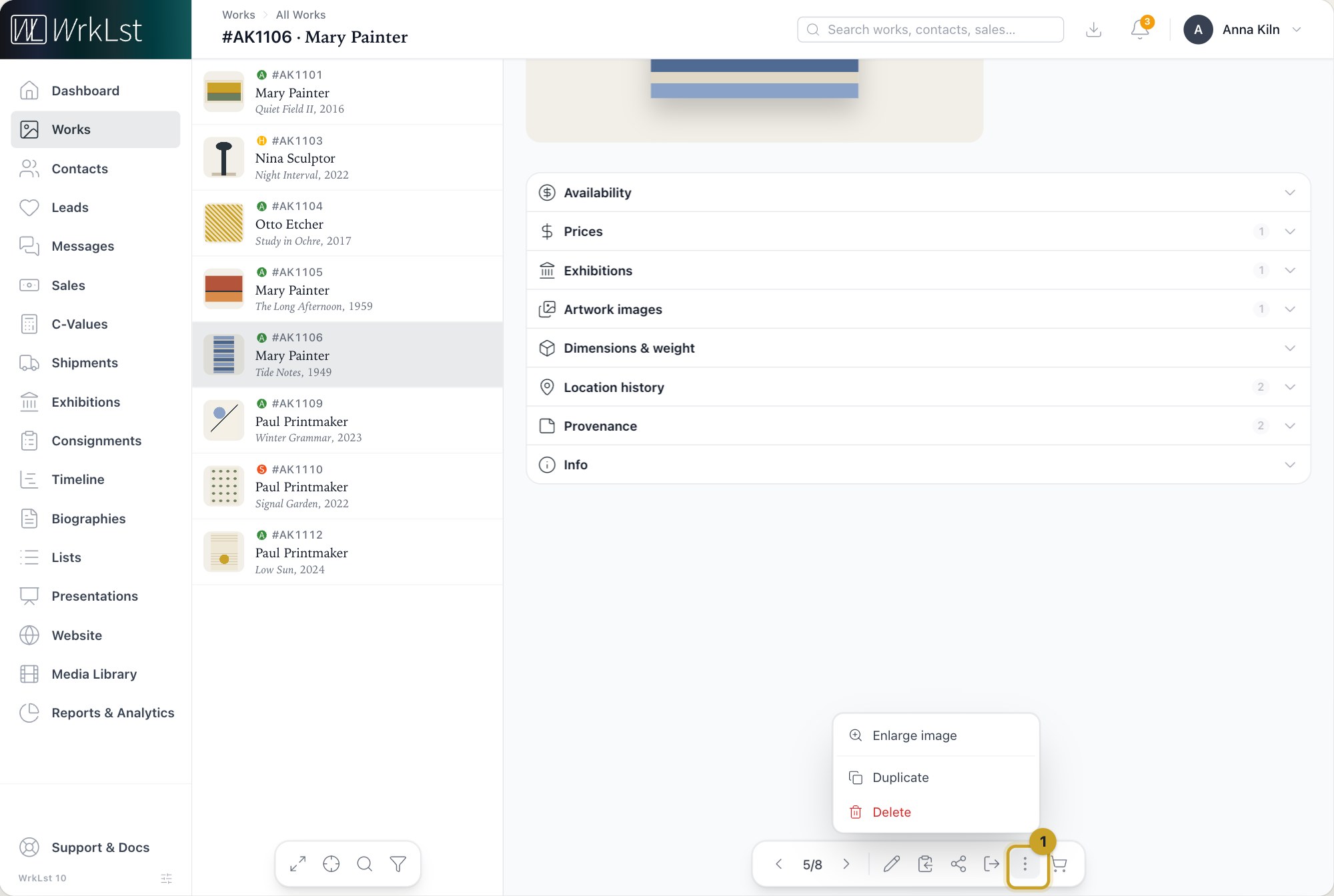
More actions on a work: 1 More actions
To delete several works at once, put them in the basket and choose Edit works → Delete works… from the basket menu. The dialog lists which works go and which stay — a work on a sale, in a group, on a shipment, in an exhibition or on a consignment is kept — and you confirm by typing the number of works being deleted.
A deleted work can be brought back within seven days from Settings → Toolbox → Recover recent records (the Toolbox is open to administrators and to any role that includes it); its history then shows the recovery — see Toolbox: recover deleted records and tidy up.
Still using WrkLst Classic? This topic in the Classic documentation: Editing and Multi-Editing