Appearance, menu and layout
On this page
Dark mode, your language, the width of the menu and of the list beside a record, which entries the menu shows and in what order: these settings shape how WrkLst looks, and this article says where each one lives.
Light, dark or system
Open the menu under your name. Under Appearance, choose System, Light or Dark. Dark mode applies to the entire workspace; with System it follows your computer's setting and changes with the time of day.
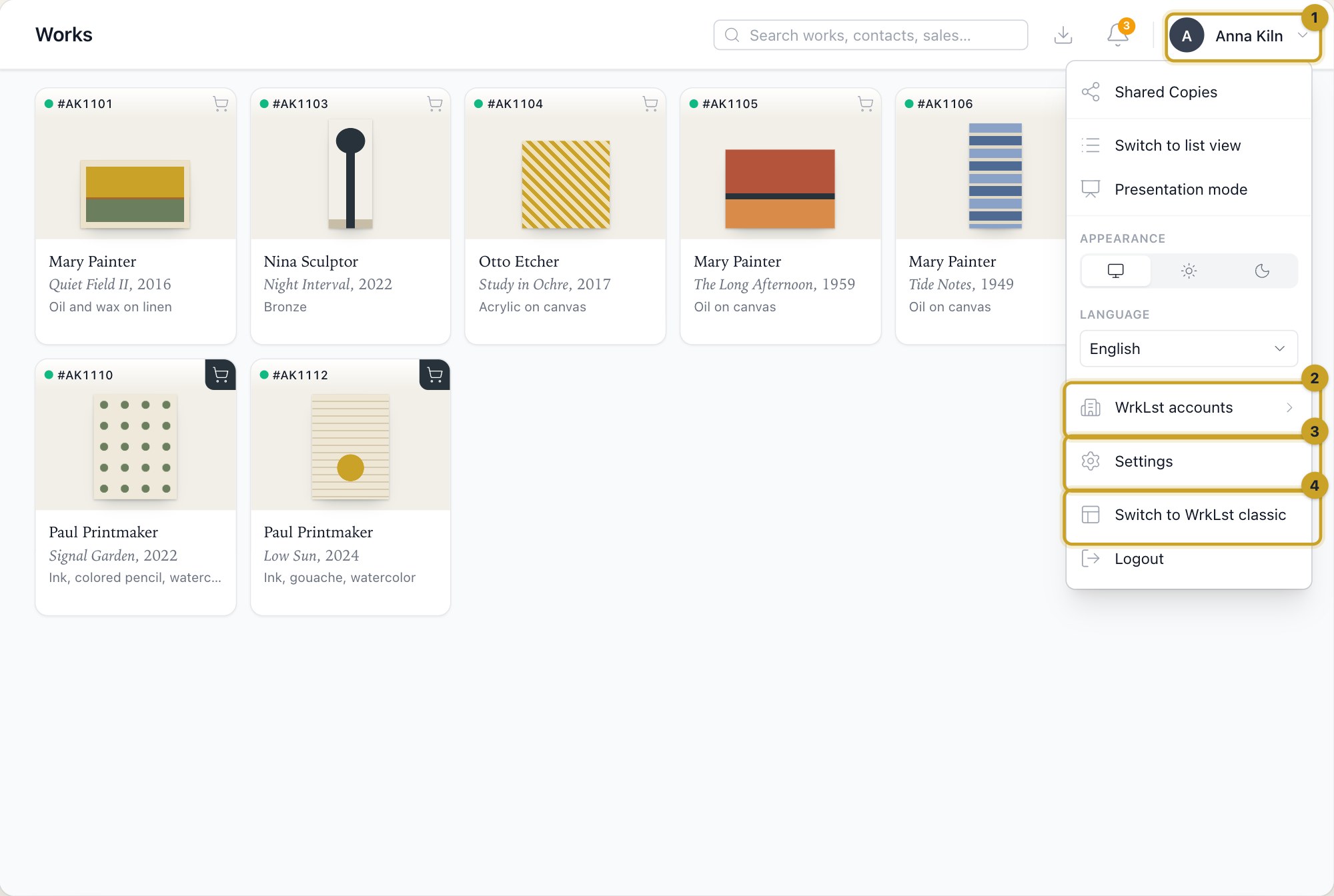
Appearance and language are set in the menu under your name: 1 Open user menu · 2 WrkLst accounts · 3 Settings · 4 Switch to WrkLst classic
Language
In the same menu, under Language, pick one of the sixteen languages WrkLst speaks. Your choice follows you to every computer you sign in on. Arabic reads right to left, so in Arabic the whole interface turns around to match: the menu moves to the right, and everything else with it. Reports you download as PDFs print correctly in every language.
An account can also have a language of its own: the Default interface language under Settings → General Account is what everyone in the account sees, unless they have picked their own.
The menu
At the foot of the menu, under the WrkLst 10 badge, Layout settings holds the controls for the menu and for lists. Under Menu, choose Full menu or Icons only. The collapsed menu gives you more horizontal room, useful on a laptop and when you work with a record and a list side by side.
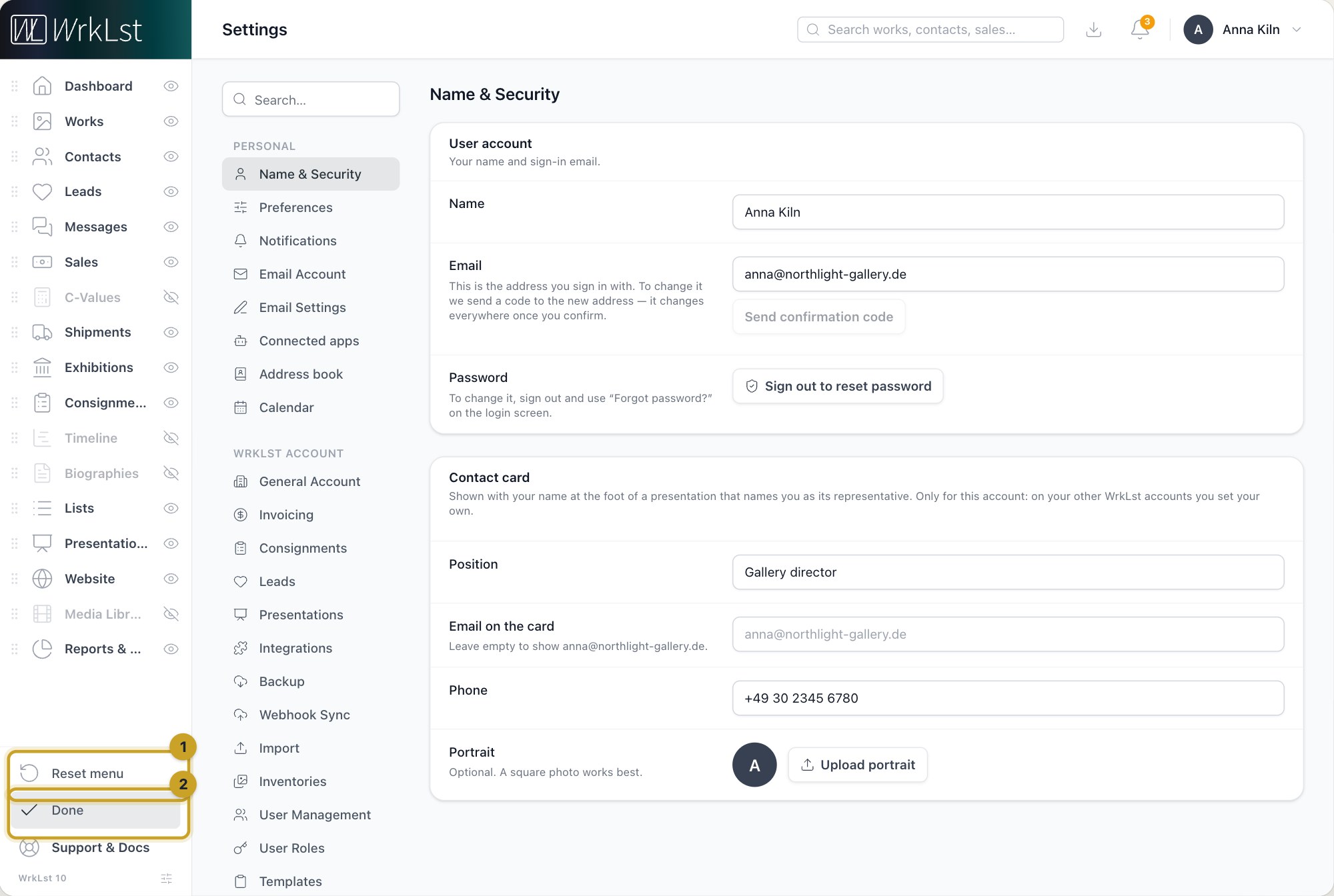
Customising the menu: 1 Reset menu · 2 Done
Customize menu lets you arrange the menu the way you work. Hide the areas you never open; they gather under an Other entry at the end of the menu, so they stay in reach, and point at Other to slide them open. In the same view you put the menu in your own order: take an entry by the handle at its left and drag it where you want it, or move it with the arrow keys. Done keeps the arrangement, Reset menu puts everything back the way it came. Your arrangement follows you to every computer you sign in on. A new entry, such as Leads or Website, appears at the end of a menu you have arranged yourself; drag it where you want it.
The works basket and the contacts basket sit next to Works and Contacts in the menu. You can see how many items are in each and use, share, save or empty a basket from anywhere in WrkLst.
The WrkLst 10 badge itself opens What's new: the latest updates to WrkLst 10, newest first, each with its date. The same list runs along the bottom of your Dashboard. Just above it, Support & Docs opens the help menu: give feedback by marking on the page what should change, chat with the WrkLst team, or read the documentation beside your work; see Support & Docs: feedback, chat and the documentation.
The list beside a record
When you open a work, a contact, an exhibition or a lead, the list stays beside it. Under Layout settings you choose its width: Full list, Thumbnails only (point at one to see the whole row) or Hidden. Each part of WrkLst remembers its own setting.
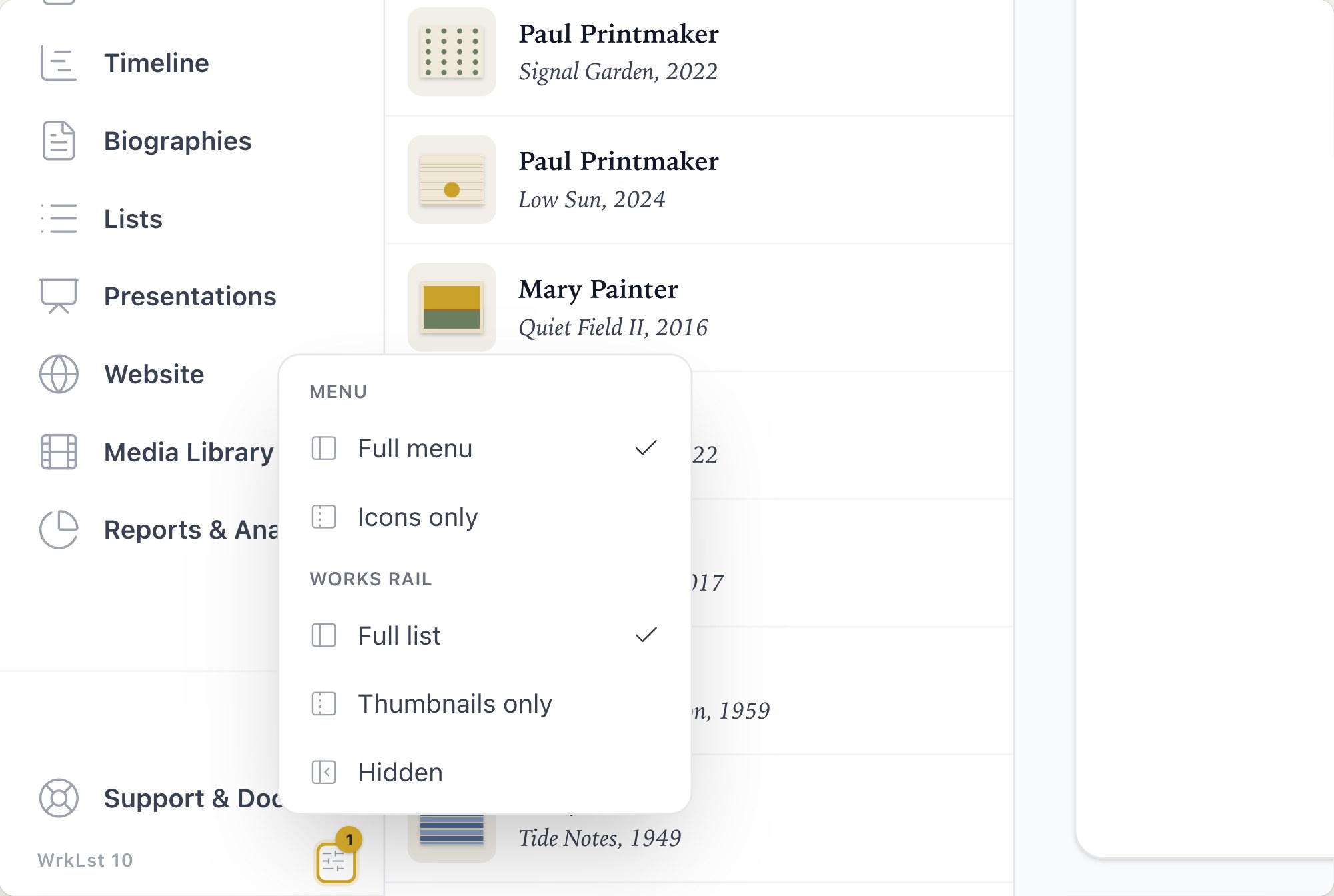
Layout settings at the foot of the menu: 1 Layout settings
Views and your default view
Works can be shown as a grid, as a card list (a large picture beside the work's details, price, owner, location, consignment and exhibition) or as a table. The view button in the works toolbar and Alt+V step through the three. Under Settings → Preferences, Default view decides which one opens first, and Default inventory order how the works are sorted. The works inside a list, exhibition, consignment, sale, shipment or presentation have their own view button in the section header: list, card list or pictures.
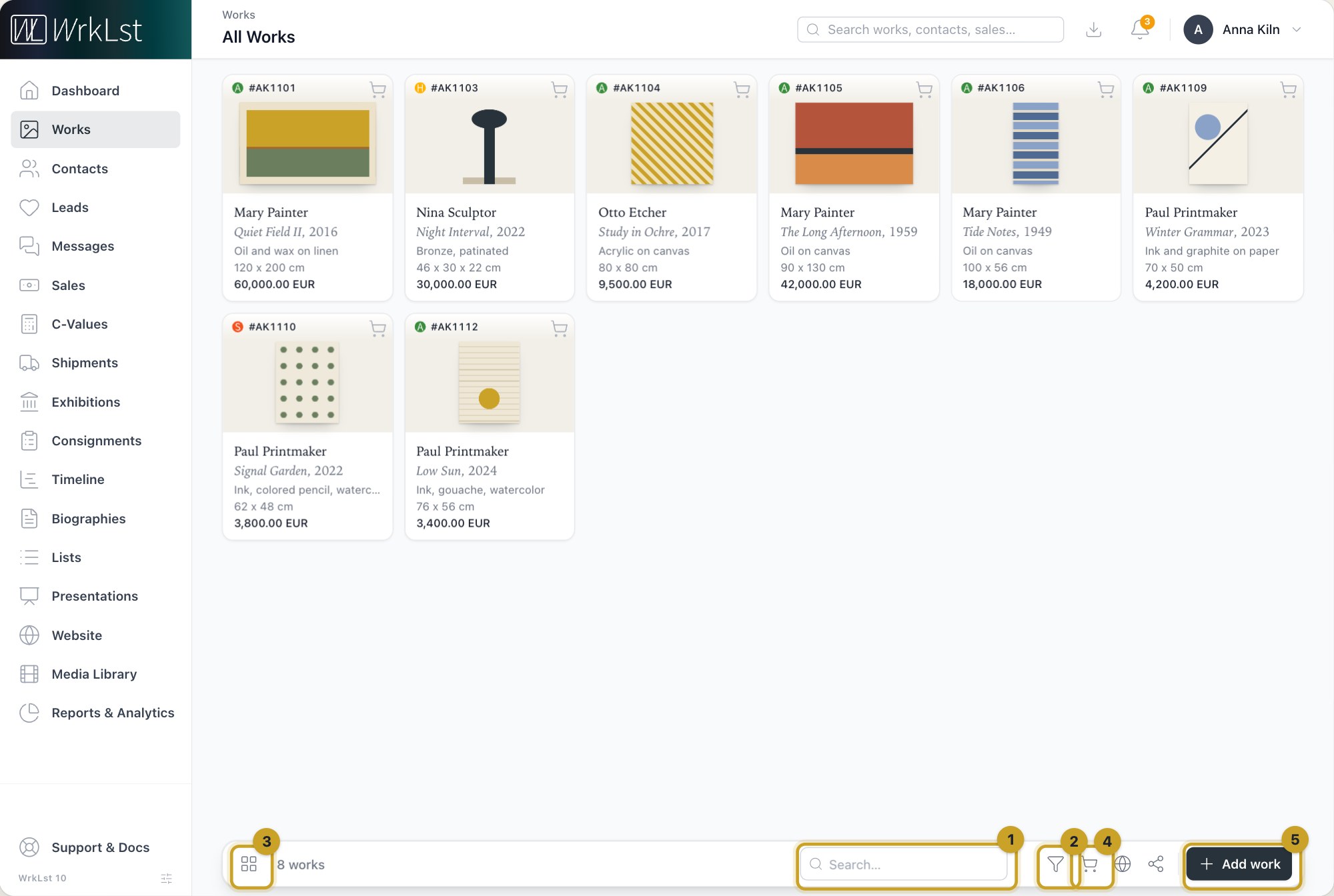
The works toolbar: 1 Search… · 2 Filter · 3 Switch view · 4 Basket · 5 Add work
The colour behind images
The colour behind your artwork, in the work detail, the enlarged view and every image frame, is set for the whole account under Settings → General Account, one colour for light mode and one for dark mode.
Presentation mode
When you show WrkLst on your screen to a client or a visitor, choose Presentation mode in the menu under your name, or press Alt+P; a tick marks it as on. The menu then shows only Dashboard, Works and Exhibitions. Works show their price only while they are available, and no owner or buyer; a work's internal details — such as its notes, locations, leads, insurance values and what it was acquired for — stay hidden, and so does everything from Opportunities and the contact log. The same choice, or Alt+P again, turns it off; reloading the page turns it off as well.
Search and shortcuts
The search field at the top of every page is always open: click into it and type to find works, contacts, sales, consignments, exhibitions and shipments, or press Q to jump into it. Escape empties and closes it. On a phone, the magnifying glass in the header opens it. Alt+V switches the view of a list, and Alt+P turns presentation mode on and off.
Account tabs
If you work in more than one WrkLst account, you can keep them as a row of tabs at the top of the screen; see Working in several WrkLst accounts.
Tabs, phones and accessibility
Right-click or ⌘/Ctrl-click a menu item, a search result or a link to open it in a new browser tab. On a phone, the header keeps search, notifications and your account menu within reach, the bar at the bottom of a record keeps every button available, and every icon button has the same, slightly larger size that is easier to hit. WrkLst is built toward WCAG conformance.