Artwork images: upload, edit, view and download
On this page
How to add images to a work, rotate them and set their focal point, view them full screen, choose the colour behind them, and download or copy them in the size you need. This article describes WrkLst 10.
Adding images
Drag photos straight onto a work's image area, or use Add images. They upload right there, in the order you drop them, and you can enter the Photo credit or Choose photographer once for the whole batch; Add to work then adds them to the work. Each file can be up to 100 MB.
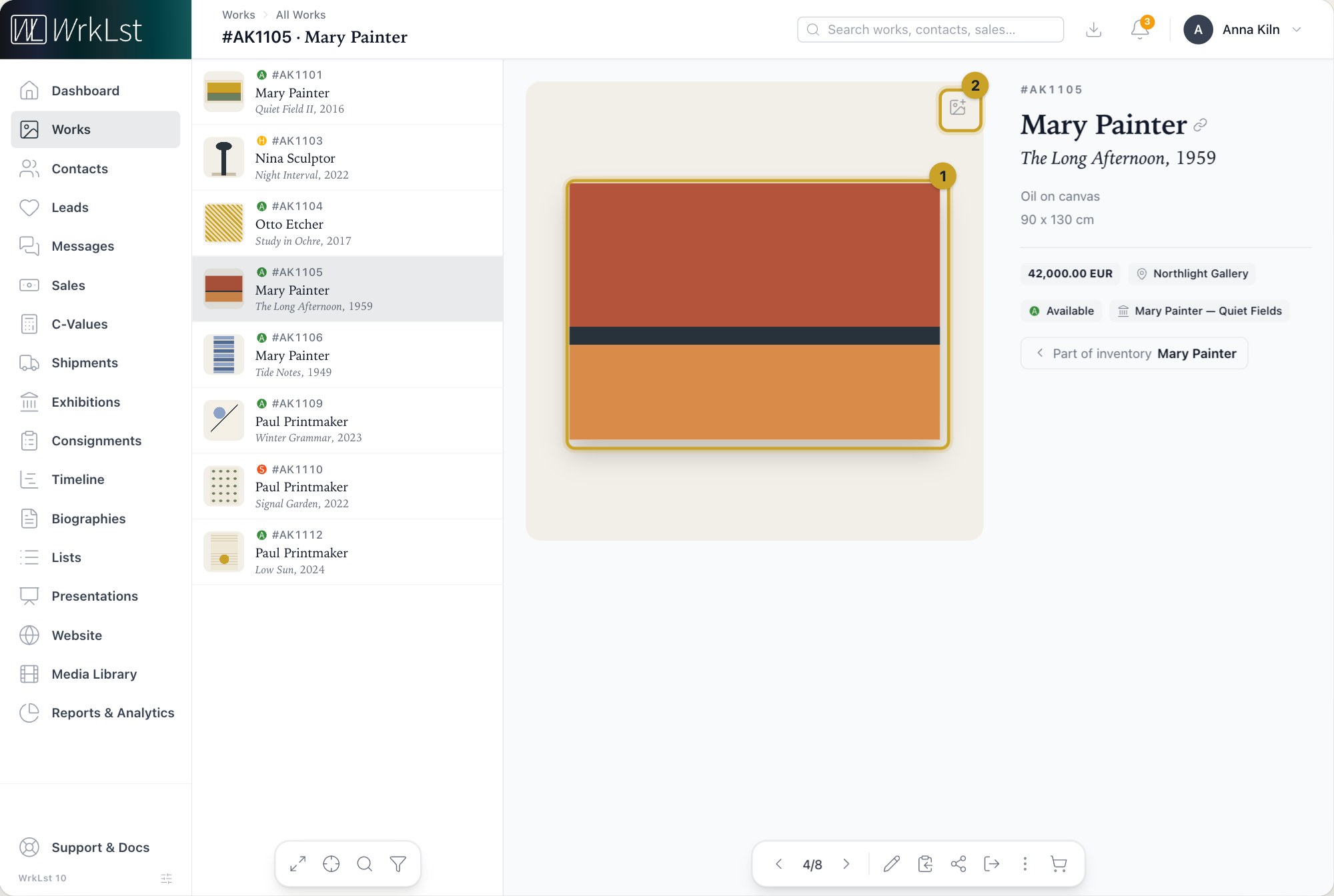
On the work: 1 Enlarge image · 2 Add images
In the work's form, the Artwork images field under Basic data does the same with Add, and Search attaches a picture that is already in the Media Library. There you also mark the Primary image with Make primary, move images earlier or later, and decide per image whether it is Publishable — the setting that controls what leaves the house in presentations, documents (those of sales, consignments and shipments and the invoice included), emails from Share → Email, the image download and on your WrkLst website.
Editing an image
Edit image opens the image editor: set the Rotation, and click the image — or nudge with the arrow keys, Shift for bigger steps — to set the focal point, the spot that crops and covers centre on. The preview shows exactly what will be displayed. The same editor opens from the Media Library, from a record's documents and from the media form. A file's name, Credit, Documentarian / photographer and Confidential flag are edited in the Media Library — see Media Library.
Viewing images full screen
Click any artwork image to open the Image viewer. Zoom in with the scroll wheel, a pinch or a double-click, pan around the detail, and open Details to read the full caption beside the image — artist, title, medium, dimensions, edition, signature and credits, price and location. Swipe or use the arrow keys to move through a work's images and, when you opened it from a list, straight on to the next work. Enlarged from a sale, the viewer shows the same full caption plus a link back to the work inside the sale.
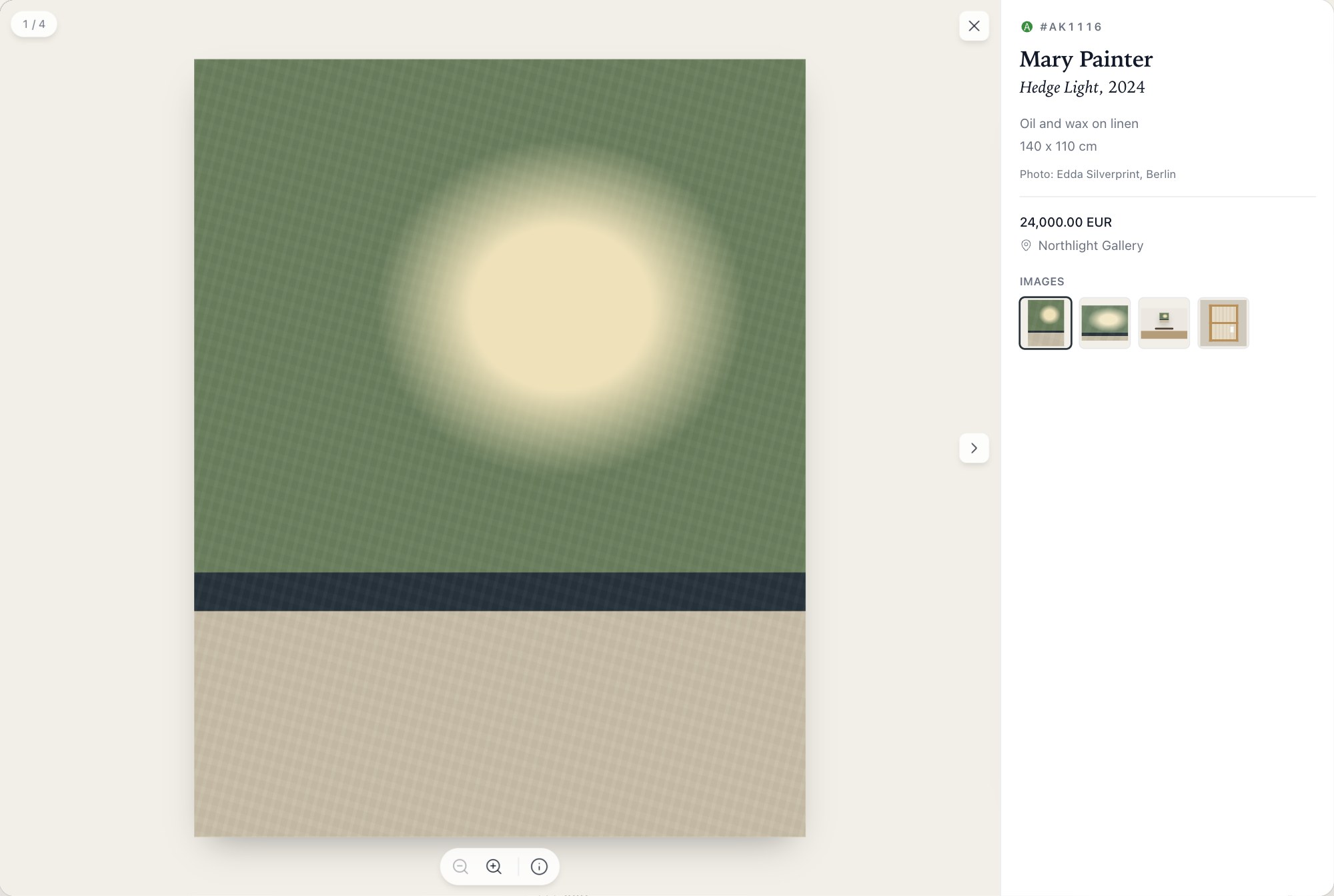
The image viewer.
Documents and videos attached to a work open in place as well: PDFs page through in the window, Vimeo and YouTube play inline, and Download or Open in new tab are always one tap away, on the phone as on the desktop.
The colour behind images
The colour that sits behind your artwork — in the work detail, the enlarged view and every image frame — is set under Settings → General Account → Image background: one colour for light mode and one for dark mode, or Reset to default to put both back to the WrkLst colour. It applies to everyone in your account.
Downloading images
Open a work and expand its Artwork images section to download any single image at the size you need, or Download all from the section header.
For a selection — the basket, or the works you have found — choose Download Images from the share menu. The dialog — titled Download images of works in basket, for example, or Download images of found works — asks for the Image selection (Only primary image, Publishable images or All images), whether to Include captions and in which Caption style (Base data, Owner / credit or, if you may see prices, Price / owner / credit), and the Sizes — any of Hires (JPEG, 3000 px wide), Lores (1500 px), Quick (800 px) and Raw, the original file. Then Start download: WrkLst prepares the selection, and your browser saves the images one after another, each caption as a text file beside its image. Whether images download under their original filename or a contextual one is set under Settings → General Account.
Copying an image or a caption
Copy caption on a work opens a small panel that starts with its Image: right-click it and choose "Copy Image" to paste it straight into an email or document. Below it follow the captions — Price (when the work has a price) and Owner — each with a Copy button that puts the caption on the clipboard without any stray formatting.