Automatic Import: let AI do the data entry
On this page
Drop in a spreadsheet, a PDF catalogue, a document or the link to a page listing your works, and let WrkLst prepare the records. You review and approve every one before it is added. This article describes WrkLst 10.
What you can drop in
- A spreadsheet — CSV, TSV, XLSX, XLS, ODS, XLSM or JSON. Spreadsheets are read one file at a time, up to the first 2000 rows.
- A PDF, or a document in DOCX, ODT, DOC or RTF — a catalogue, a price list, a condition report.
- The address of a web page that lists works: a gallery page, an auction page, an Artlogic private view or a WrkLst presentation.
Each file can be up to 25 MB. WrkLst reads what it finds and catalogues the works, which removes most of the typing from a migration or a new consignment list. If you come from ARTBUTLER, GalleryManager or Gyst, WrkLst support brings your data over with dedicated importers that map those systems' fields straight onto WrkLst — see Larger migrations below.
Where to find it
Open Settings → Import and choose Open Artwork Import under AI Artwork Import, or, inside an inventory, choose Import works in the works toolbar. The importer needs AI features to be switched on for your account; an administrator does that under Settings → General Account → AI features. For a single work, the work form's own Drop caption and File import tabs may be all you need — see Creating New Artwork.
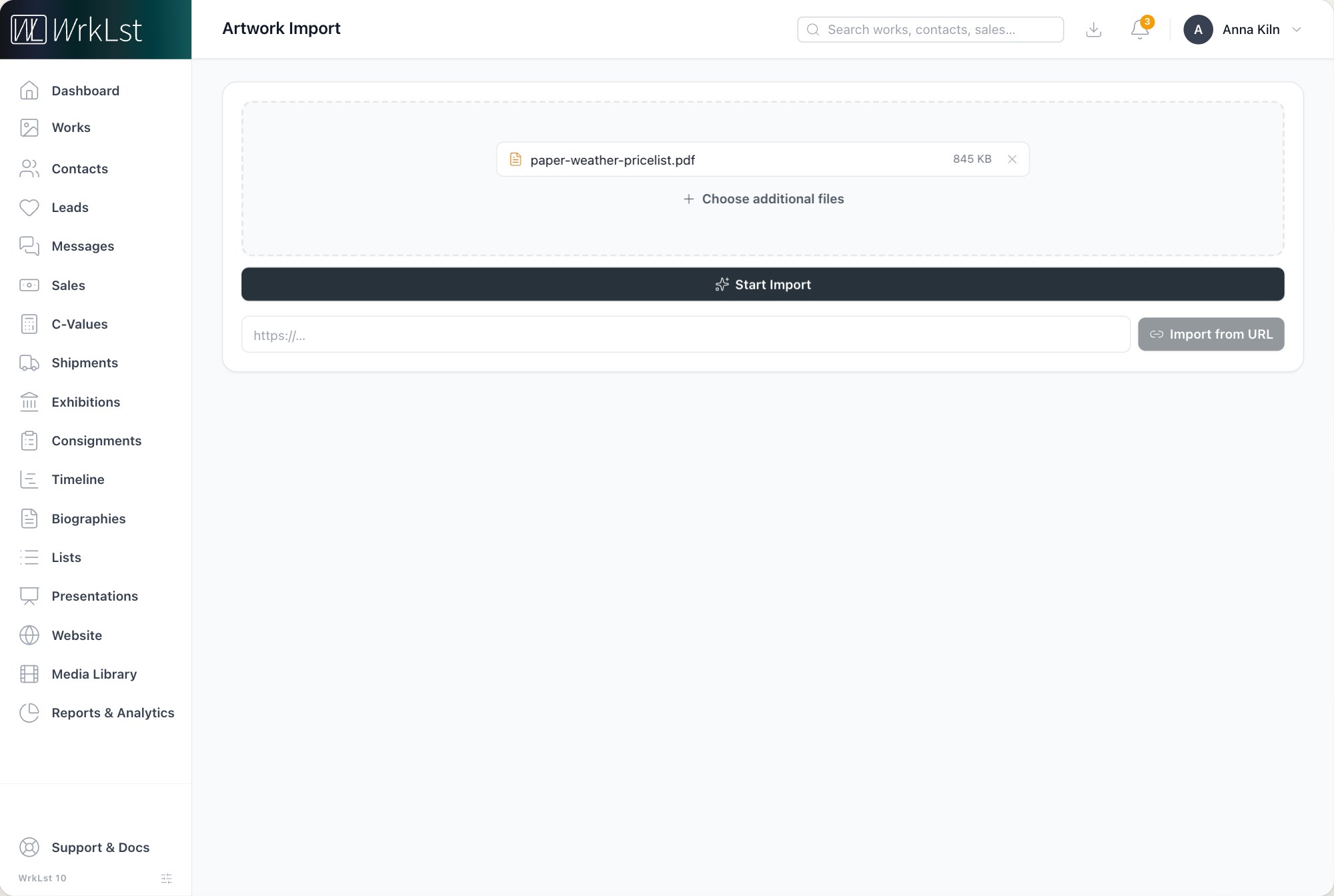
The import.
How an import runs
- Choose files or drag them in, or paste a link and choose Import from URL. Then Start Import. WrkLst shows what it is doing: uploading, reading the page or document, extracting artwork data and, for a PDF, reading its images page by page.
- For a spreadsheet, WrkLst proposes which column holds which field — artist, title, year, medium, inventory number, credit, copyright, dimensions in one column or as height, width and depth, price and currency, image address. Adjust anything that is wrong, set the Dimensions unit used where a size has none, and Apply mapping.
- Every work then appears in a review table, with a count of how many are selected and — where WrkLst could not read a spreadsheet cell, or read a web page with AI — how many need a check. Artists are matched to your existing contacts automatically; a name without a match is created as a new artist on import, and you can click any artist to change the match. Click a thumbnail to choose the work's image or images; click a work's Page link to open the source PDF beside the table. Show / hide columns keeps the table to the fields you care about, and Remove work or Include work decides what goes in.
- Pick the Target inventory and choose Import … works. WrkLst reports how many works were created, and View in inventory takes you to them; Import more starts the next file.
After an import from a link, WrkLst names what it read the page as — "Read as Artlogic Private View", for example — and says when AI did the reading, so you check every work with particular care. If a page came out wrong or incomplete, choose Send this URL to WrkLst so we can improve it, add a comment on what was wrong if you like, and Send feedback.
Nothing is added without you
Every record is presented for review first. You approve what is correct, fix what is not, and discard the rest. The import never writes straight into your inventory behind your back.
Consent and transparency
Automatic import is an AI feature, and it is labelled as one. WrkLst does not run AI over your data without your active, prior consent, so nothing here happens until you have agreed to it. AI can also be switched off for the entire workspace.
How the AI is handled
Processing runs on open-source models hosted in Switzerland. The prompts used to extract your data are never recorded and are never used to train AI models. See Does WrkLst use AI on my data?.
Larger migrations
If you are moving an existing database or a pile of spreadsheets into WrkLst, the WrkLst team does that with you rather than leaving you to it. Contact support@wrklst.art.