Customise General Account Settings
On this page
The General Account settings adapt WrkLst to your organisation: your name and addresses, regional formats, the default language, and how works are shown. They apply to the whole account, so it is worth setting them once, early, before you start entering data in earnest.
Where to find them
Settings has two groups: Personal, which holds your own settings, and WrkLst account, which holds everything that applies to the account as a whole. General Account is the first entry of the second group. Invoicing, Consignments, Leads, Presentations, Integrations, Backup, Webhook Sync and Import follow it, each an entry of its own in the settings menu. If you cannot see an entry, your role does not include it; ask an administrator. The search field above the menu finds an entry by what it holds: type "VAT", "logo" or "backup" and the menu shrinks to the matching entries.
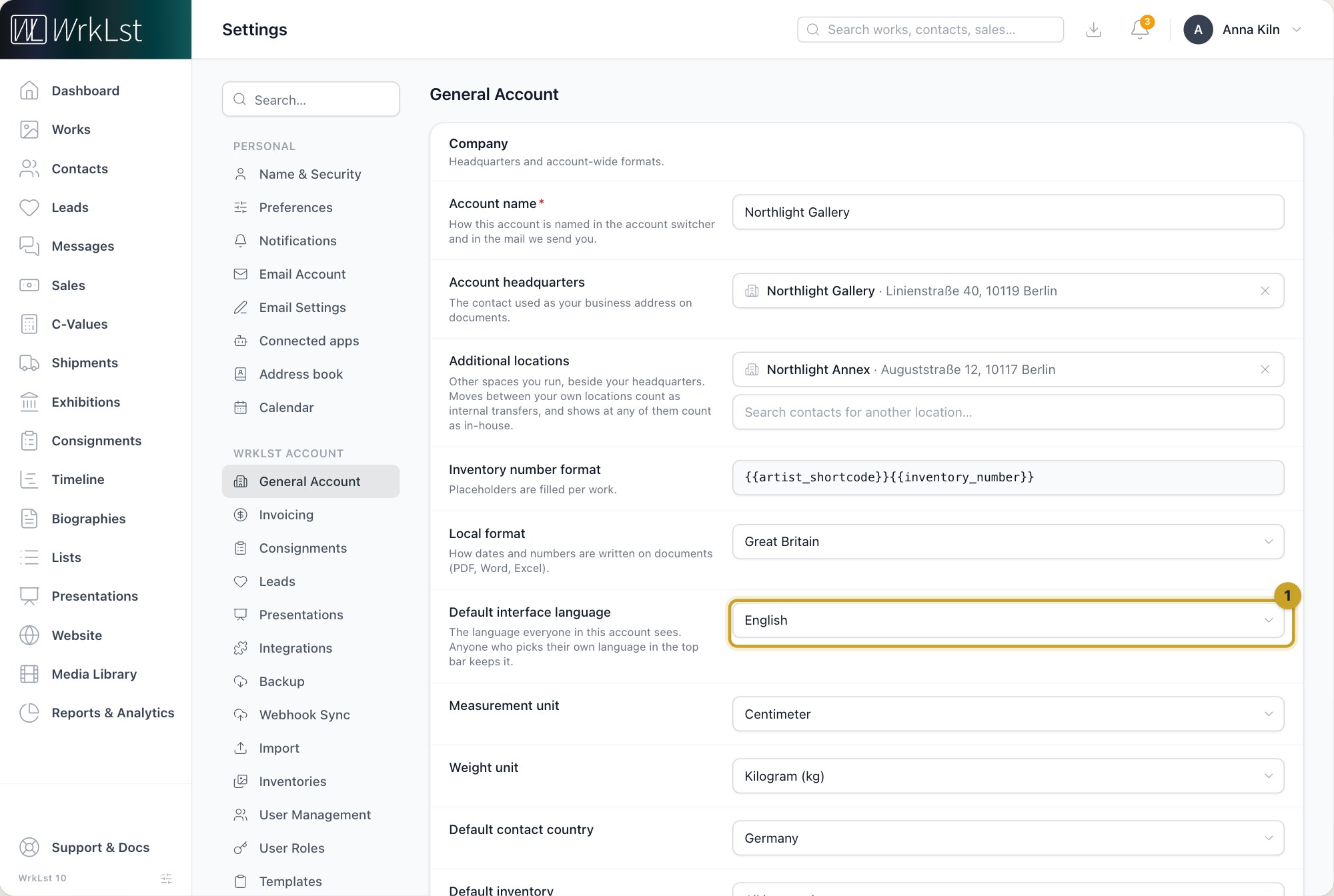
Settings → General Account: 1 Default interface language
Company
Under Company you set the Account name, which is how the account is named in the account switcher and in the mail WrkLst sends you. The Account headquarters is the contact used as your business address on documents.
If you run more than one space, add them under Additional locations. Moves between your own locations then count as internal transfers rather than third-party business, and you can filter for them in consignments and shipments. Exhibitions at any of your spaces count as your own, and a sale says at the top which space it came from. Letterheads can belong to a space too, so only that space's stationery is offered.
Formats and defaults
The Inventory number format decides how inventory numbers are built; its placeholders (artist shortcode, inventory number) are filled per work. Local format sets how dates and numbers are written on documents (PDF, Word, Excel). In English, the emails WrkLst sends and public pages such as presentations and your website write dates the British way, such as 20 October 2026. The Default interface language is the language everyone in the account sees; anyone who picks their own language in the menu under their name keeps it. Below that you choose the Measurement unit, the Weight unit, the Default contact country, the Default telephone code, the Default inventory that opens first, and the Preferred caption style. With Deutsch: „Title“, 2017, the captions WrkLst writes are German too: edition lines such as „Auflage 2 von 6, 2 AP“ or „Unlimitierte Auflage“, „Inventar-Nr.“, the owner line „Sammlung …“, and exhibition captions with German month names and words such as „laufend“ and „Termine folgen“ — also in WrkLst Classic's exhibition caption preview and in the exhibition dates of the WrkLst app.
Under Locations you set the Work location order (most used first or alphabetical) and the Default locations offered on a work.
Image background
The Image background is the colour behind your artwork in the work detail, the enlarged view and every image frame. Pick one colour for light mode and one for dark mode, or put both back with Reset to default. It applies to everyone in the account.
How works are shown
The Work detail summary decides what the summary of a work includes — the price, the price notes and the Assigned galleries — and how measurements behave, including whether price factor options are shown. Under Optional inventory fields you switch on the fields you need on works: framed, unfinished, not produced, extended caption, context description, series, copyright, packing, production cost, assigned galleries, tags and Acquisition information — without it, Collection Values (C-Values in the menu) shows no acquisition column. Edition manager holds the options for editions created from a template. Availability & display lets you hide availability in the overview, show the work signature, and activate offers as a precursor to a hold or sale; Show imported data under info adds an Imported data field to the works filter, so you can search the data works were imported with. Exports & shortcodes covers image file names on download and artist-specific shortcodes.
AI features can be turned off to opt out of all AI processing in the account; the affected tools stay available in their non-AI form.
Invoicing
Invoicing holds the defaults every new sale starts with. Under Invoicing defaults you set the Default payment due days, the Default currency and the Default invoice type (Invoiceable or Record only); under Payments, Disable payment information switches payment information off, and Default credit card fee in % is the fee a sale starts with when it charges one through its payment link — each sale can still change it. Under Tax you set the Default VAT % and the Default VAT label, and with Add tax rate further Alternative tax rates that can be chosen on invoices. Invoice numbering holds the Next free invoice number and the Invoice number format, and Invoice terms the terms and conditions blocks you pick on an invoice (Add term). Numbered invoices with invoice bookkeeping, e-invoices and the DATEV export are set up under Accounting — see Invoices: numbered invoices, e-invoices and DATEV export.
Consignments
Consignments holds the Consignment numbering — the Next free consignment number and the Consignment number format — and the Consignment terms, terms and conditions blocks you pick on a consignment (Add term). See Consignments.
Backup
Backup lets you take a complete copy of your data whenever you like. Create today's database backup prepares a full backup of the account as an SQL file, a standard format any database specialist can open; store it securely, because it contains all your data. Under Contacts export, Create today's contacts export prepares a ZIP with all contacts as a vCard (.vcf) file and as a spreadsheet (.csv); confidential notes are included only if you may read them. Large accounts take a few minutes. The page updates by itself when the file is ready, and each one is listed with its date and size for download. You see this entry if your role includes the permission to export a backup.
The other entries
Presentations holds the Account logo, shown at the top of every presentation you share and used as the default logo on your PDF templates, so you set it in one place, together with the header, typefaces and background of your presentations, the Presentation credit, the links to your website, imprint and privacy policy, and your own address for presentation links — see Presentations. Leads holds your account's goals for leads: switch WrkLst's own goals on or off and add your own — see Lead goals, settings and the Leads report. Import opens the contact import from a file and the AI Artwork Import. Integrations connects bookkeeping, online payments, AfterShip and mailing lists — see Email and accounting connections. Webhook Sync keeps the biographies on your website in step — see WordPress Plugin and REST API. Further down, Security checks how well the account is protected — see Security: how well your account is protected — and Website shows the Plan, where a website is added to your plan, and, once your account has a website, its Hosting, Theme, Publishing, Legal pages and Forms — see Website settings: hosting, look, enquiries and legal pages.
When to revisit them
Most people set these once during onboarding and forget about them. Come back to them if you start working in a new currency or region, if you open another space, if colleagues join and need different defaults, or if your document output needs to change.
Still using WrkLst Classic? This topic in the Classic documentation: Customise General Account Settings