Importing works from a spreadsheet
On this page
Bring in a list of works of any length, update works you already have by importing the file again, and let sales, holds, exhibitions and lists come along. This article describes WrkLst 10.
Open Settings → Import and choose Open Artwork Import, then Choose files and pick your spreadsheet (CSV, TSV, XLSX, XLS, ODS, XLSM or JSON, up to 100 MB). There is no row limit: WrkLst reads the file in the background, so a long file takes a while, and you can close the page and come back to it. For documents and web pages, see Automatic Import: let AI do the data entry.
Match the columns
WrkLst shows which column of your file holds which field, and says where the suggestion comes from: the matching you used before for a file with the same headings, an export layout WrkLst knows, the AI, or the headings alone. Check it and change anything that is wrong. Besides title, artist, year, medium, sizes and price there are status, work type, series, signature, edition, notes, description, location and shelf, tags, weight, a second size (framed, sheet …), insurance value, purchase price, production cost, provenance, exhibitions, literature, buyer, sale date, sale price, picture file names and lists. Your own work fields are listed too. A matching you apply is remembered for the next file with the same headings.
If the AI features are switched off for your account, spreadsheets still work: WrkLst matches the columns by their headings and you correct the rest.
For the whole file
- Artist: for rows without an artist, for example a list of one artist's works.
- Inventory numbers: new numbers, with the file's own kept as the legacy number, or the file's numbers kept as they are.
- Work type, and Tag every work, so you find this import again later.
- Add the pictures in the media library named like the inventory number: upload the pictures to the media library first, named AB1001.jpg, AB1001_2.jpg and so on. A column of picture file names finds them too.
If your file has a status column, WrkLst lists every word in it once, with how often it occurs, and you choose what each one means: available, not for sale, on hold, sold, destroyed or unfinished. The usual words are chosen already.
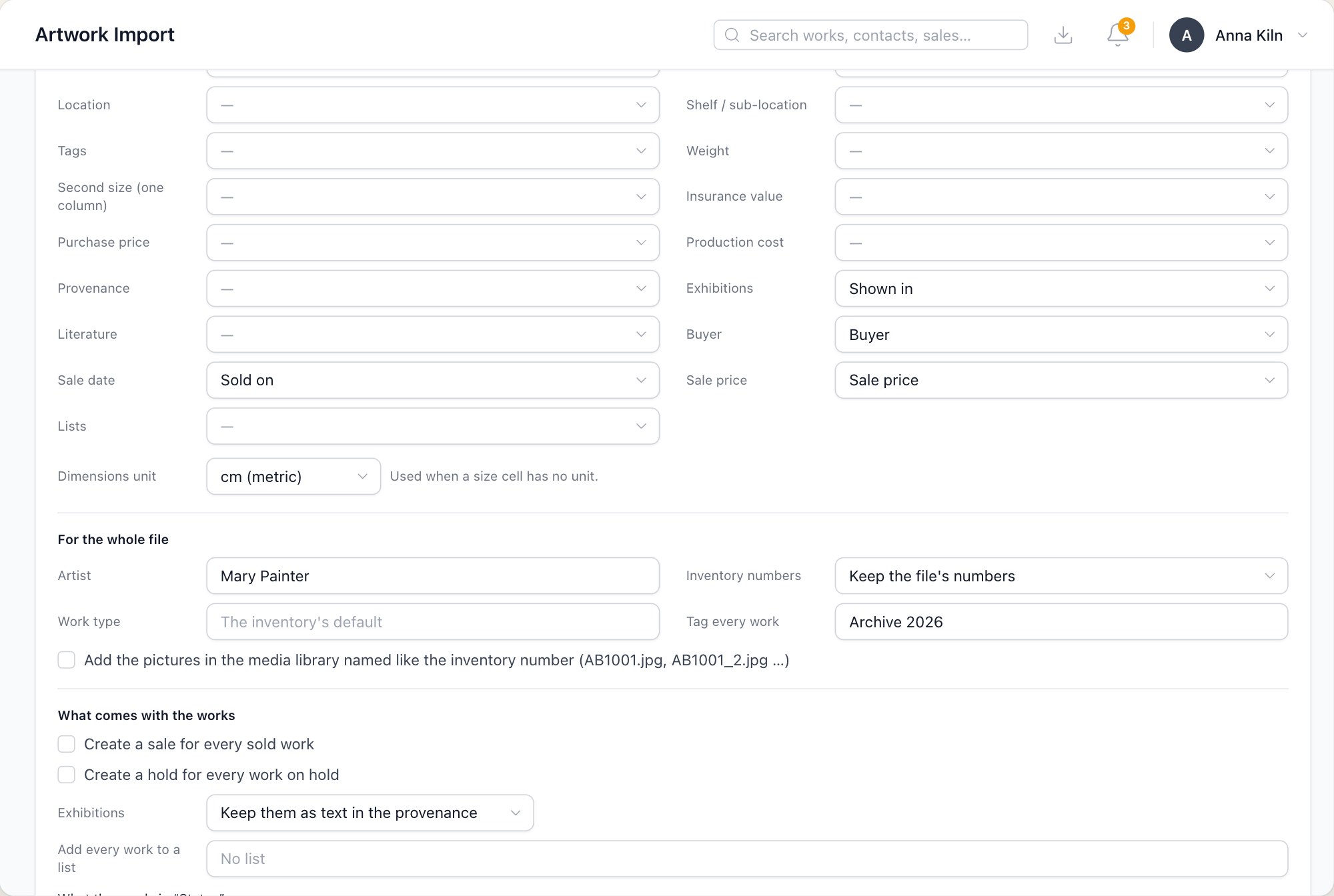
The last rows of the column matching, and below them what holds for the whole file: the artist for rows without one, the file’s own inventory numbers and a tag for every work.
What comes with the works
Under What comes with the works you decide what else is created. Nothing here happens unless you choose it.
- Create a sale for every sold work. It is a record of the sale only: no invoice and no invoice number are created, and nobody is notified. Client, date and price come from the file where it has them. When the file gives no sale date, leave the date open or set one date for all of them; the import day is never used. Each sale counts in your sales reports on its own date. Choose whether These sales are paid.
- Create a hold for every work on hold, with its client.
- Create clients WrkLst doesn't have yet: buyers are found by their name, otherwise created as new contacts.
- Exhibitions: keep them as text in the provenance, link them to the exhibitions WrkLst has, or link them and create the ones it hasn't.
- Add every work to a list, and a column can name further lists.
Provenance, exhibitions and literature become one provenance entry per line of the cell.
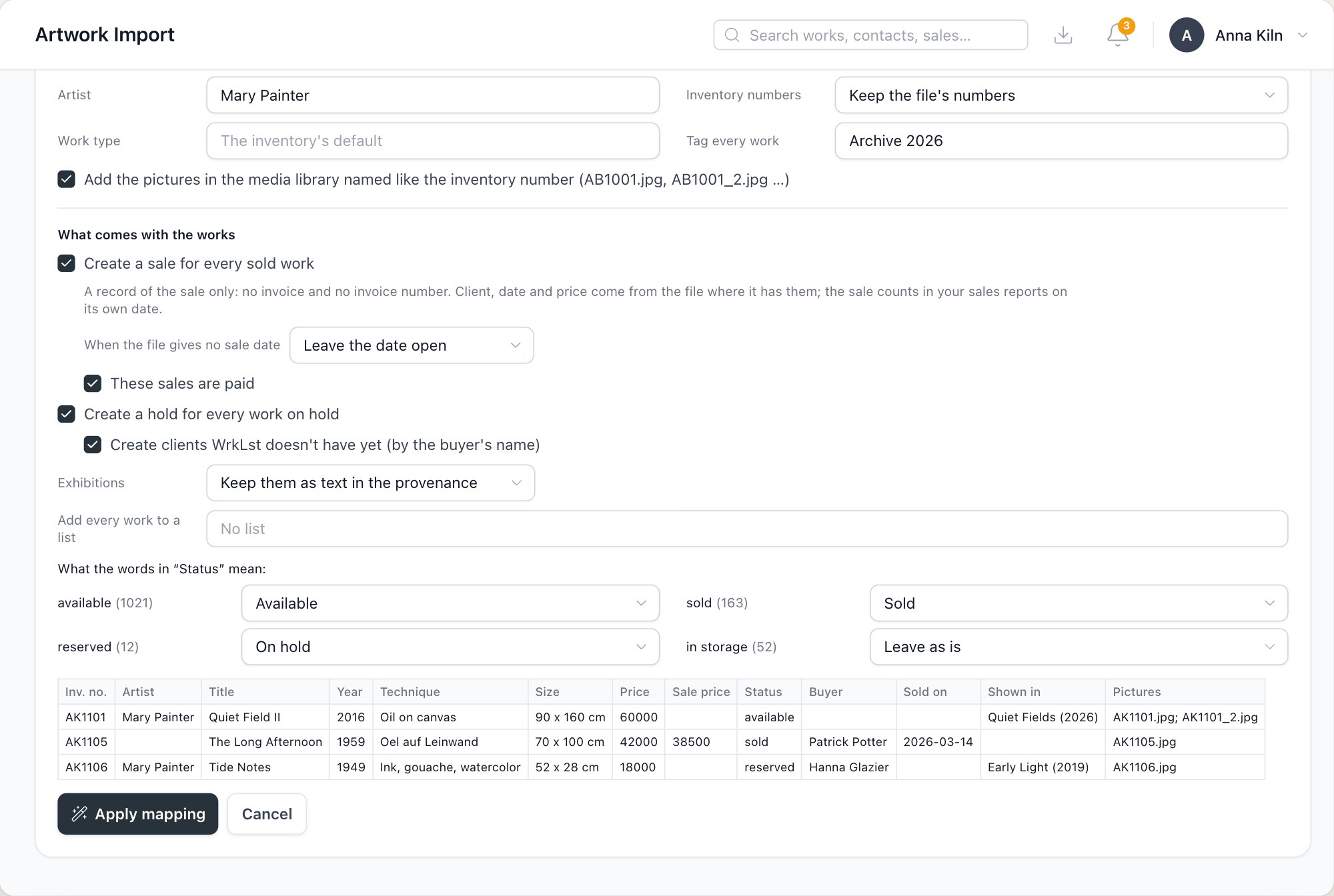
A sale for every sold work, a hold for every work on hold, and new clients from the buyers’ names. Below, what each word of the status column means.
Check the works
After Apply mapping the works appear in the review table, a page at a time. Above it, everything that needs a look is one entry with its count, for example Check: Price (26). Choose it to see only those rows, then fix them or choose Leave these out. Check values lists every value of a field over the whole file, the most frequent first: change "Oel auf Leinwand" once and it changes in every row that has it.
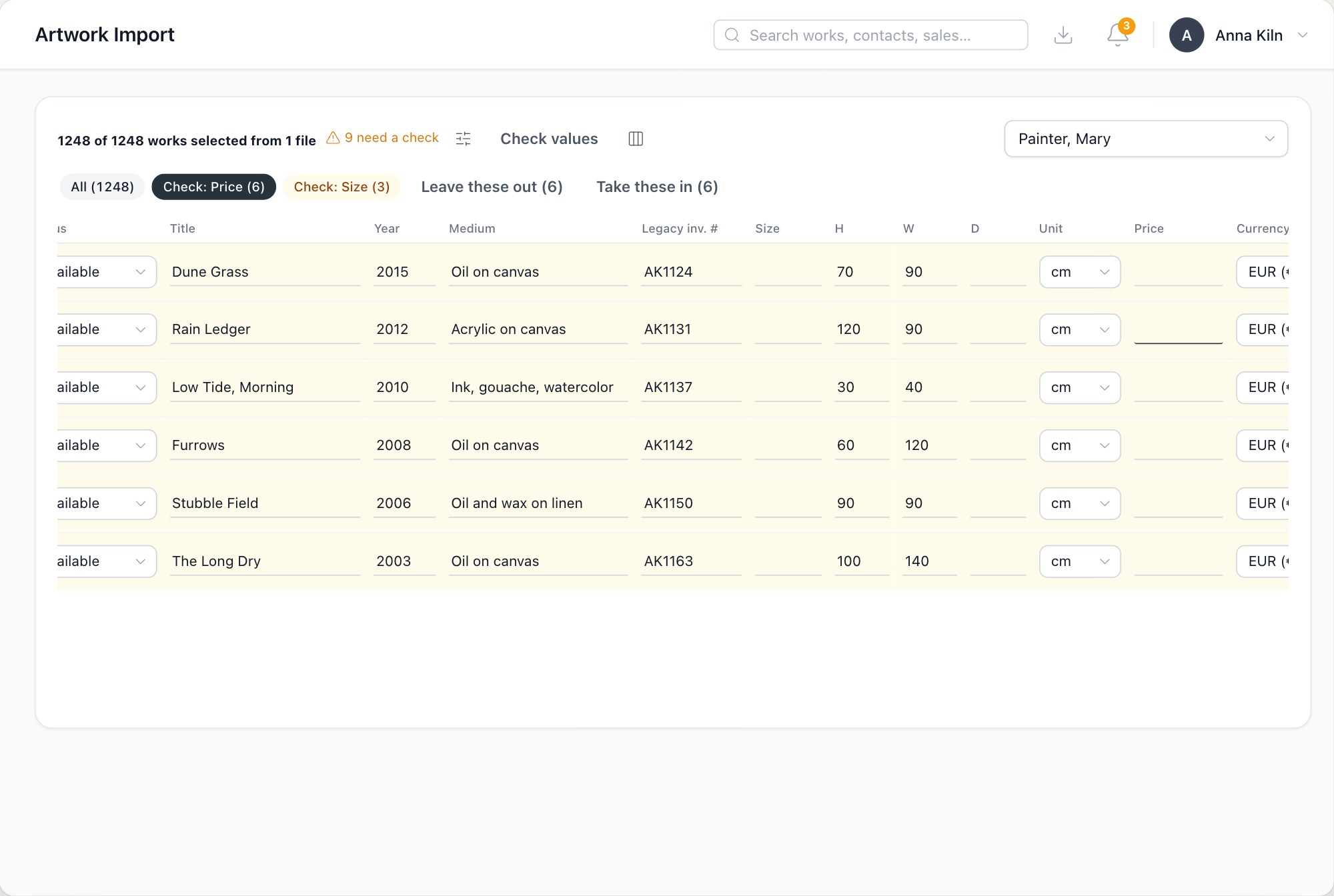
Check: Price is open: only the six rows whose price could not be read are shown, with Leave these out and Take these in beside the entries.
Importing the same file again
Rows WrkLst already has a work for are marked Updates with that work's number. WrkLst recognises them by the file's record ID or by the inventory number, also when the file is an export from WrkLst itself. Choose what happens to them: Fill in what they leave empty, Take the file's values, or Leave them as they are. Taking the file's values keeps earlier prices in the price history. Then choose the target inventory and import.
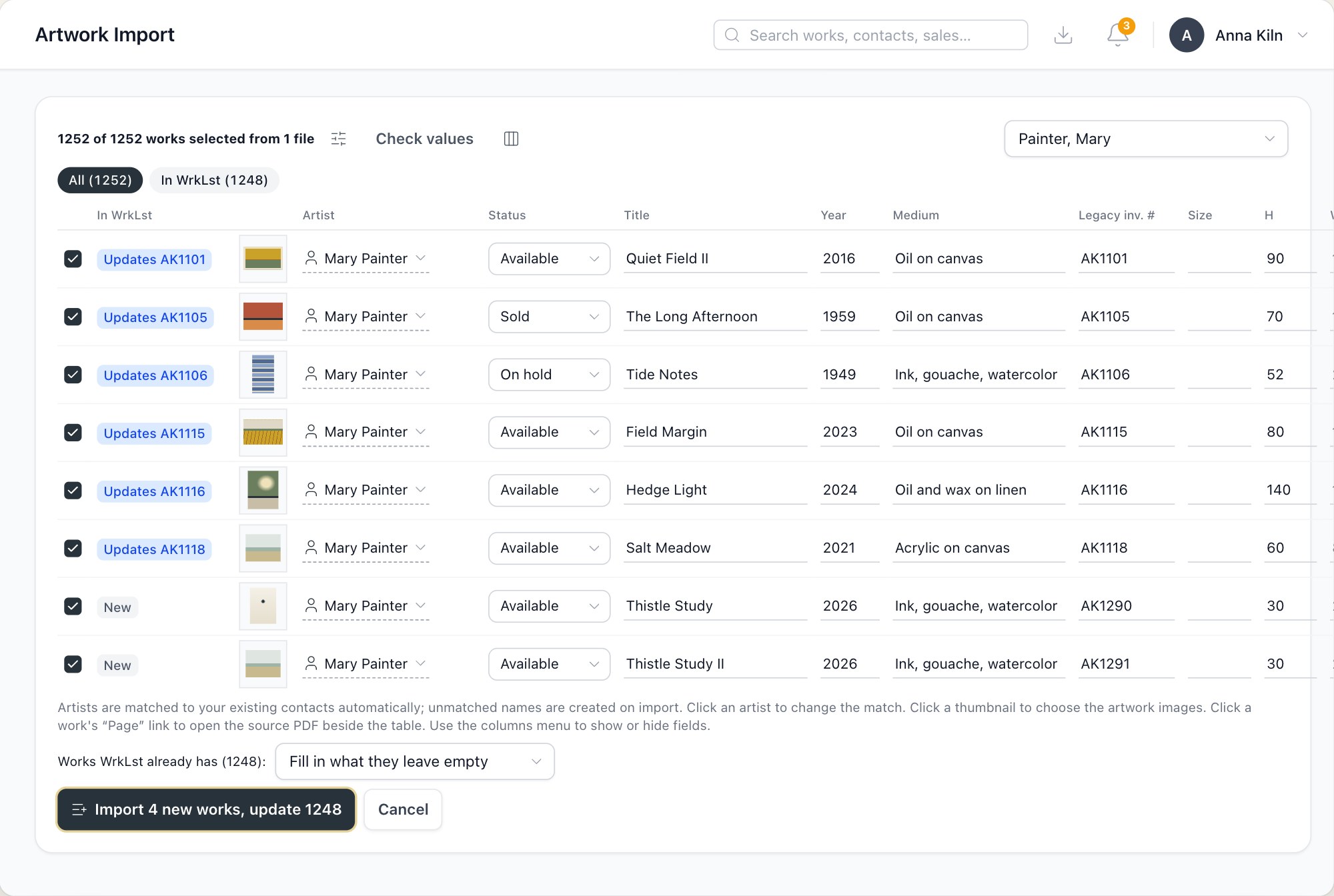
The file imported again: works WrkLst already has are marked Updates with their number, new ones New. Below, what happens to the works it already has.
Undo an import
When the import is done, Undo import removes the works it created, together with their sales, holds and links, and the exhibitions and lists it created once they are empty. A work someone changed since, or that is used elsewhere, stays. Works the import updated stay as they are.